
More in AI Property Finder settings
PROPELOS PARTNER PORTAL GUIDE
Install the Finder on your website
Choose a chat button, search bar, page button, plain search box or hosted page, then copy its code and set the allowed website.
Self-serve AI Search accounts
In this guide
Install the Finder using the entry point that suits your website.
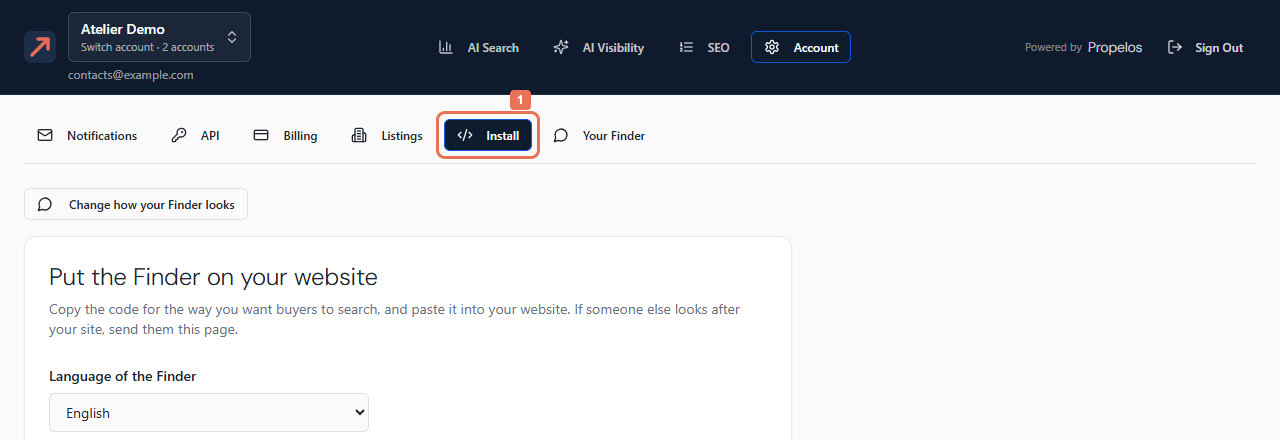
1. Open Install
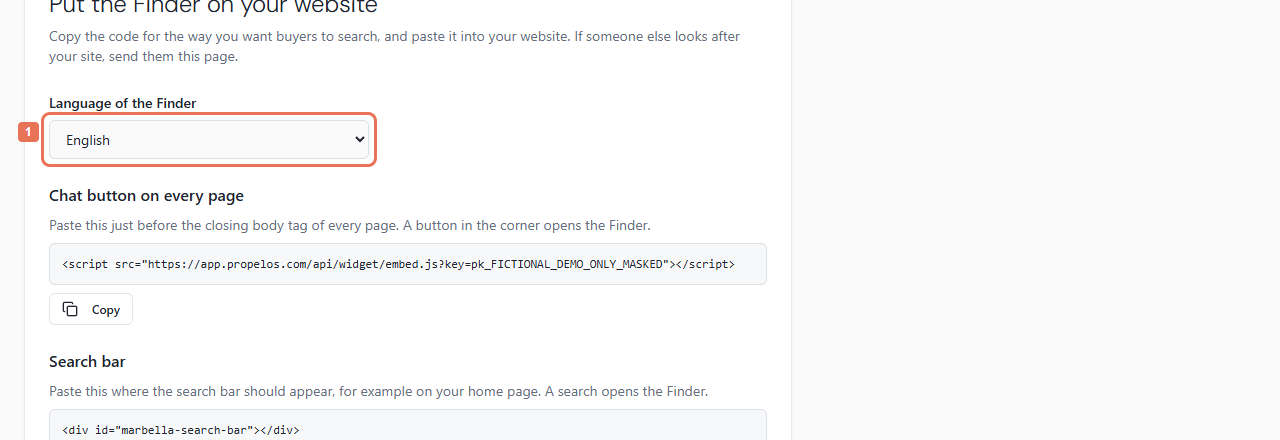
Open Account → Install, or the setup's Install step. Choose Language of the Finder when several language versions are enabled.
 Select the image to view it full size.
 Select the image to view it full size.
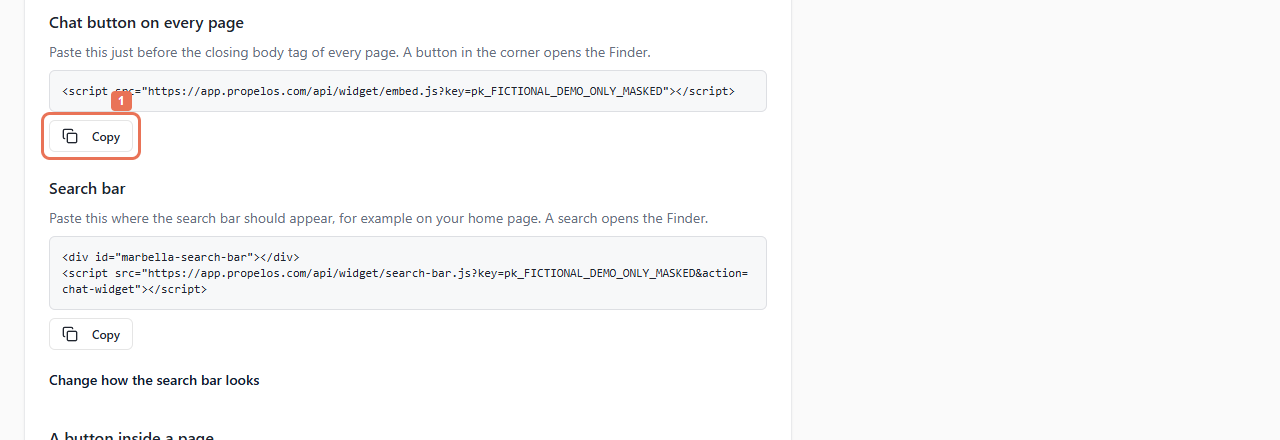
2. Copy the chosen code or address
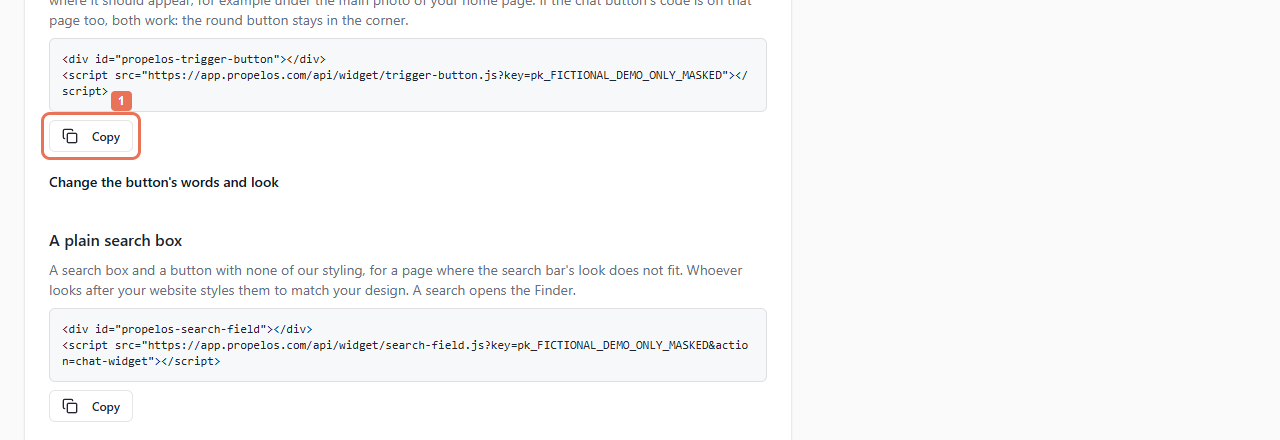
Select Copy in the relevant section and follow its placement guidance.
 Select the image to view it full size.
- Chat button on every page: place the code just before the closing body tag on pages needing the corner button.
- Search bar: place it where a styled search bar should appear.
- A button inside a page: place it where its headline, optional line and button should appear. It can share a page with the corner button.
- A plain search box: place the unstyled box and button where required; your website maintainer styles them.
- Your search page: link to its address from a menu, or use its second code to show the hosted page inside your own page.
 Select the image to view it full size.
Where to paste it offers WordPress, Wix and Squarespace guidance. Give the code and placement instructions to your maintainer if someone else edits the site.
3. Save the allowed website
Under Where the Finder appears, set Your website and, if needed, a Test address on a supported preview host. Select Save. The plan covers one website and its subdomains; addresses added by Propelos are shown separately.
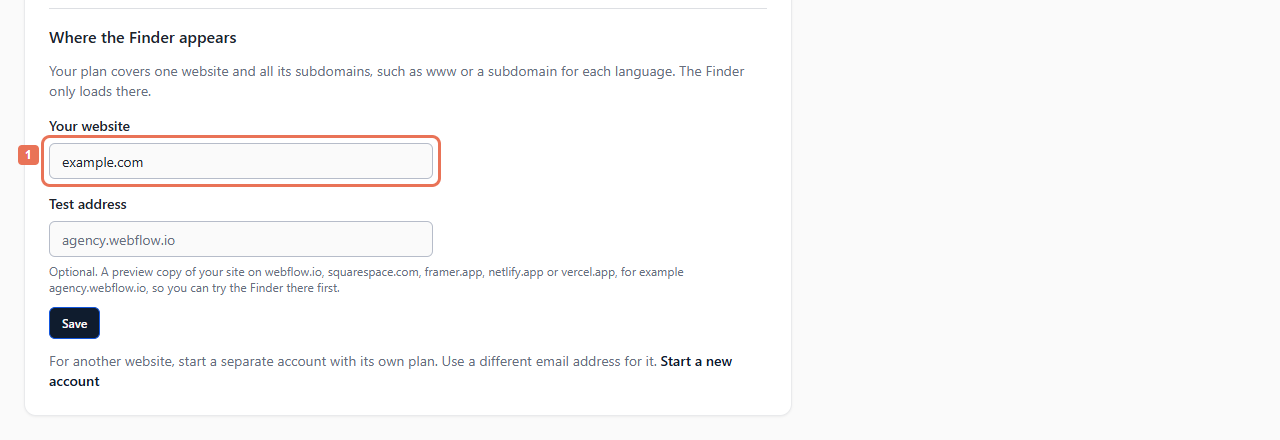 Select the image to view it full size.
4. Test your installed Finder
After go-live, open an allowed page on a computer and phone and run a search. Preparing code before go-live does not activate it. Saving appearance settings does not install code into your site.
Use Change how your Finder looks to personalise it, then save before testing. Managed customers ask Propelos for installation changes.