
More in AI Property Finder settings
PROPELOS PARTNER PORTAL GUIDE
Change your Finder's logo, colours and fonts
Use Look to adjust your self-serve Finder's logo, colours, fonts, icons and Propelos credit, then preview and save the result.
Self-serve AI Search accounts
In this guide
Match the Finder to your website with your logo, colours and fonts.
1. Open Look
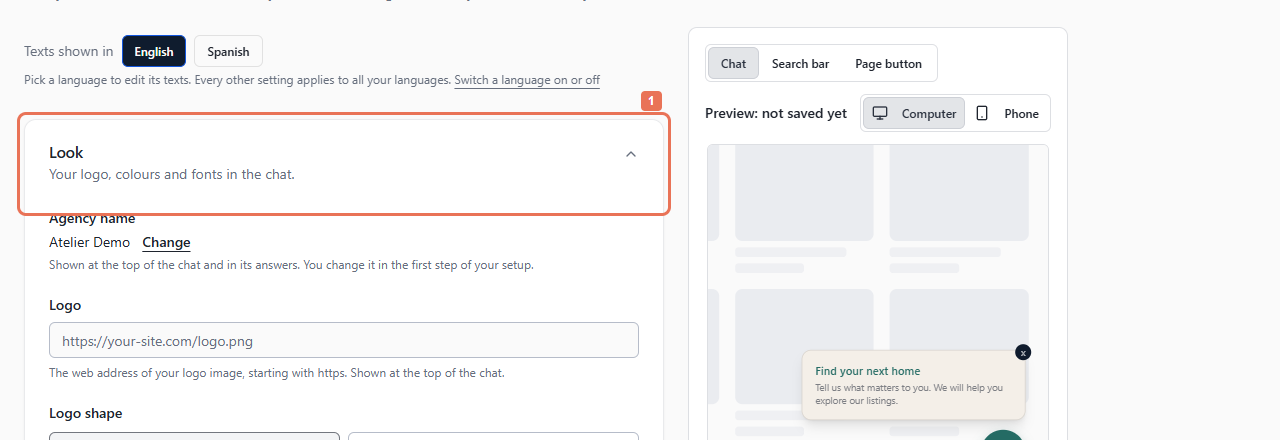
Open Account → Your Finder → Look. For a different Agency name, select Change to edit it in Your agency.
 Select the image to view it full size.
2. Add your logo
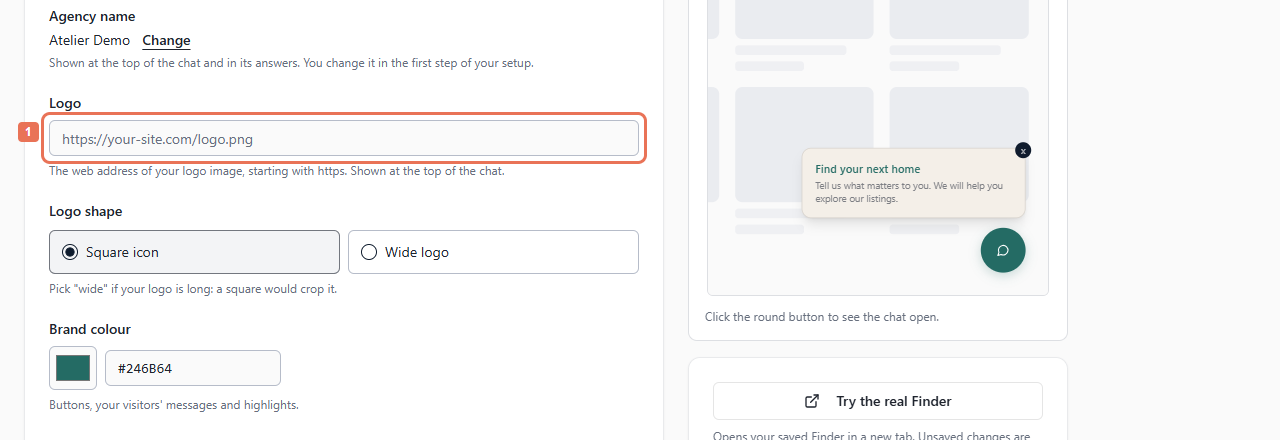
Paste a public HTTPS image address in Logo. Choose Square icon or Wide logo under Logo shape to suit the image.
 Select the image to view it full size.
The logo must load without signing in. This field takes an image address.
3. Choose colours and fonts
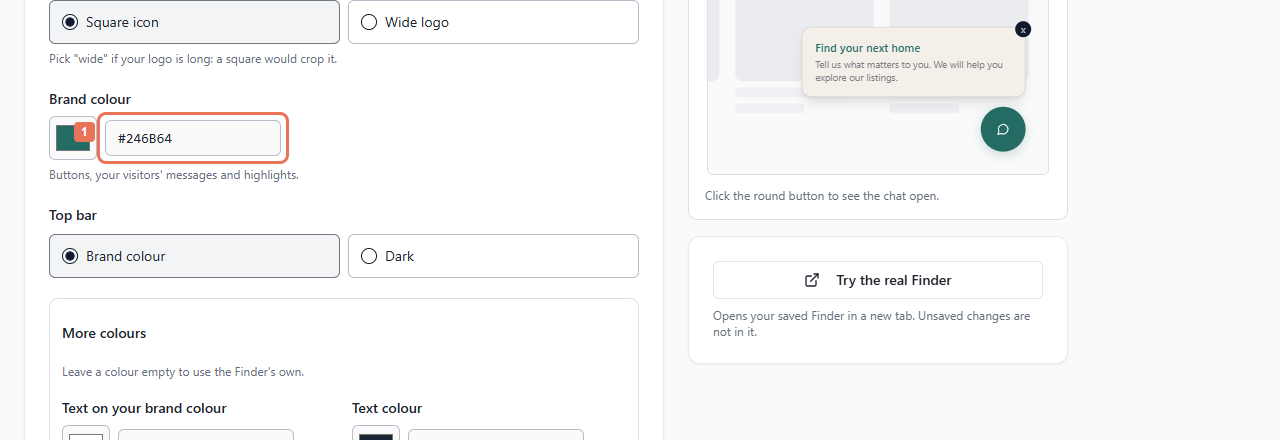
Set Brand colour and Top bar. Open More colours for text, background, cards, bubbles and lines. Empty optional colours use the Finder's choices.
 Select the image to view it full size.
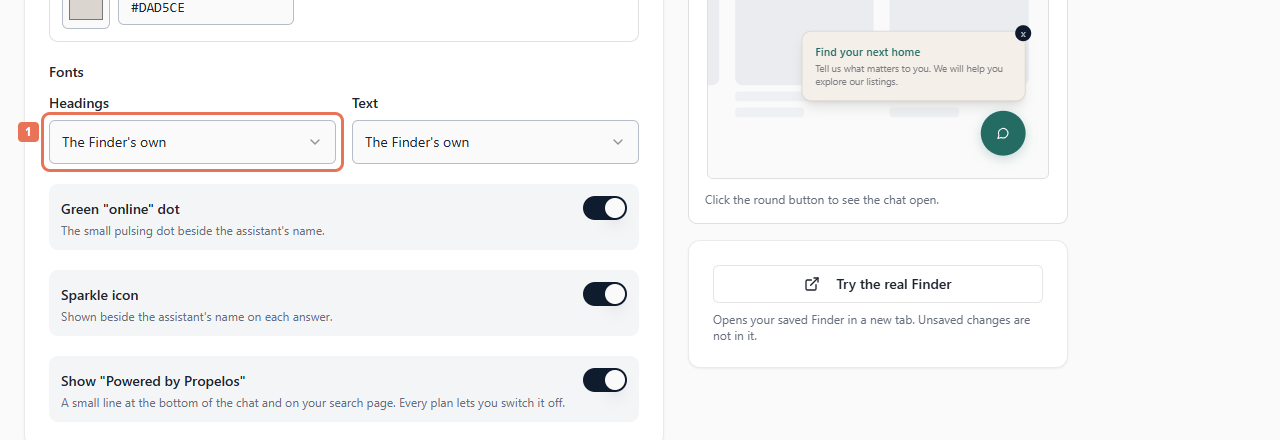
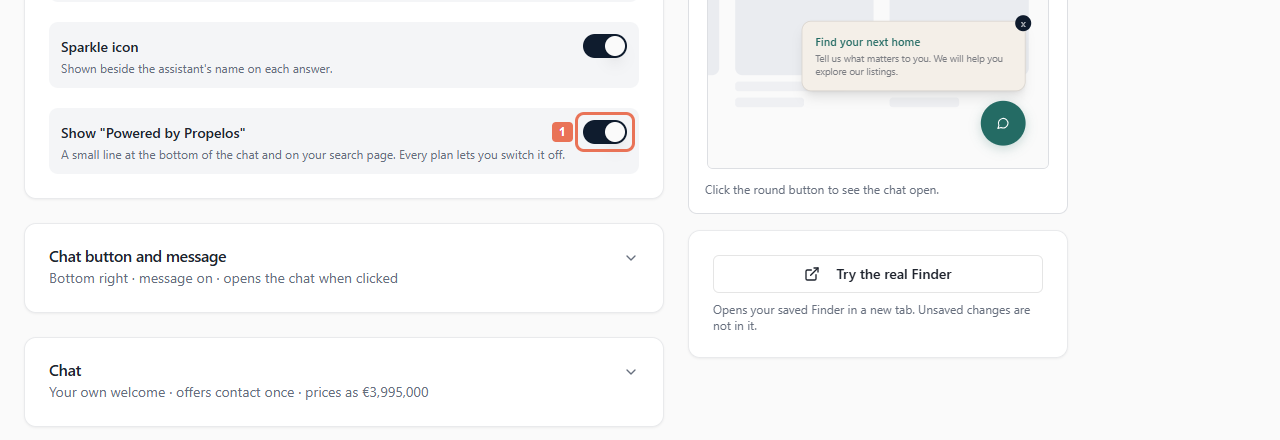
Under Fonts, choose Headings and Text or The Finder's own. Set the Green "online" dot and Sparkle icon as wanted.
 Select the image to view it full size.
4. Choose credit visibility
Use Show "Powered by Propelos" when enabled. An eligible chosen plan, including an active trial, allows it to be hidden. Preview accounts need a plan first. Ended or suspended service shows the credit again; an eligible restart lets you hide it again.
 Select the image to view it full size.
5. Preview and save
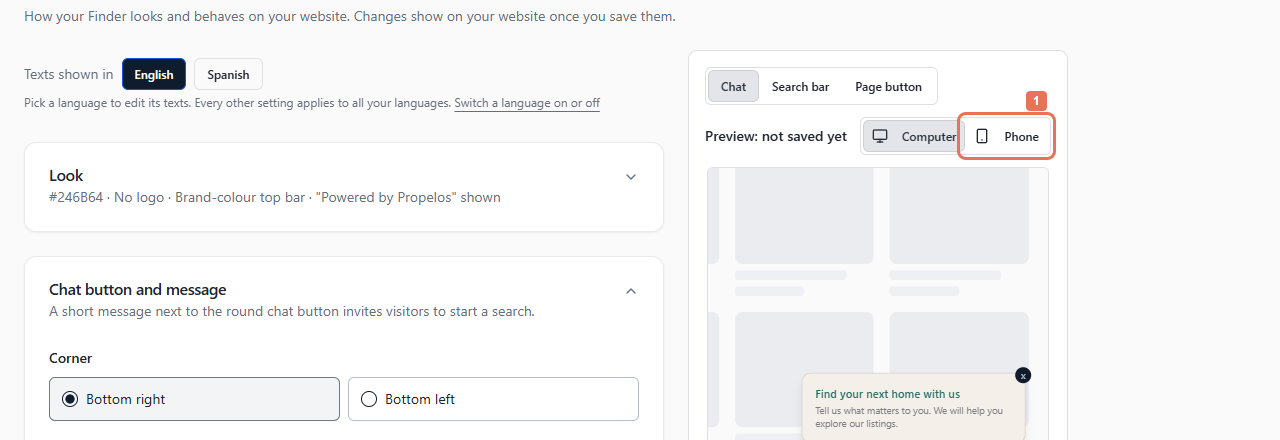
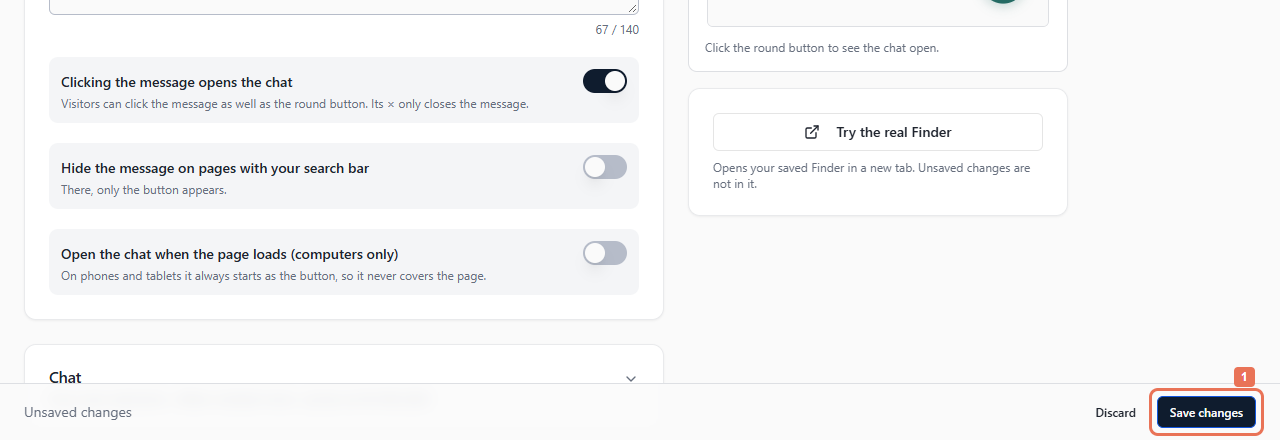
Check Computer and Phone, including contrast warnings. Select Save changes to apply the look to your live Finder; there is no separate Publish step. Allow up to five minutes. Discard removes unsaved edits.
 Select the image to view it full size.
 Select the image to view it full size.
Appearance applies across languages. Preview includes your current edits; Try the real Finder uses saved settings.