
More in AI Property Finder settings
PROPELOS PARTNER PORTAL GUIDE
Change the message beside your chat button
Edit the chat-button invitation, choose its corner and spacing, and control when the message or chat appears.
Self-serve AI Search accounts
In this guide
Change the invitation beside the round chat button and decide where it appears.
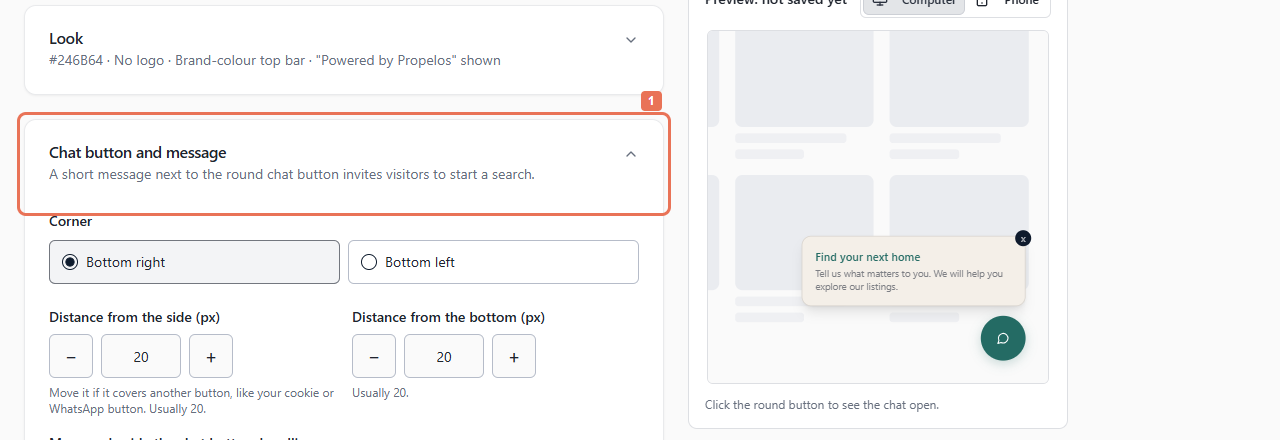
1. Open Chat button and message
Open Account → Your Finder → Chat button and message. Choose the language version under Texts shown in; English supplies the source invitation for automatic versions.
 Select the image to view it full size.
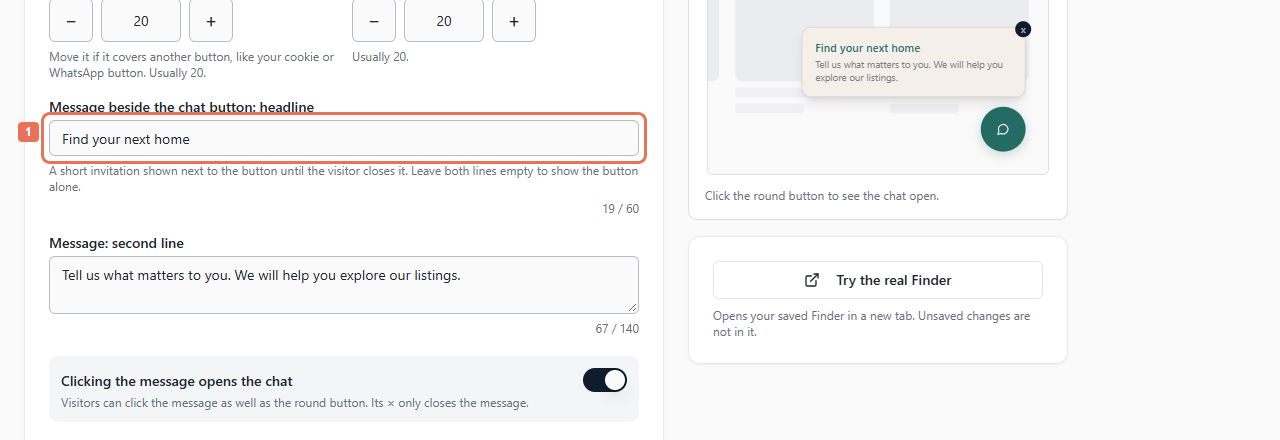
2. Write the invitation
Edit Message beside the chat button: headline (60 characters) and Message: second line (140). Leave both English lines empty to show the button alone.
 Select the image to view it full size.
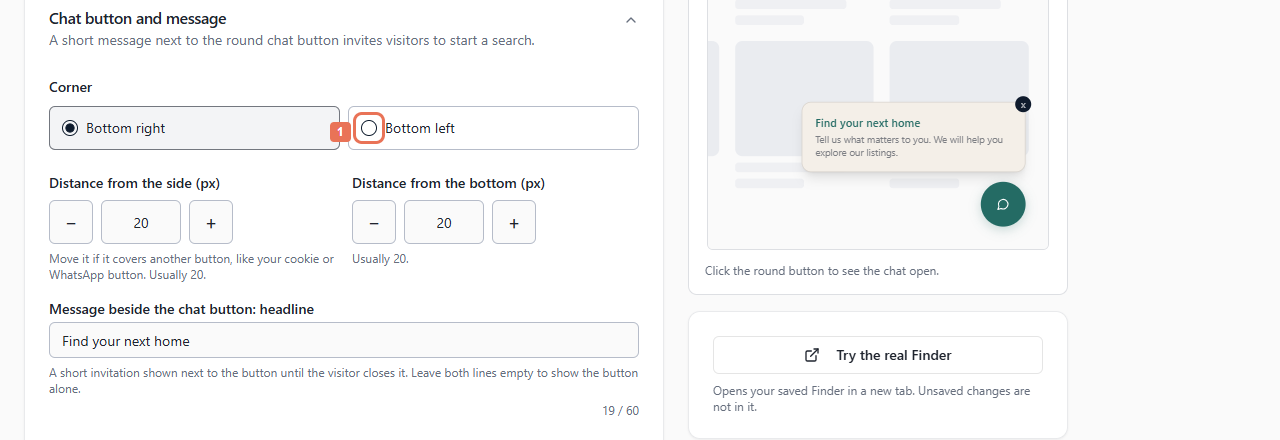
3. Set placement and behaviour
Choose Bottom right or Bottom left under Corner. Set the side and bottom distances to whole numbers from 0 to 200 pixels; 20 is a useful starting point.
 Select the image to view it full size.
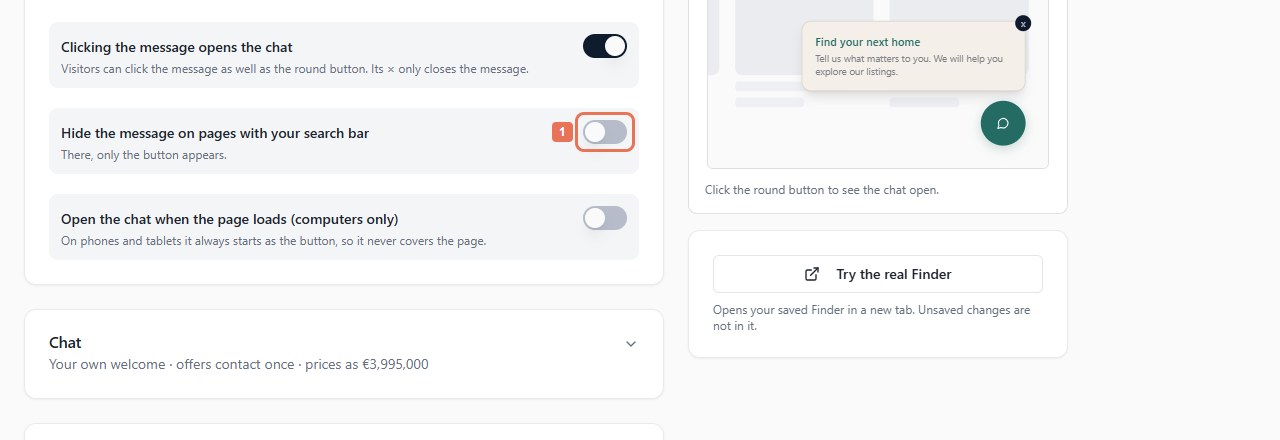
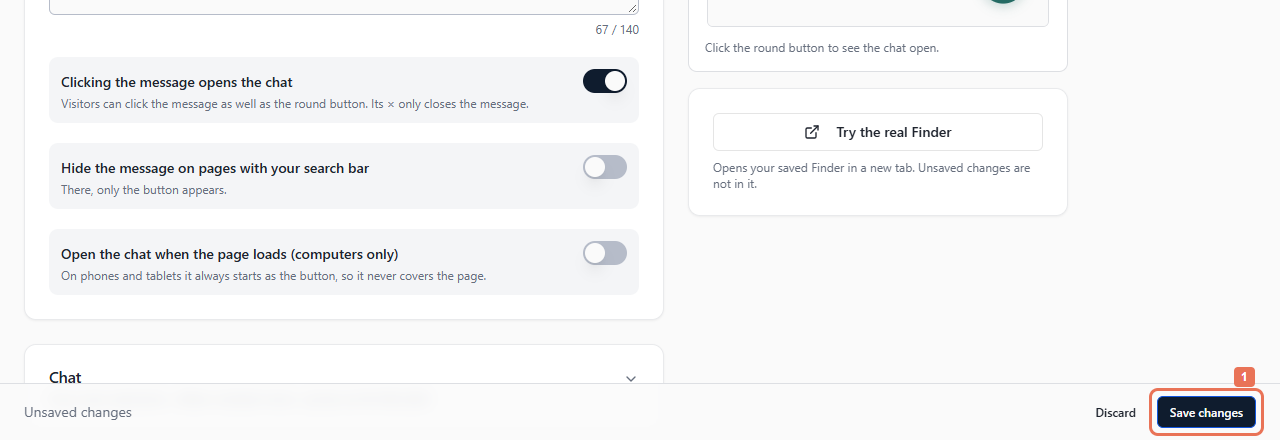
Enable Clicking the message opens the chat after writing a message. Its × still closes only the message. Choose whether to hide it on pages with your search bar, or open the chat on page load on computers. Phones and tablets start with the button.
 Select the image to view it full size.
4. Preview and save
Check Computer and Phone, then select Save changes. This applies to a live Finder; allow up to five minutes. The words follow the selected language version, while placement and behaviour apply across languages.
 Select the image to view it full size.
Preview includes unsaved edits and the selected welcome, with sample answers and homes. Try the real Finder uses saved settings and actual listings. For a conflicting edit, select Reload and review the changes it keeps.