
More in AI Property Finder settings
PROPELOS PARTNER PORTAL GUIDE
Switch Finder languages on or off
Choose enabled languages and review plan limits before removing a language version and its saved custom Finder texts.
Self-serve AI Search accounts
In this guide
Enable the languages you need, or remove a language version you no longer use.
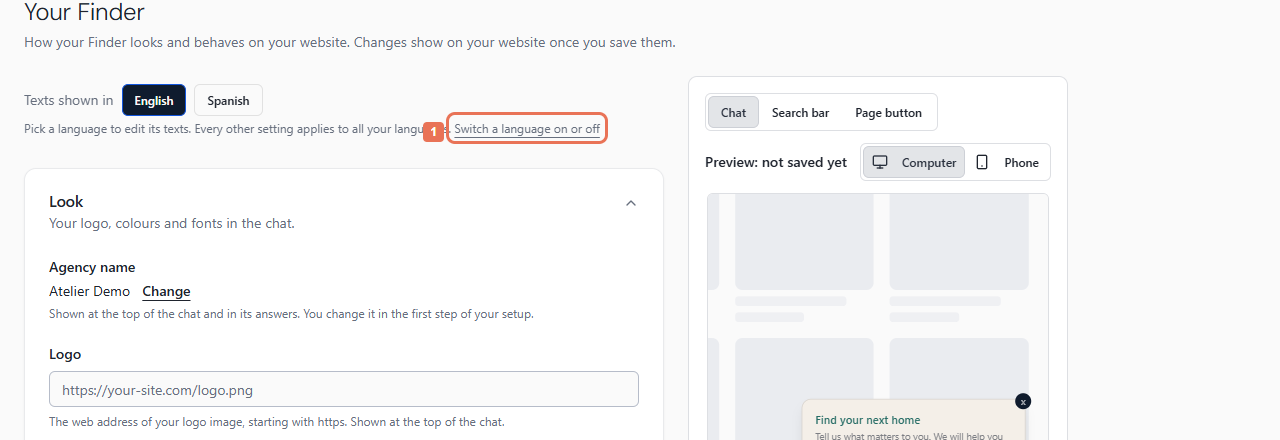
1. Open the language choices
In Account → Your Finder, select Switch a language on or off to open Your agency.
 Select the image to view it full size.
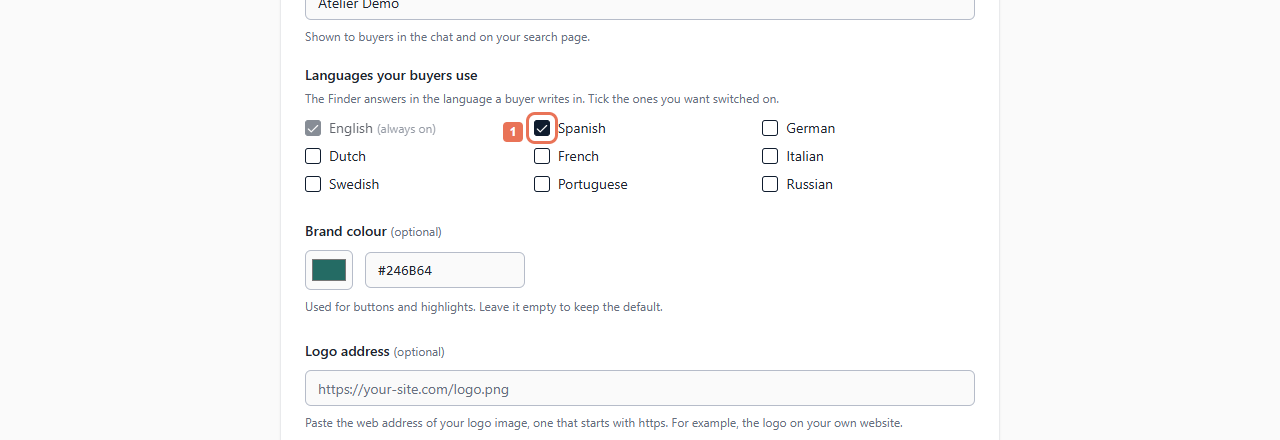
2. Choose languages
Under Languages your buyers use, tick the language versions you want. English stays enabled. Read the explanation beneath a disabled choice; the plan limit or account status can prevent adding it.
 Select the image to view it full size.
Feed languages also count towards the plan. Removing a Finder language version does not remove a feed language. Review Billing for allowance changes.
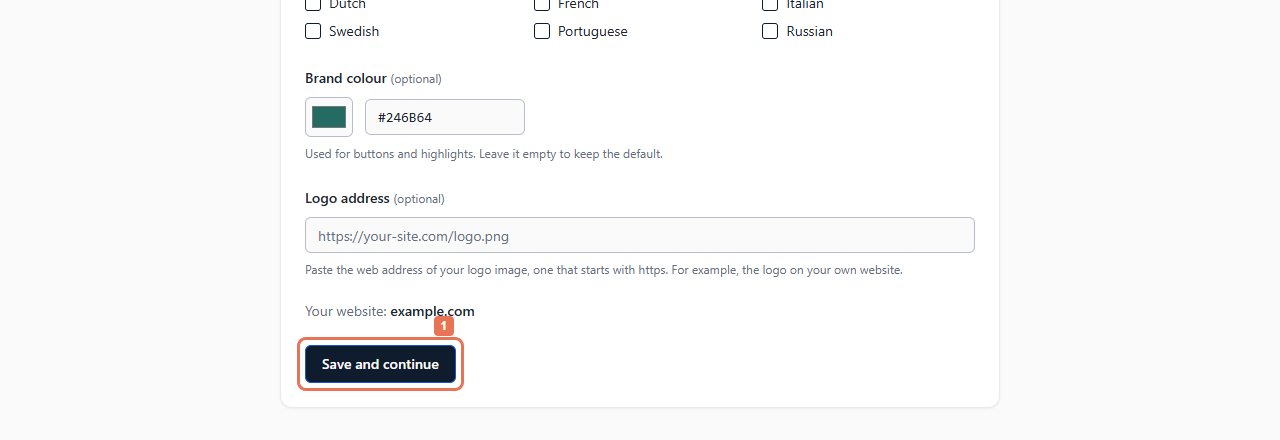
3. Save, and review any deletion prompt
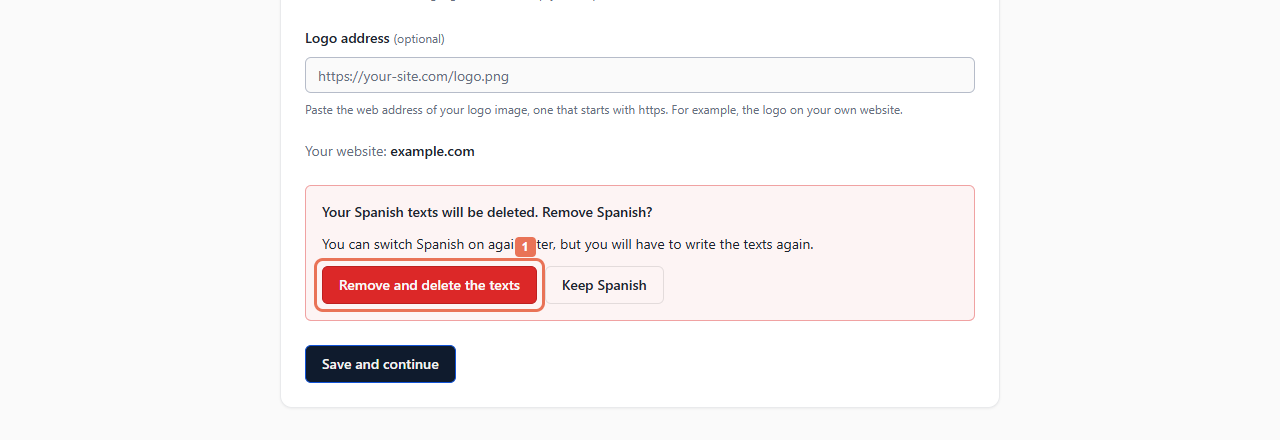
Select Save and continue. If you unticked a language version with custom text, review the prompt before choosing Remove and delete the texts or Keep and the language name.
 Select the image to view it full size.
 Select the image to view it full size.
Removal deletes that language version's saved custom invitation, welcome, search words and other Finder labels. Turning it back on does not restore them. The updated language versions appear under Texts shown in.
The setup's EN/ES controls change the interface language. Managed customers ask Propelos to change languages.