
More in AI Property Finder settings
PROPELOS PARTNER PORTAL GUIDE
Connect an XML or CSV listing feed
Check an XML or CSV feed sample, connect its listings, then verify property facts, sales or lettings and location in the Finder.
Self-serve AI Search accounts
In this guide
Connect a feed to import homes from your CRM or website provider. Obtain an XML or CSV feed address, rather than a normal property page or search URL.
1. Add a source
Open Account → Listings and select Add another source → Feed address. During setup, use Your listings → Feed address.
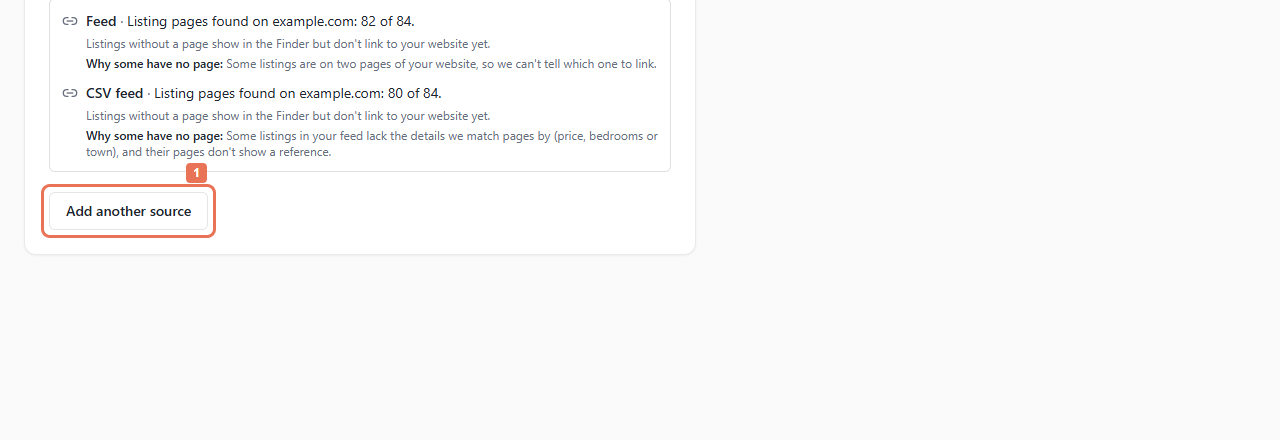 Select the image to view it full size.
2. Enter and check the address
Enter Feed address, choose XML or CSV, then select Check my feed. CSV here means a web feed address.
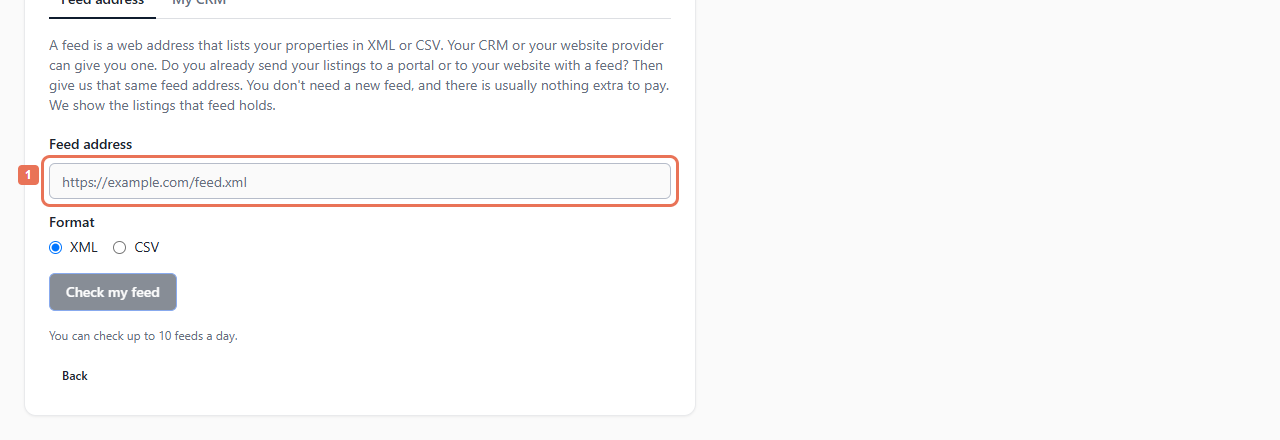 Select the image to view it full size.
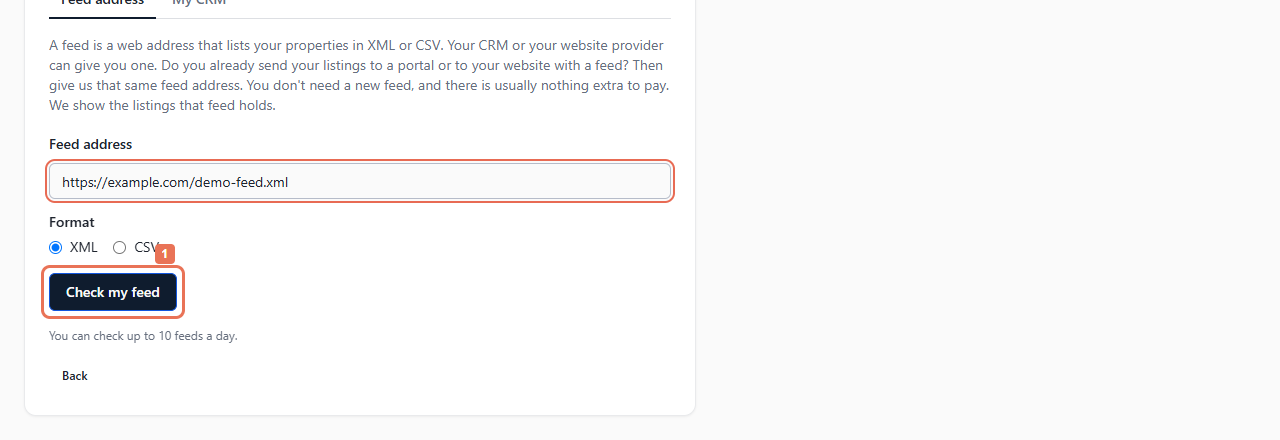 Select the image to view it full size.
3. Review the sample
Under What we found in your feed, check reference, price, currency, type, town, bedrooms, bathrooms, size, title, description, photos and listing page. Choose Language of this feed for its titles and descriptions.
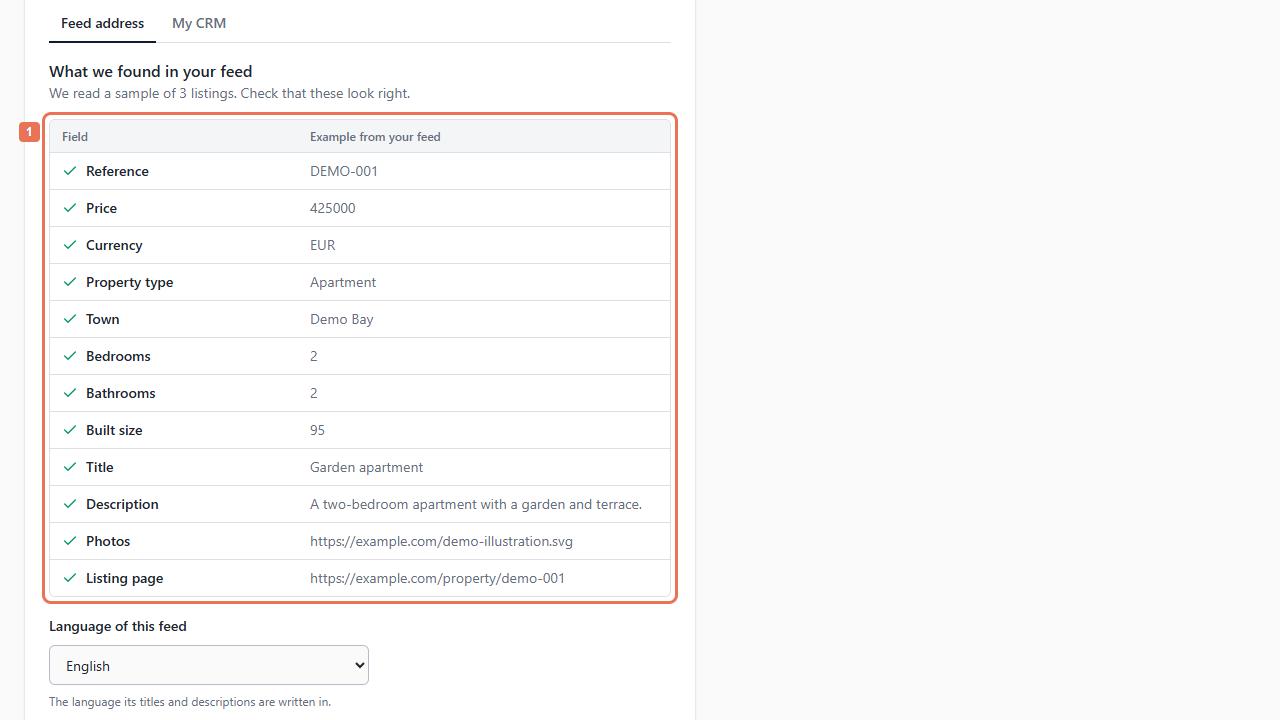 Select the image to view it full size.
Correct missing or wrong facts in the source before connecting. Missing own-website pages do not prevent homes appearing: they open their details inside the Finder.
4. Connect and test
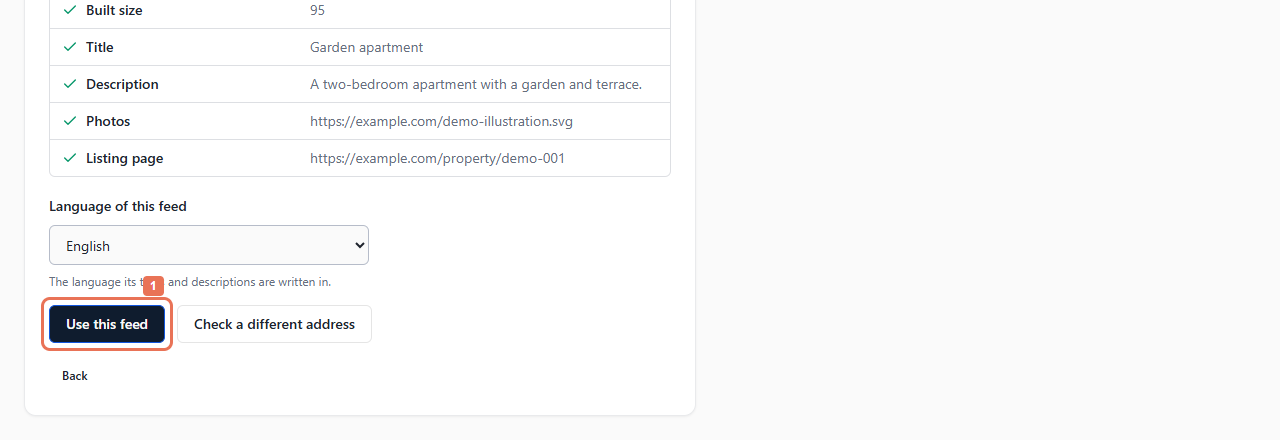
Select Use this feed if the sample is right, or Check a different address to start again. Connecting begins the import; checking the sample alone does not.
 Select the image to view it full size.
After import, test searches and verify sale/letting, price, rental payment period, town and postcode. Supported XML rental-only homes become rentals; homes offered for sale and to let become sales. CSV homes are read as sales, so ask Propelos before connecting CSV lettings.
Postcodes come from supported source fields. This form has no postcode or sale/letting editor. An account can check ten feeds a day and hold five sources. For a feed requiring special access, use its CRM route or ask Propelos.