
More in AI Property Finder settings
PROPELOS PARTNER PORTAL GUIDE
Change the Finder greeting and chat behaviour
Set the welcome, contact offers, reply language, home-window behaviour and price format, then preview and save your Finder.
Self-serve AI Search accounts
In this guide
Set the welcome and choose how the Finder offers contact, writes replies and opens homes.
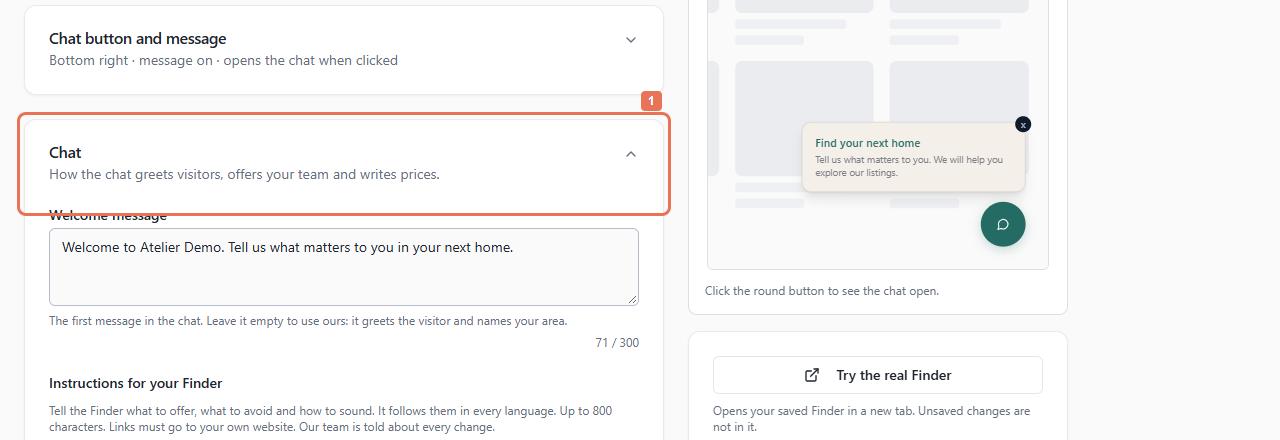
1. Open Chat
Open Account → Your Finder → Chat. Choose the language version under Texts shown in for the welcome you want to edit.
 Select the image to view it full size.
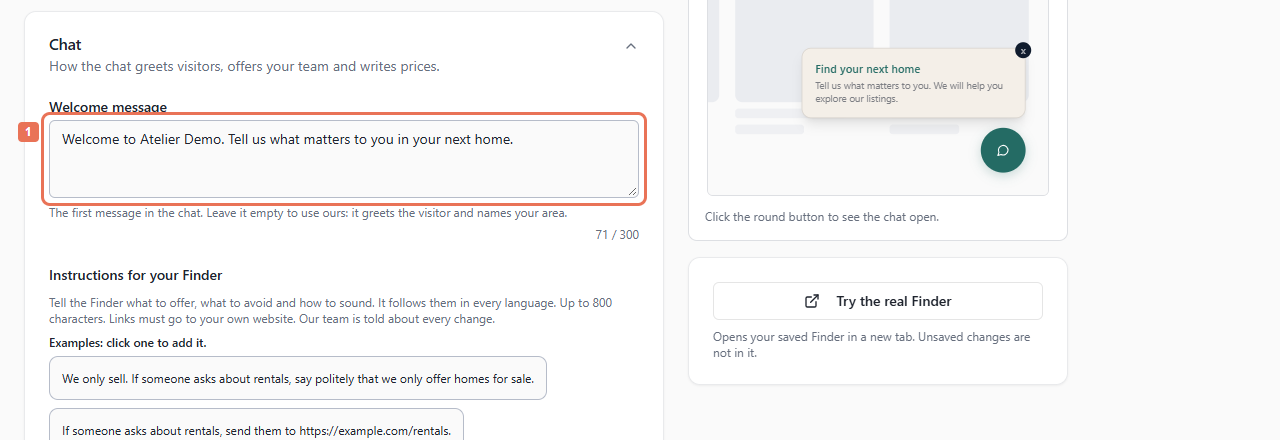
2. Write the welcome
Enter Welcome message, up to 300 characters. An empty value uses the default area greeting. English supplies automatic versions; custom wording in another language version stays your own.
 Select the image to view it full size.
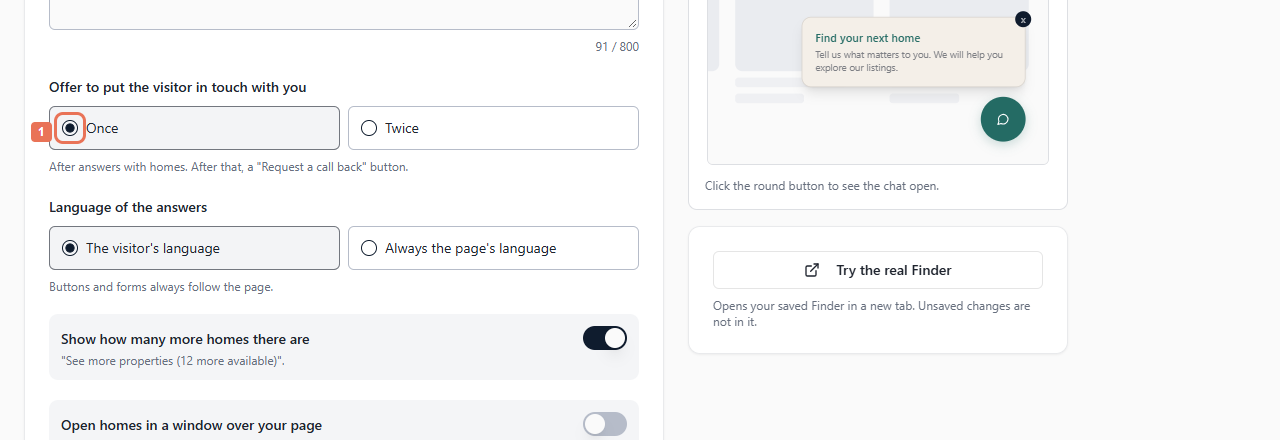
3. Choose replies and contact offers
Under Offer to put the visitor in touch with you, choose Once or Twice. Offers follow answers containing homes, after which visitors have Request a call back.
 Select the image to view it full size.
Set Language of the answers to the visitor's language or always the page's language. Buttons/forms follow the page language. Choose whether to show how many more homes are available.
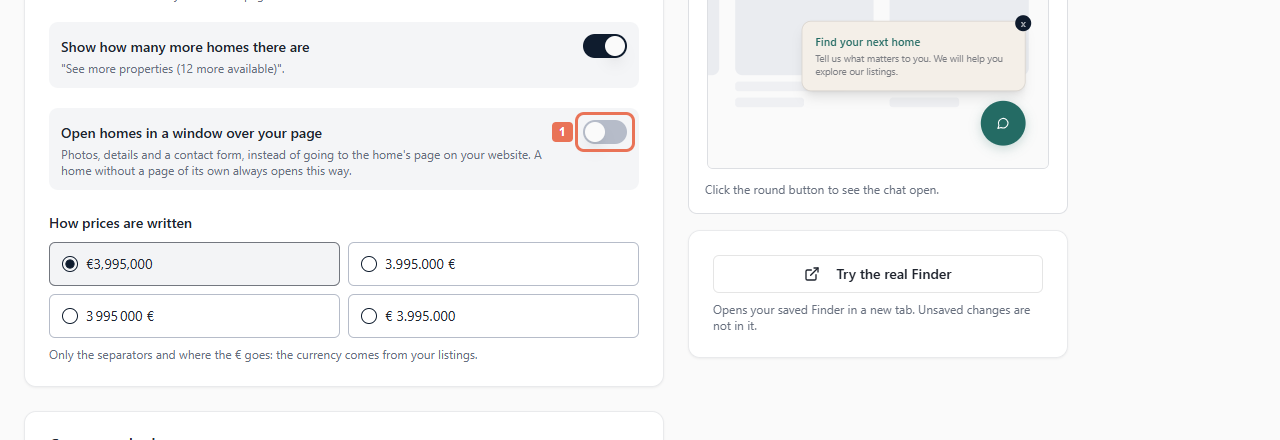
4. Choose how homes and prices appear
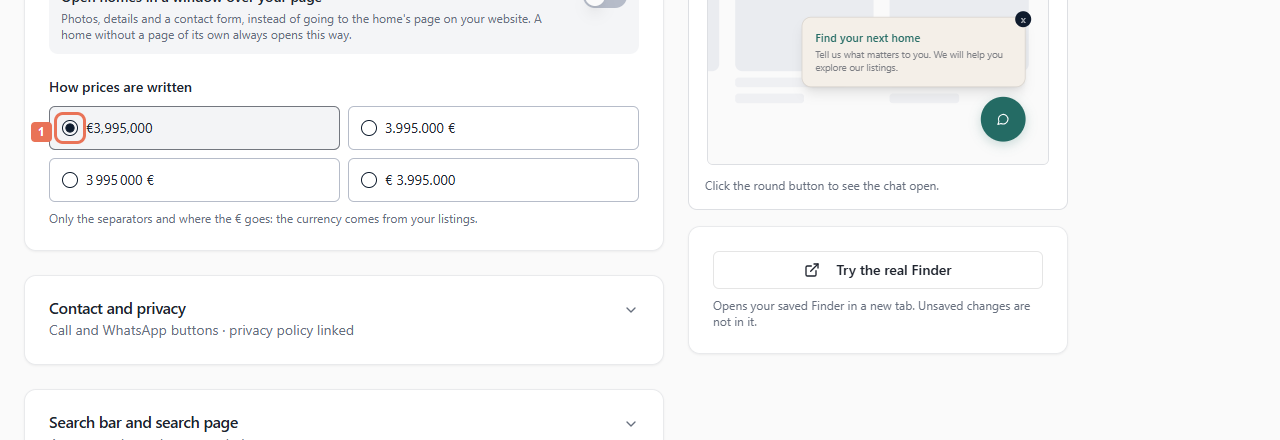
Set Open homes in a window over your page and How prices are written.
 Select the image to view it full size.
 Select the image to view it full size.
For homes with an own-website page, switching the window off opens that page in a new tab. Homes without one always open inside the Finder and remain in results. Price formatting changes separators/symbol placement; facts and currency come from the source.
5. Preview and save
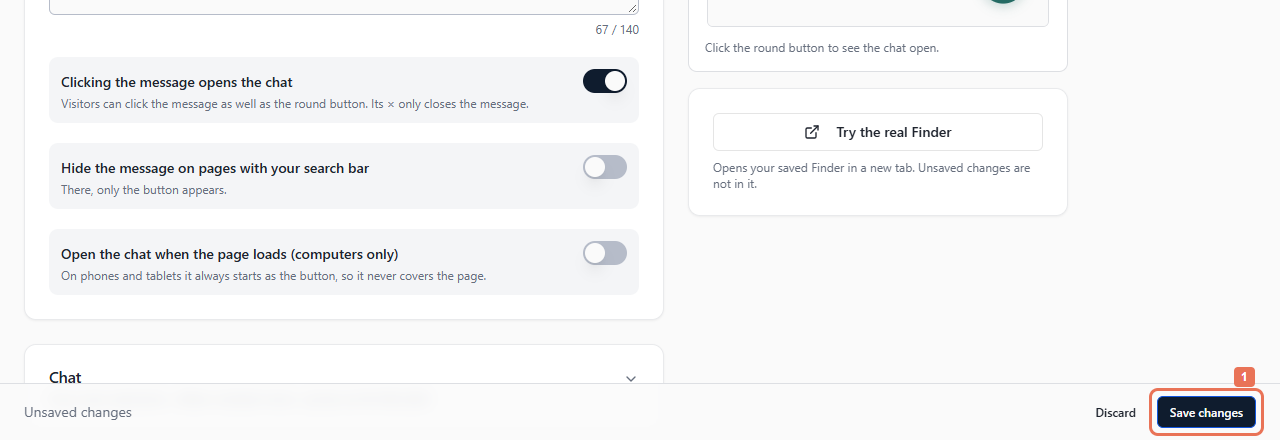
Check Computer and Phone, then select Save changes. Behaviour applies across languages. Allow up to five minutes for live updates.
 Select the image to view it full size.
Preview includes unsaved edits with sample answers/homes. Try the real Finder uses saved settings. The agency instructions field also sits in Chat; see its separate guide.