
More in AI Property Finder settings
PROPELOS PARTNER PORTAL GUIDE
Edit Finder texts and languages
Customise Finder labels and messages in an enabled language, preserve required placeholders, or return a text to the automatic version.
Self-serve AI Search accounts
In this guide
Write your own Finder words in each enabled language, or restore the default wording.
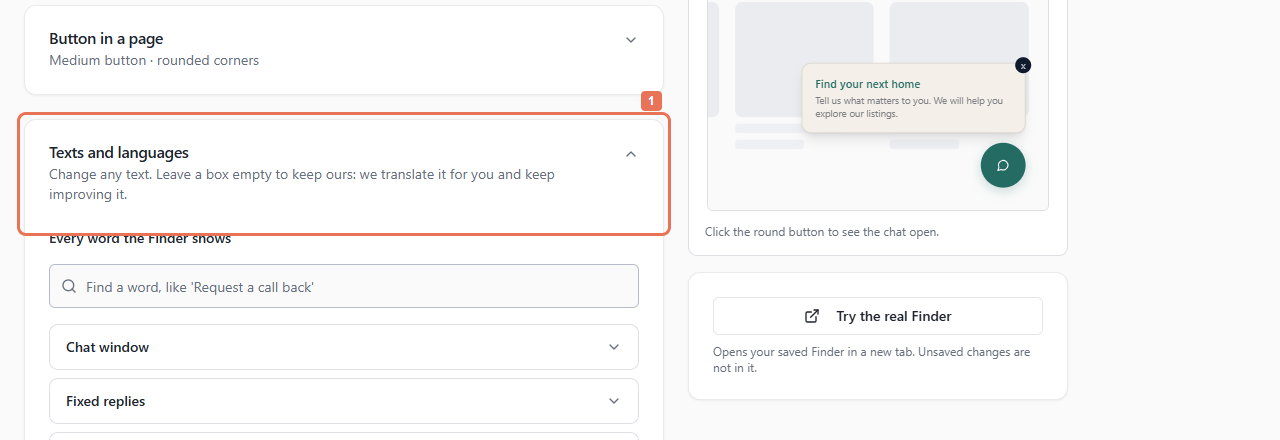
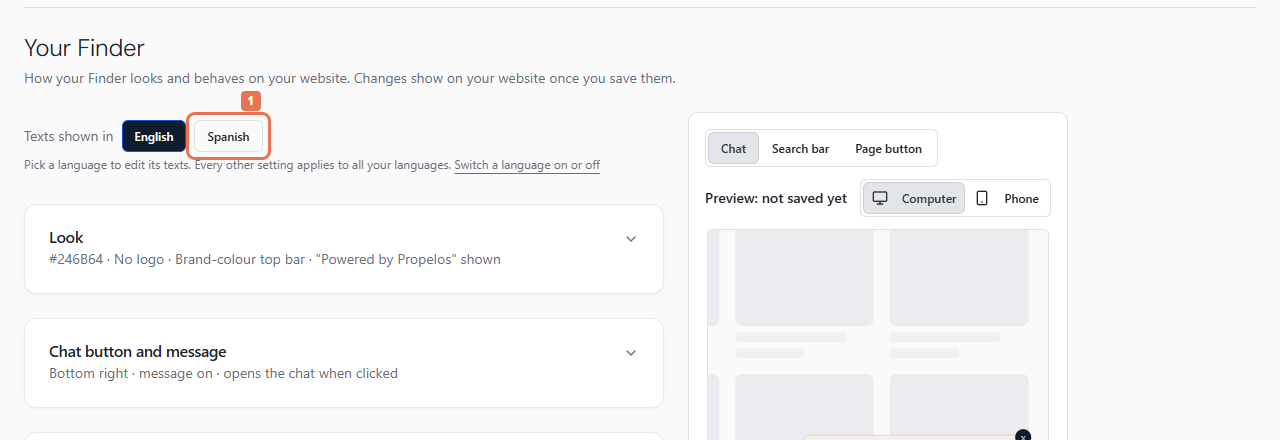
1. Open Texts and languages
Open Account → Your Finder → Texts and languages. Choose the language version under Texts shown in.
 Select the image to view it full size.
 Select the image to view it full size.
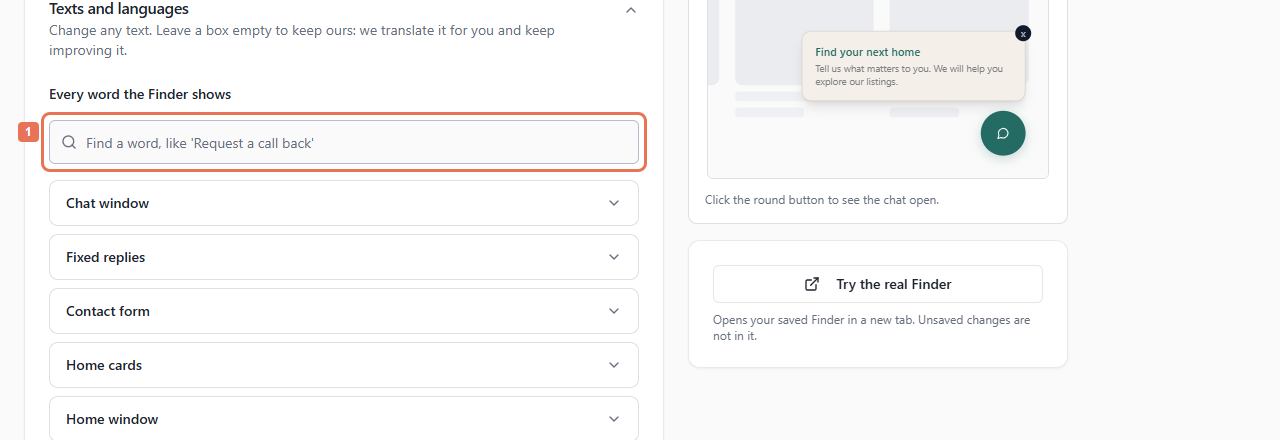
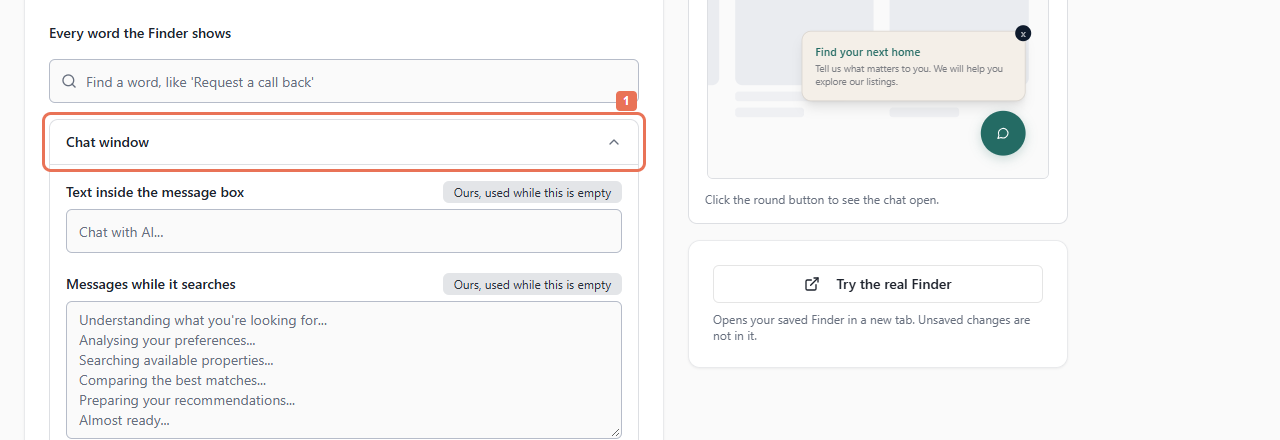
2. Find the text
Enter a visible phrase in Find a text, or open a section such as Chat window, Contact form or Home cards.
 Select the image to view it full size.
 Select the image to view it full size.
Other sections cover fixed replies, the home window, search bar/page, filters and page button. The editor changes supported wording; property facts come from your listings.
3. Edit or reset it
Enter the replacement, following its character limit. Keep required words in braces exactly as shown. Lists take one item per line and have their own limits. Use Use ours, or clear a field where its help says an empty value restores the automatic version.
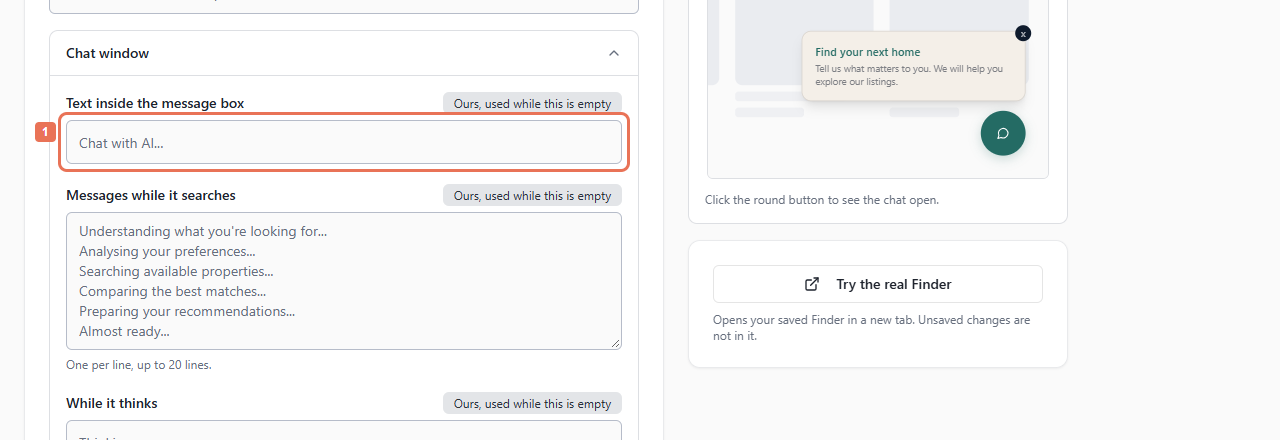 Select the image to view it full size.
For a consent sentence, keep {privacyPolicy} exactly once. English is the source for automatic custom-message, welcome and search versions. Custom words in another language version stay your own and need reviewing when English changes. Shown in English until the translation is ready describes a temporary fallback.
4. Preview and save
Review the chosen language version, then select Save changes. Saving includes edits across groups and languages; open every language version marked Needs fixing. Allow up to five minutes for live wording to update.
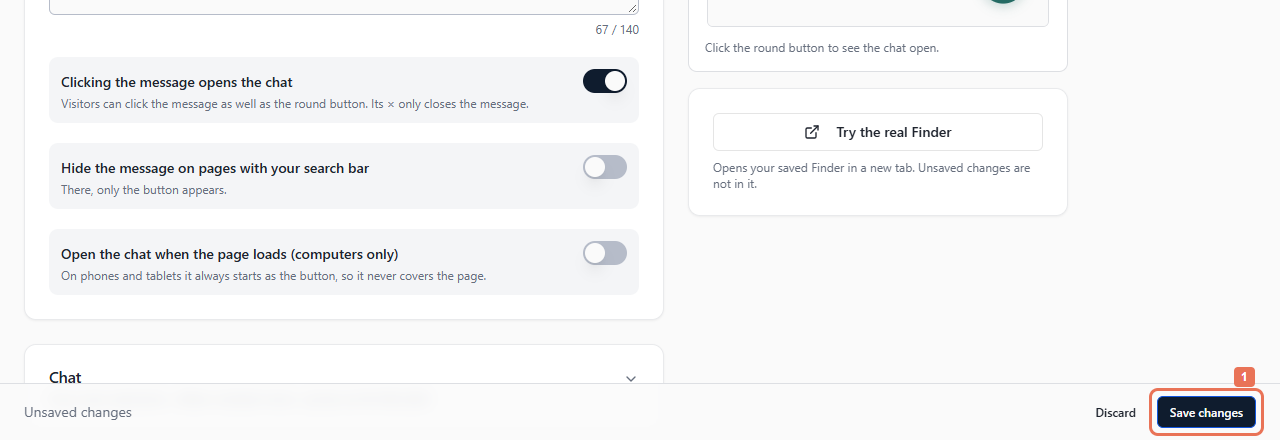 Select the image to view it full size.
Preview includes unsaved edits; Try the real Finder uses saved settings. If a language is removed in another tab, Reload and review the remaining edits.