
More in AI Property Finder settings
PROPELOS PARTNER PORTAL GUIDE
Add a Finder button inside a website page
Style the in-page invitation, save its wording and appearance, then copy the page-button code into the chosen place on your website.
Self-serve AI Search accounts
In this guide
Add an invitation inside a website page that opens your Finder when clicked.
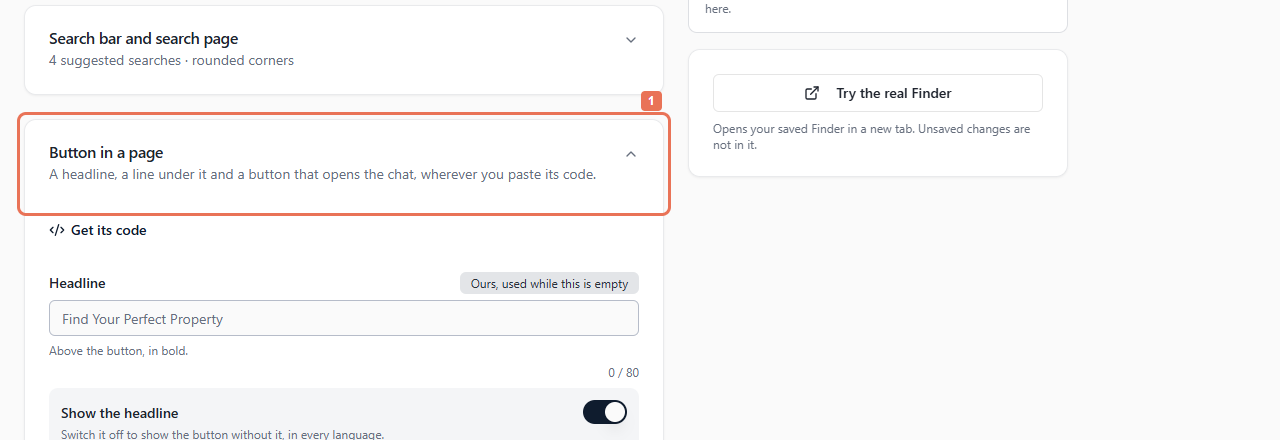
1. Open Button in a page
Open Account → Your Finder → Button in a page. Choose the language version under Texts shown in.
 Select the image to view it full size.
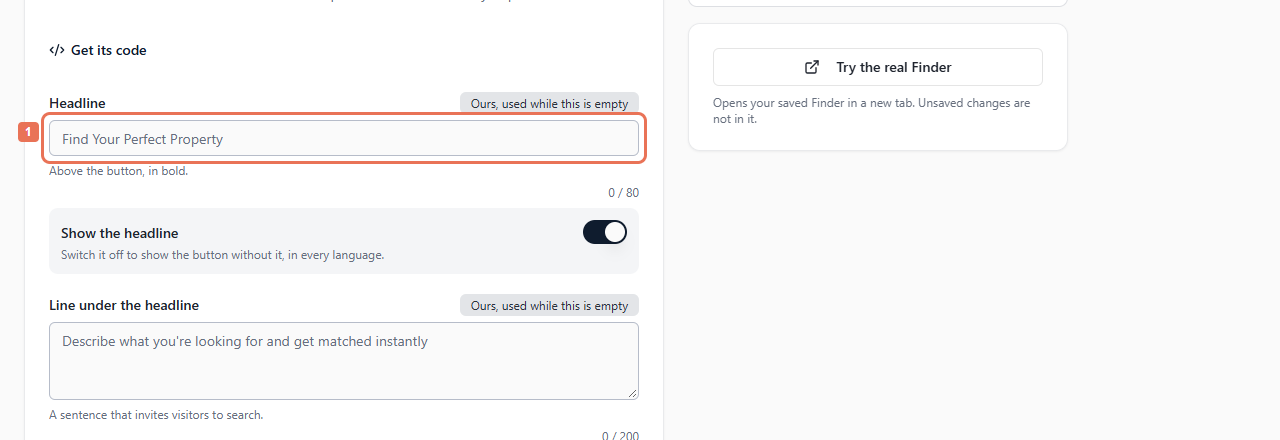
2. Write the invitation
Edit Headline (80 characters), Line under the headline (200) and Button's words (40). Use the visibility switches to show or hide the supporting lines without losing your custom wording.
 Select the image to view it full size.
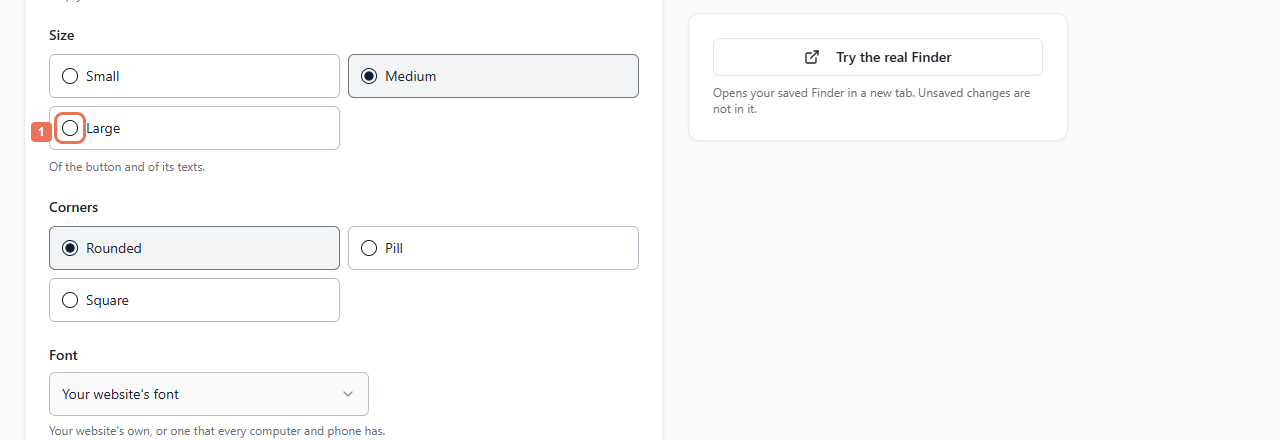
3. Choose the style
Set button/text colours, Size, Corners and Font. Open Text colours and sizes for more control. Optional sizes take whole numbers from 10 to 40 pixels; empty values use the overall size.
 Select the image to view it full size.
Empty button colours use the brand colour/white words. Supporting text can use your website's colour and font. The preview uses a plain font for Your website's font. Review contrast and any warning about removing Propelos-set words.
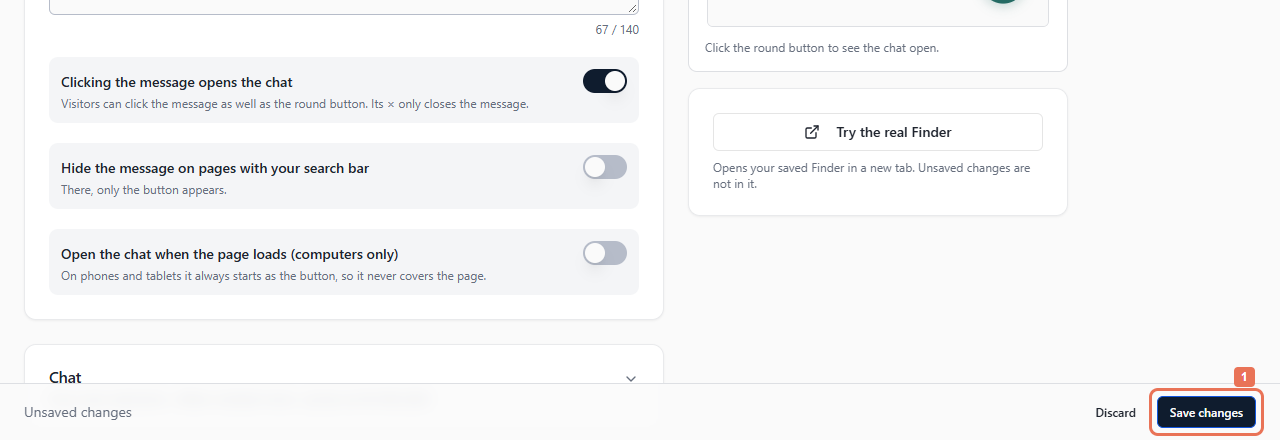
4. Preview and save
Check Page button on Computer and Phone, then select Save changes. Words follow the language version; style and visibility apply across languages. Allow up to five minutes for installed updates.
 Select the image to view it full size.
5. Copy and place the code
Select Get its code, or Account → Install → A button inside a page. Choose Language of the Finder, then Copy. Paste it at the required place, or give the code and placement to your website maintainer.
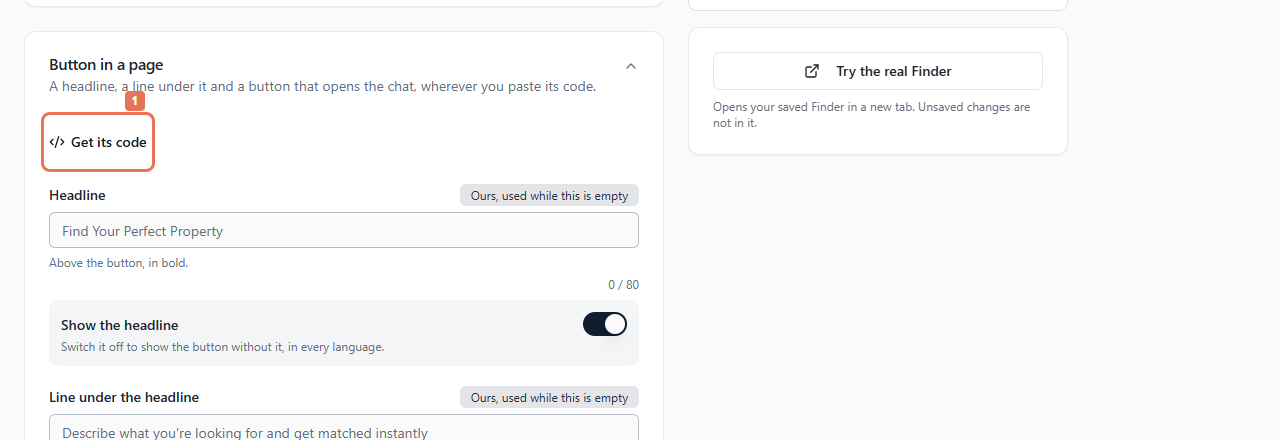 Select the image to view it full size.
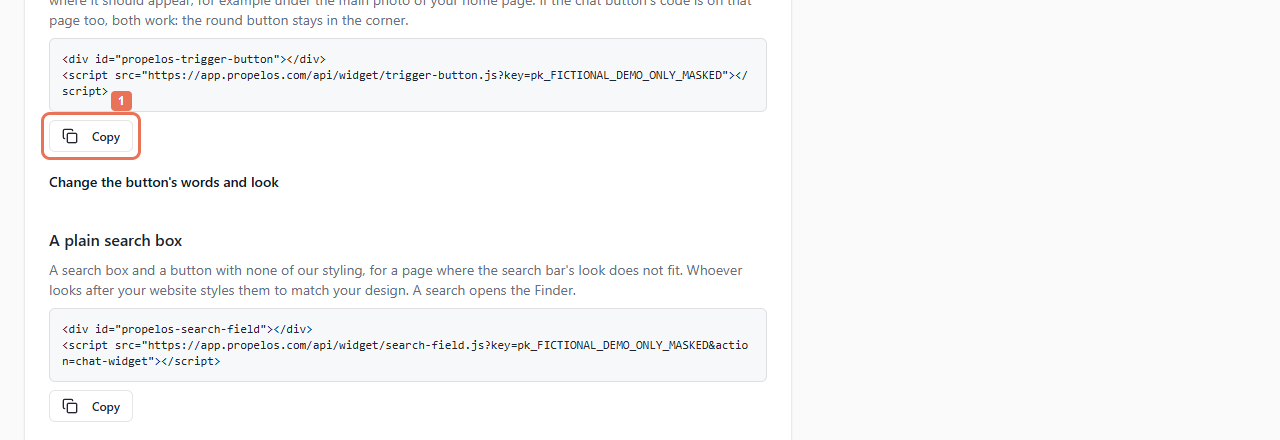 Select the image to view it full size.
After go-live, test it on a computer and phone. It can share a page with the corner chat button. The settings preview button does not run a live search, and preparing code before go-live does not activate the Finder.