
More in AI Property Finder settings
PROPELOS PARTNER PORTAL GUIDE
Set up your AI Property Finder
Complete the self-serve Finder setup, test imported listings, go live, install it and personalise its look and behaviour.
Self-serve AI Search accounts
In this guide
Set up your Finder so visitors can search your listings on your website. The setup takes you through Your agency, Your listings, Try it, Go live and Install.
1. Add your agency details
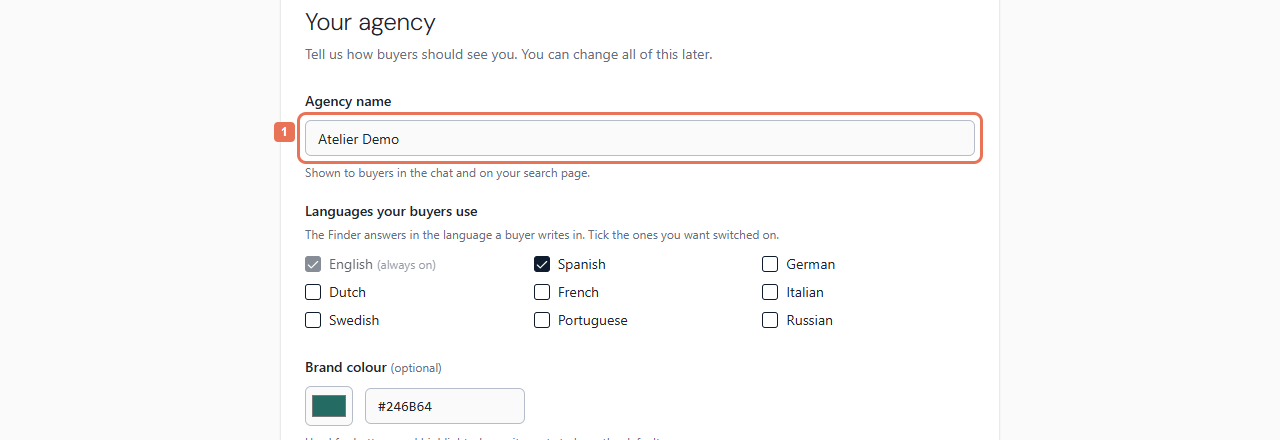
In Your agency, enter the agency name and choose the languages your buyers use. Add a brand colour and public logo address if you have them.
 Select the image to view it full size.
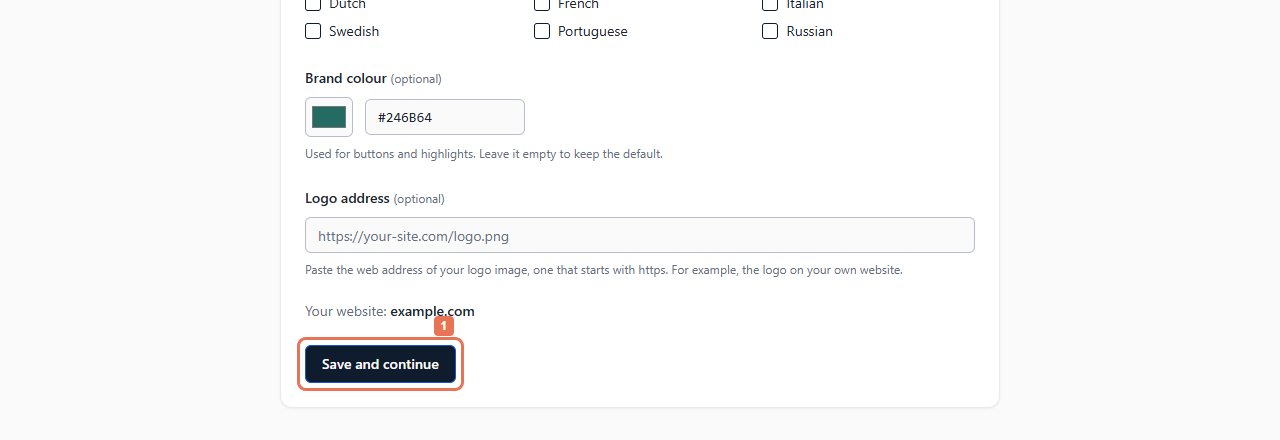
Select Save and continue to move to listings. The setup's EN/ES controls change the interface language; languages are chosen separately.
 Select the image to view it full size.
2. Connect your listings
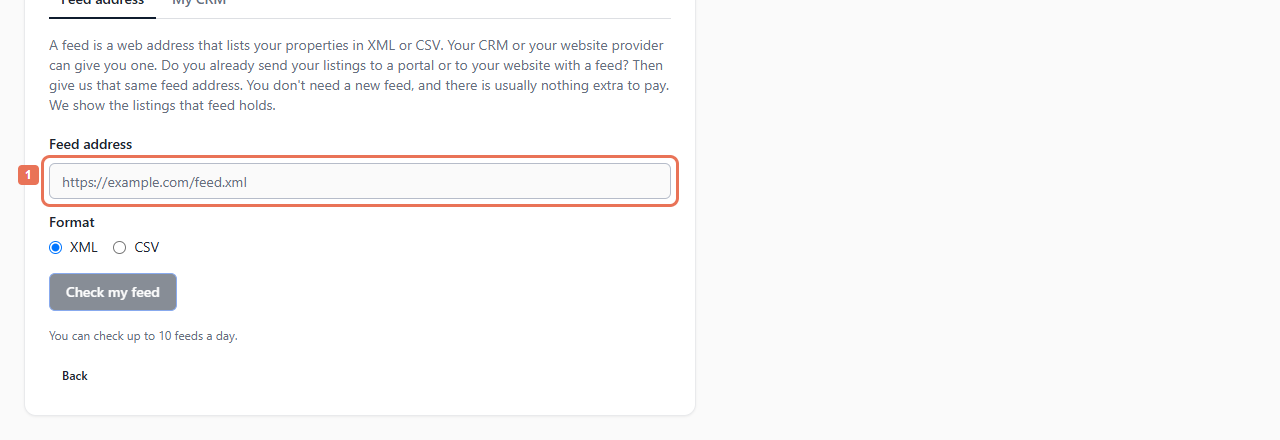
In Your listings, choose Feed address, My CRM or My website when offered. Follow the relevant connection guide and wait for the first import.
 Select the image to view it full size.
Check the listing count and any source errors. Correct inaccurate facts in the source supplying your homes.
3. Test real searches
Select Try it on my listings. In Try it, try the searches your buyers are likely to make and review Worth checking for missing prices, locations or photos.
 Select the image to view it full size.
The private preview allows 100 answers in total and 30 per day. Testing alone does not install the Finder or make it public.
4. Choose a plan and install
Select Choose a plan and go live. Review the listing and language counts, allowed plan, price, trial and payment terms before proceeding to secure checkout. When the account confirms it is live, select Put the Finder on my website.
 Select the image to view it full size.
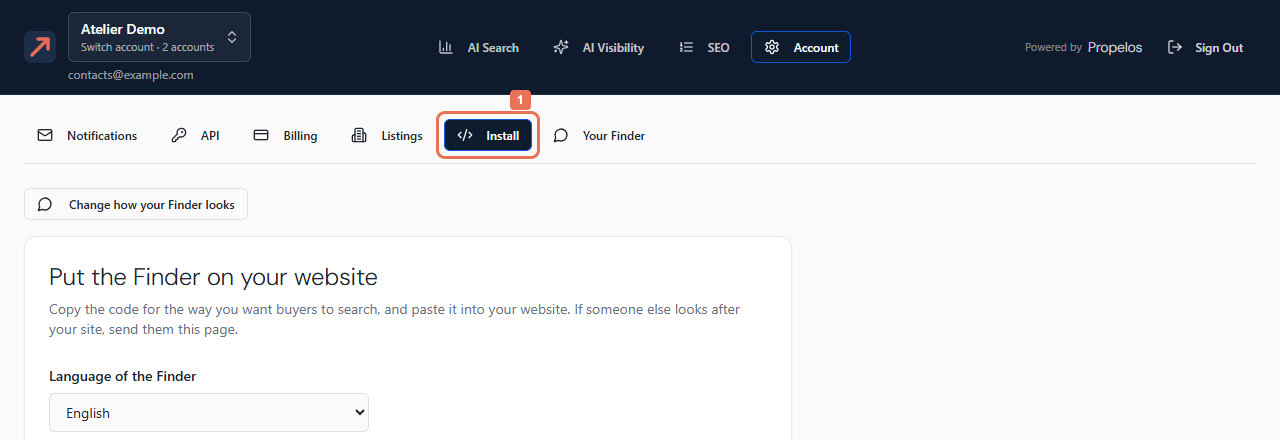
Follow Install, then Go to my dashboard. Make it yours helps with the message, privacy link, contact buttons, prices and instructions. Account → Your Finder contains all seven settings groups.
 Select the image to view it full size.
Only earlier reached steps can be revisited. If online checkout is unavailable, Go live offers help from Propelos. If you cannot see Your Finder, your account may be managed by Propelos or may include only AI Visibility; ask Propelos about the Finder changes you need.