
More in AI Property Finder settings
PROPELOS PARTNER PORTAL GUIDE
Connect listings from your CRM
Import listings from your CRM using its feed or API key, or ask Propelos to help connect it.
Self-serve AI Search accounts
In this guide
Import listings from your CRM, or ask Propelos to help connect it.
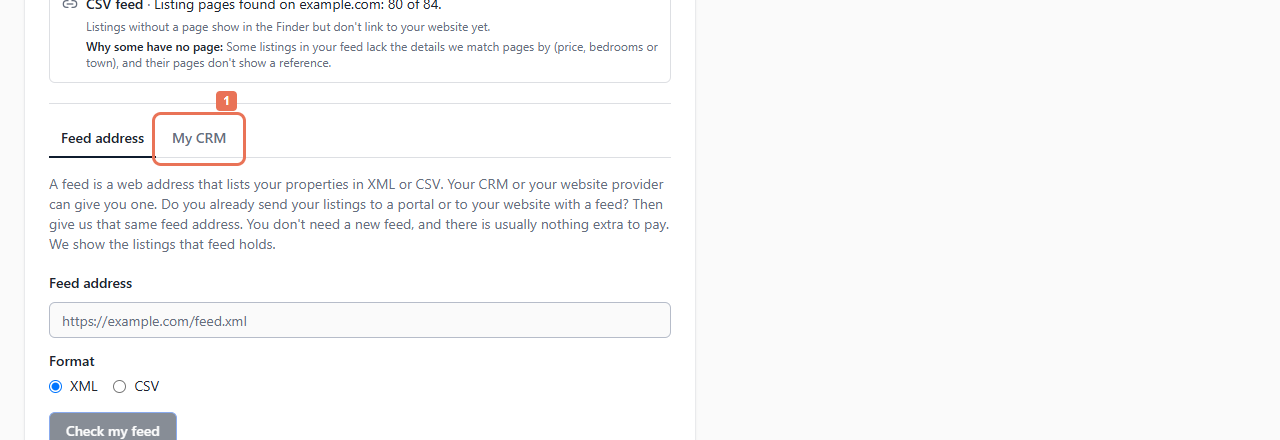
1. Open My CRM
Open Account → Listings → Add another source → My CRM, or Your listings → My CRM during setup.
 Select the image to view it full size.
2. Choose your CRM
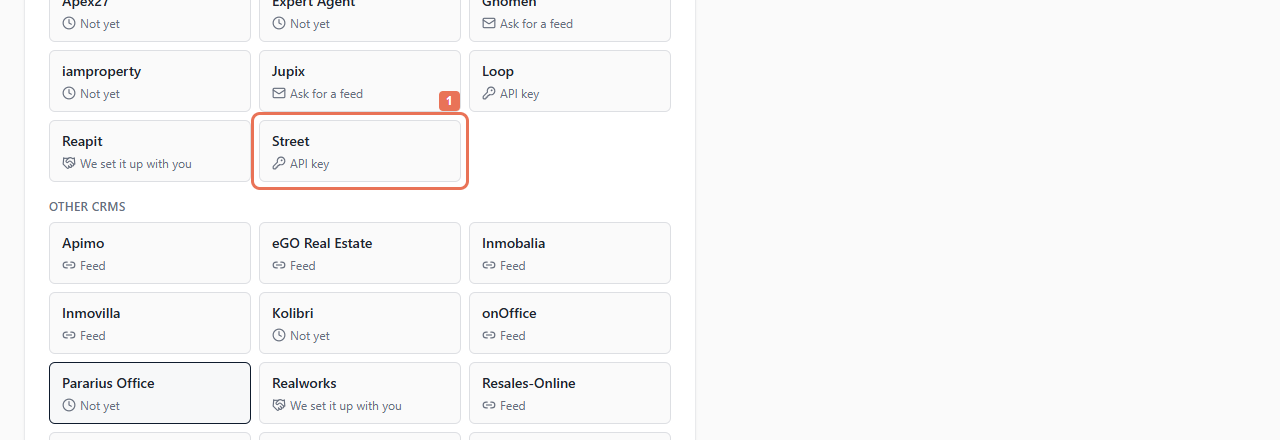
Select your system and read How to connect. When your agency country is known, popular systems there appear first; other systems remain below.
 Select the image to view it full size.
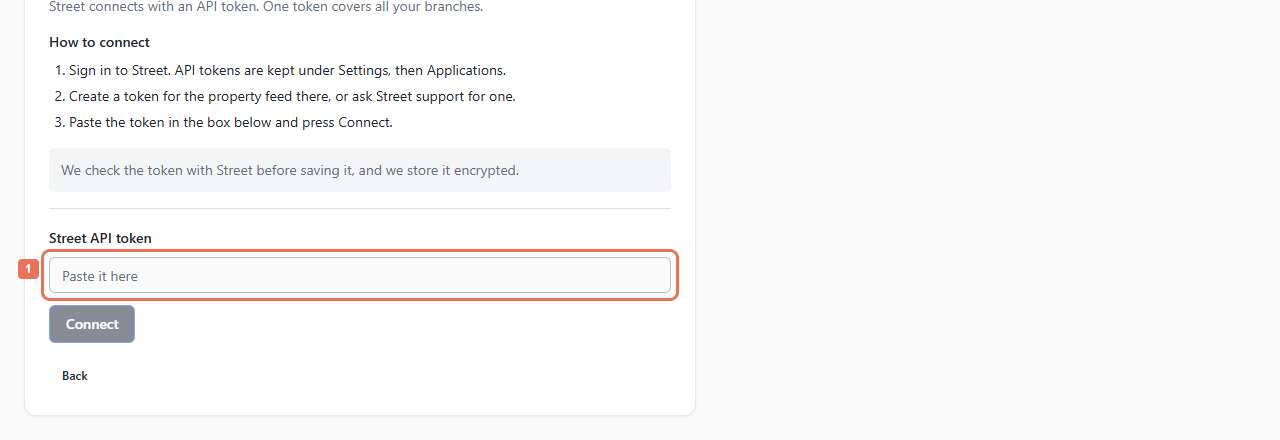
Follow the instructions for your system: Feed uses a feed address; Ask for a feed supplies guidance or Copy email. A supported API key route asks for the Street API token or Loop API key, followed by Connect. We set it up with you and Not yet offer a request form.
 Select the image to view it full size.
3. Request a missing connection
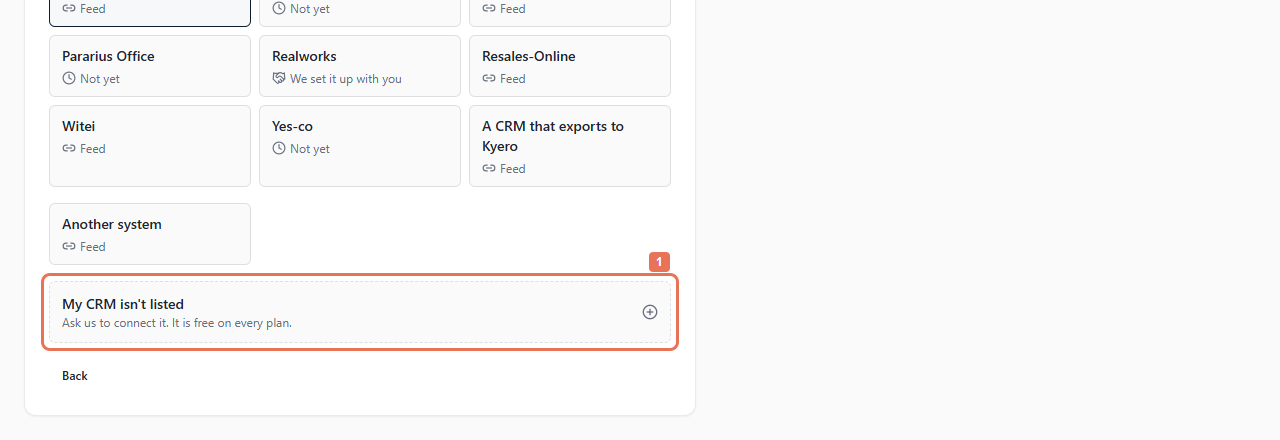
If your system is absent, select My CRM isn't listed. Enter Your CRM, Your website, whether it has an API/feed, Contact email and useful Notes. Select Send request.
 Select the image to view it full size.
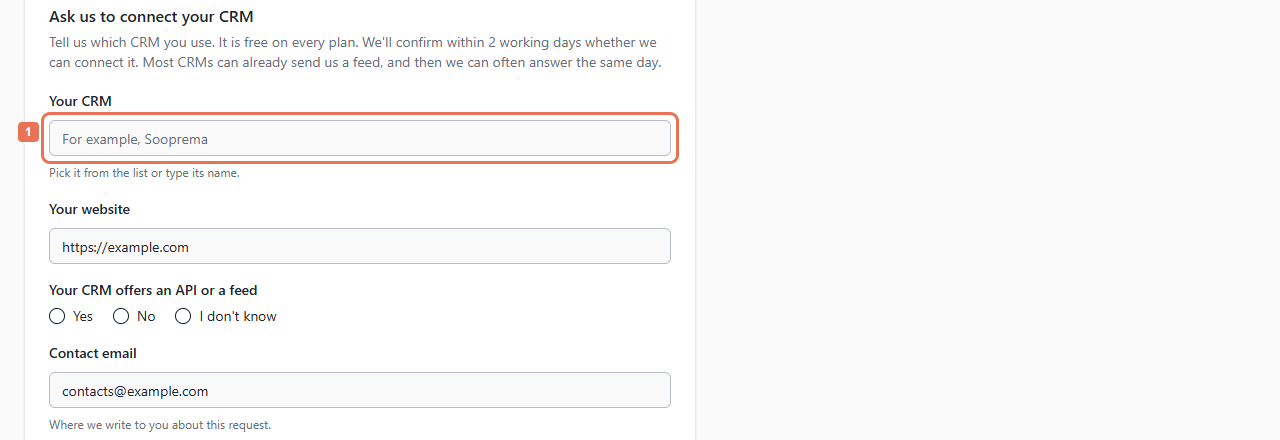 Select the image to view it full size.
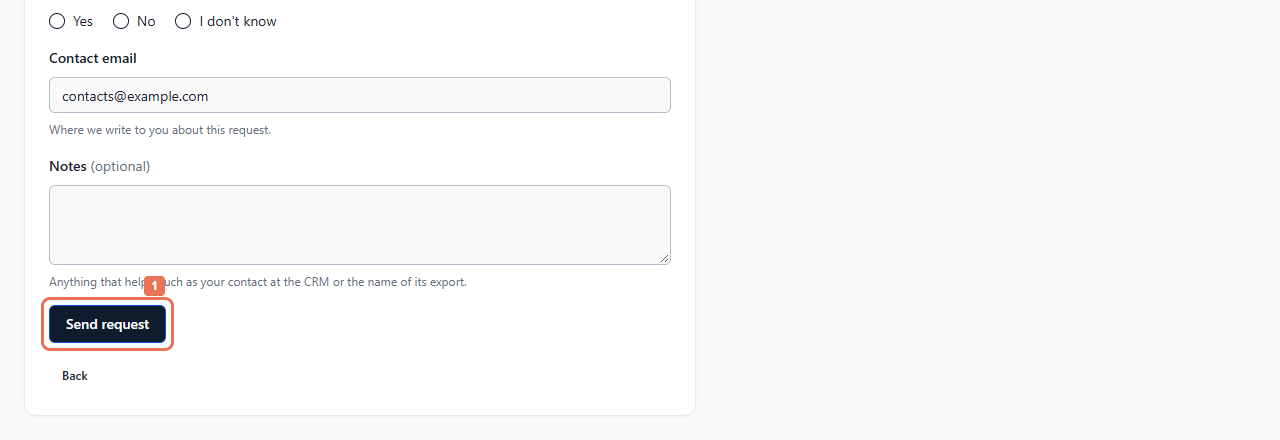 Select the image to view it full size.
The page gives response/preparation timing and existing requests. Sending a request asks Propelos to review it; it does not complete a connection. Do not put credentials in general notes.
After a supported import, test searches and read Account → Listings. Importing homes does not automatically send enquiries back to the CRM. For outbound delivery, see Account → API or ask Propelos about managed delivery.