
More in AI Property Finder settings
PROPELOS PARTNER PORTAL GUIDE
Customise the Finder search bar and search page
Edit suggested searches, search-bar words and appearance, and the hosted page title and description before installing or testing them.
Self-serve AI Search accounts
In this guide
Customise the search invitation, suggested searches and hosted page before installing them.
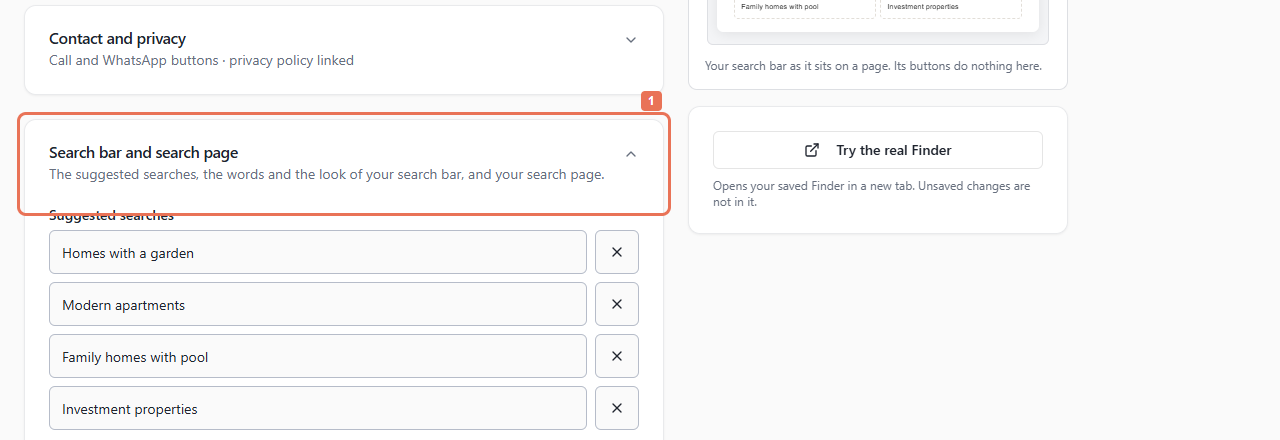
1. Open Search bar and search page
Open Account → Your Finder → Search bar and search page and choose Texts shown in.
 Select the image to view it full size.
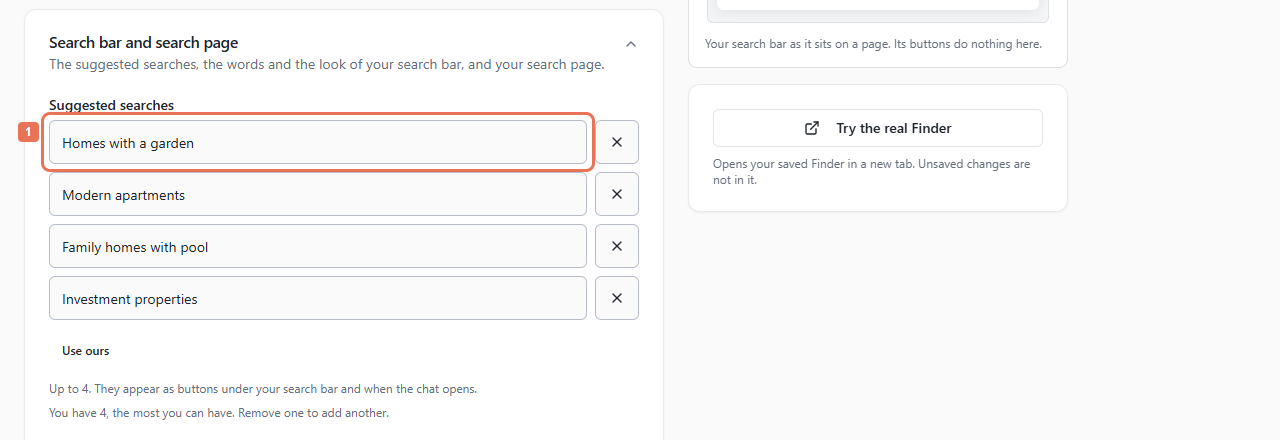
2. Write suggested searches and words
Under Suggested searches, use Write your own when offered. Enter up to four suggestions, each 80 characters; add/remove controls manage the list. Use ours restores defaults, or Use the automatic translation restores another language version's automatic version.
 Select the image to view it full size.
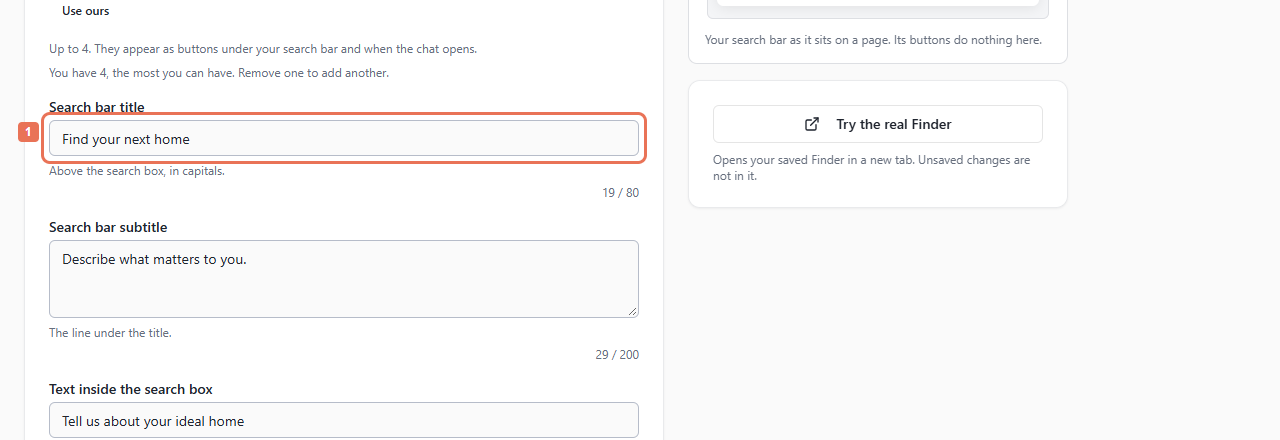
Edit the search-bar title (80 characters), subtitle (200), text inside the search box (80) and search button text (30).
 Select the image to view it full size.
If Propelos previously supplied a longer suggestion list, you can edit/remove entries but cannot add more to it.
3. Choose style and visibility
Set Button colour, Corners, and whether to show the title, subtitle and suggestions. Empty colour uses your brand colour. These choices apply across languages; words follow the selected language version.
 Select the image to view it full size.
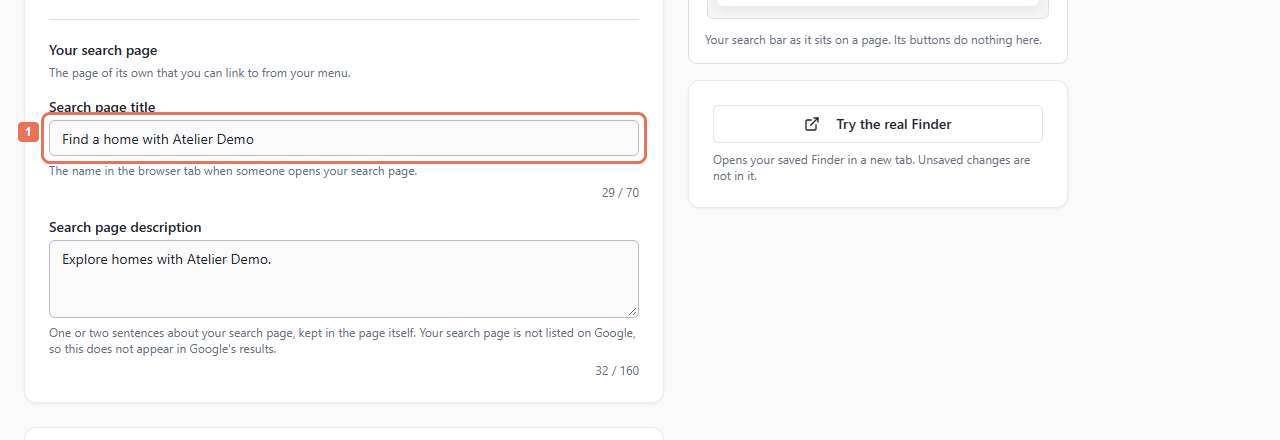
4. Edit the hosted-page details
Under Your search page, set its title (70 characters) and description (160). The title appears in the browser tab. The hosted page remains noindex; this does not change your own website's indexing.
 Select the image to view it full size.
5. Preview, save and install
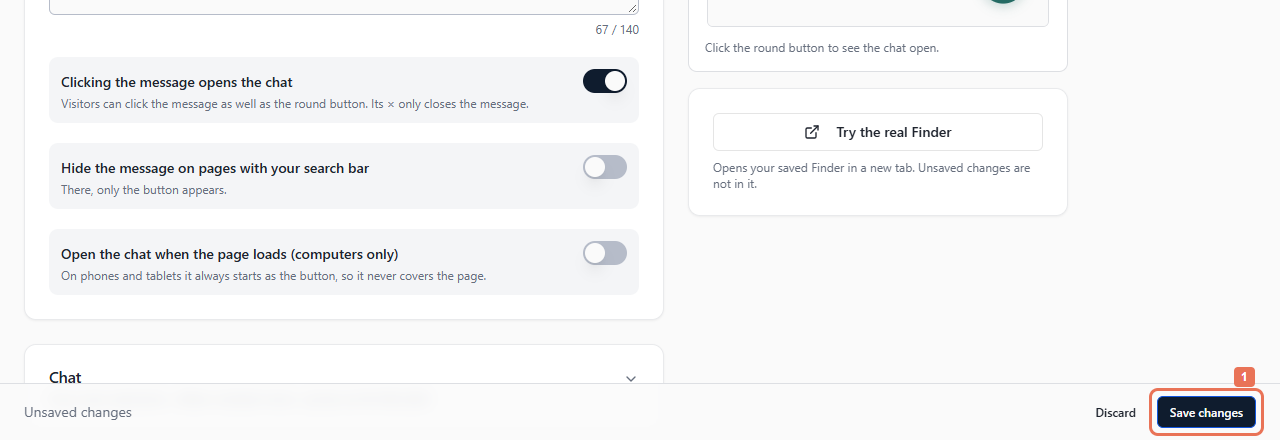
Check Search bar on Computer and Phone, then Save changes. Allow up to five minutes. Open Account → Install for the search bar, plain box or hosted-page code/address.
 Select the image to view it full size.
Preview includes unsaved edits but does not run searches. Test the installed entry point or saved real Finder. A plain box uses these words and your website's styling. Suggested searches also appear when chat opens.