
More in Account and integrations
PROPELOS PARTNER PORTAL GUIDE
Manage Finder billing and restart service
Review your self-serve subscription, open billing management and respond to a paused or ended Finder.
Self-serve AI Search accounts
In this guide
Review your Finder subscription and use its secure payment flow to make billing changes.
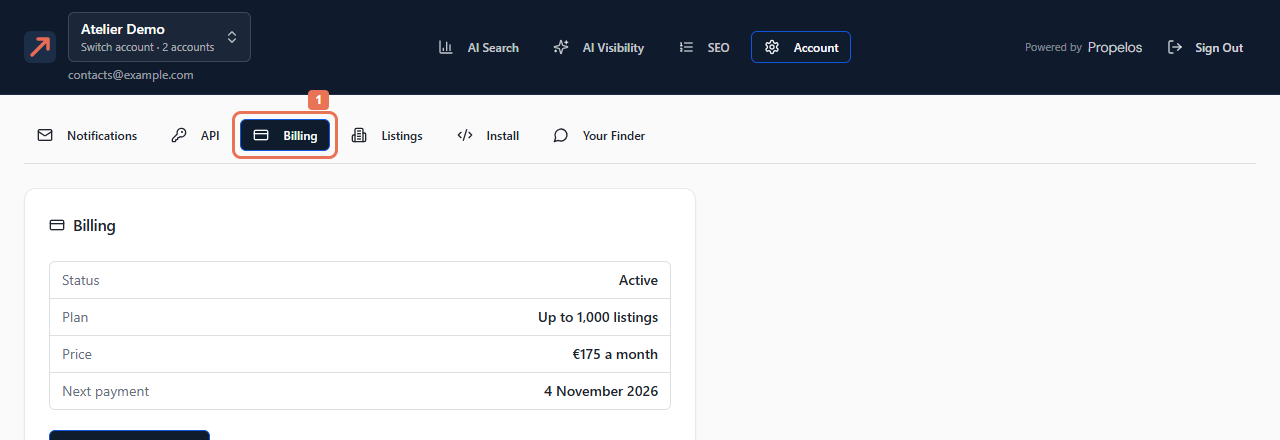
1. Open Billing
Open Account → Billing. Read Status, Plan, Price and the applicable trial, payment or end date.
 Select the image to view it full size.
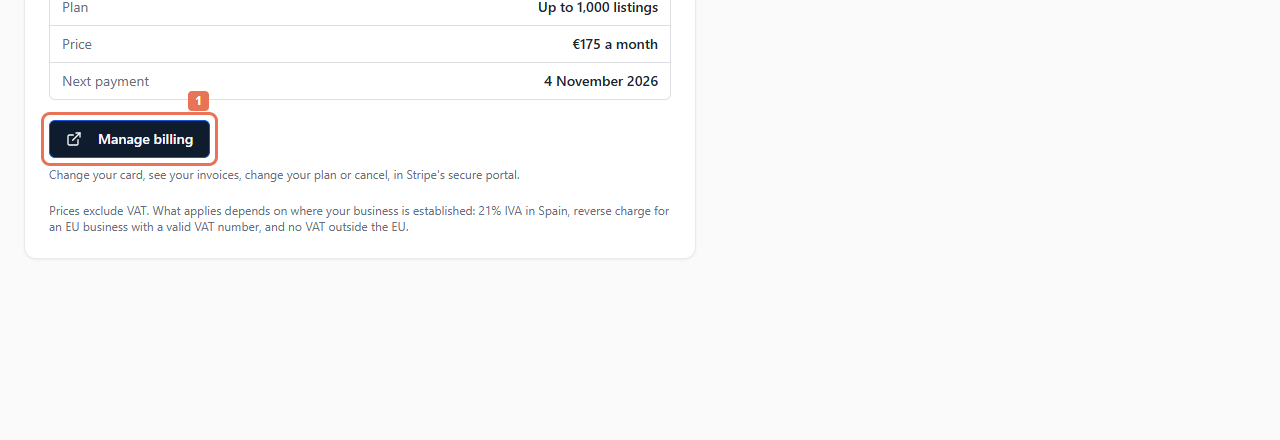
2. Manage payment details
Select Manage billing when offered. In Stripe's secure portal, update the card, review invoices, change the plan or cancel as needed. Return to Propelos and read the resulting status.
 Select the image to view it full size.
Cancellation at period end leaves the Finder working until the shown date. More than your plan covers explains extra listing/language use and any proposed renewal change; use the displayed terms for your account.
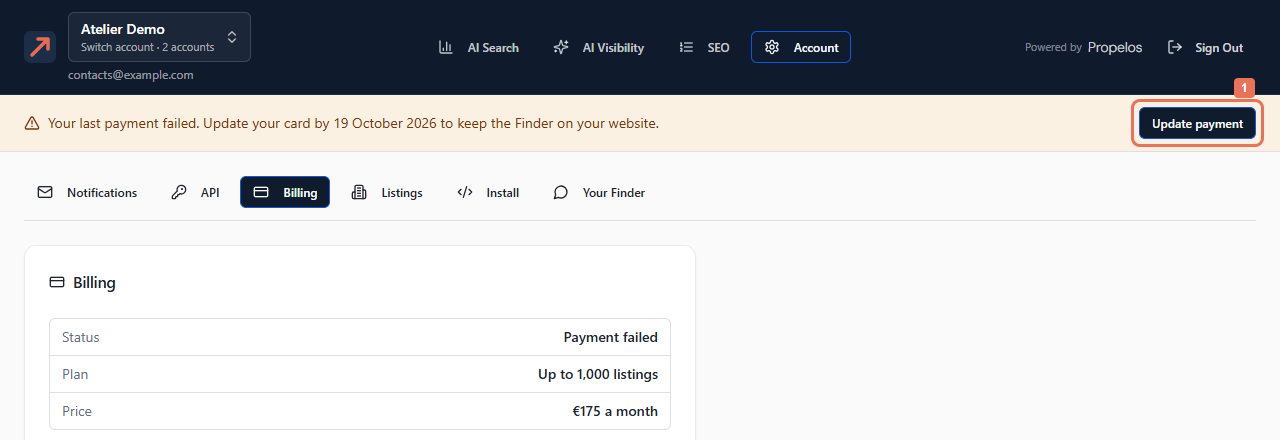
3. Resolve a payment problem
If the notice says a payment failed or your Finder is paused, select Update payment to open the secure payment portal and update your card. Return to Propelos and check the status.
 Select the image to view it full size.
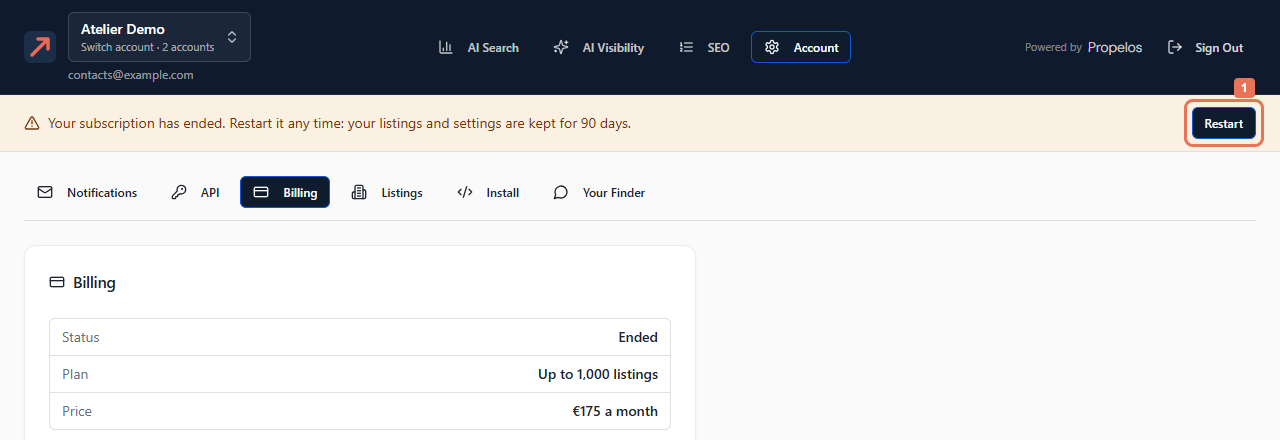
4. Restart an ended subscription
If the notice says your subscription has ended, select Restart to open Billing.
 Select the image to view it full size.
In the Restart your Finder section, review an allowed plan and its price, then select Restart my Finder when offered.
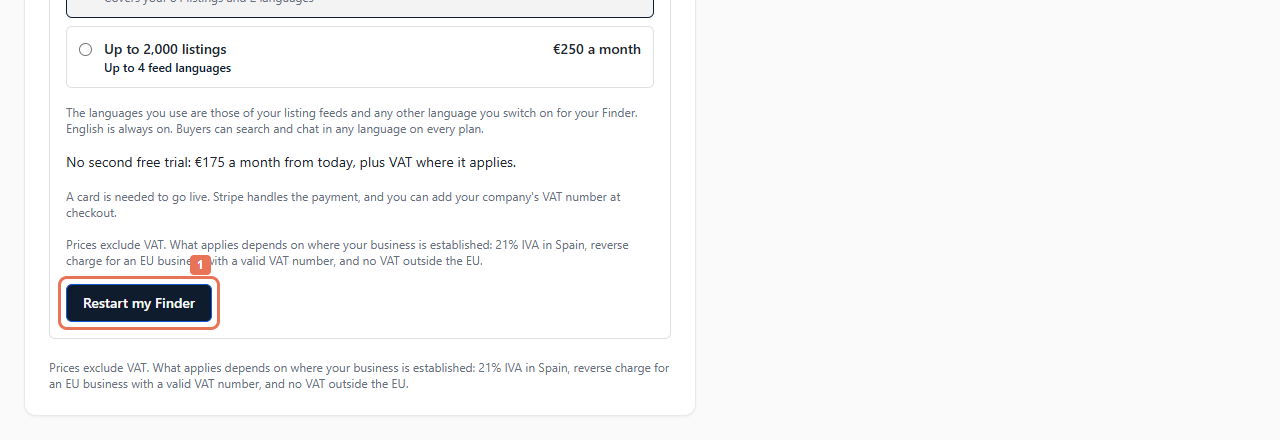 Select the image to view it full size.
Restarting does not grant a second free trial. The ended-account notice explains the 90-day retention of listings/settings. A preview account can use Open the setup to reach go-live. A notice about exceeding the plan’s limits uses Open Billing to review the subscription.
Ended or suspended service shows Powered by Propelos again. After an eligible restart, use Your Finder → Look to hide it if wanted. Managed accounts have billing handled by Propelos.