
More in Pages and publishing
PROPELOS CMS GUIDE
Add a new website page
Create a page with its own web address, add its sections, then preview and publish it.
Templated websites
In this guide
Add a page to your website, such as a page about selling with your agency. You choose its web address, build it from sections and publish it when it is ready.
1. Open Pages
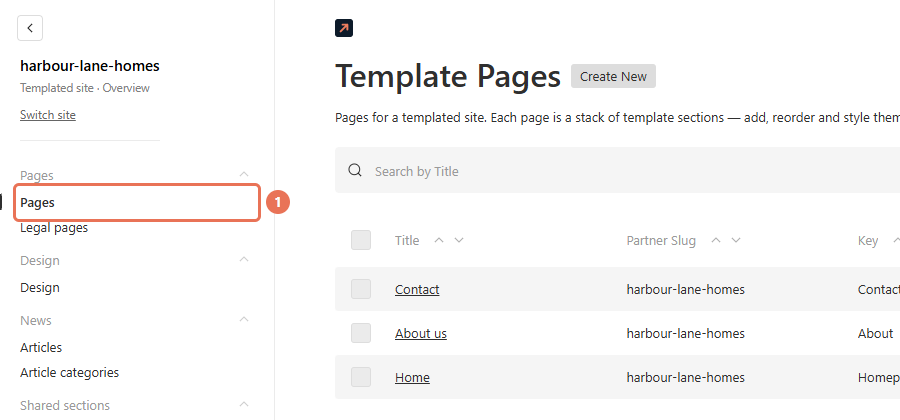
Click Pages in the left sidebar. If the sidebar is hidden, click the menu button in the top-left corner first. If you look after more than one website, open the right one first from your dashboard or with Switch site, so the new page belongs to it.
 Select the image to view it full size.
2. Create the page
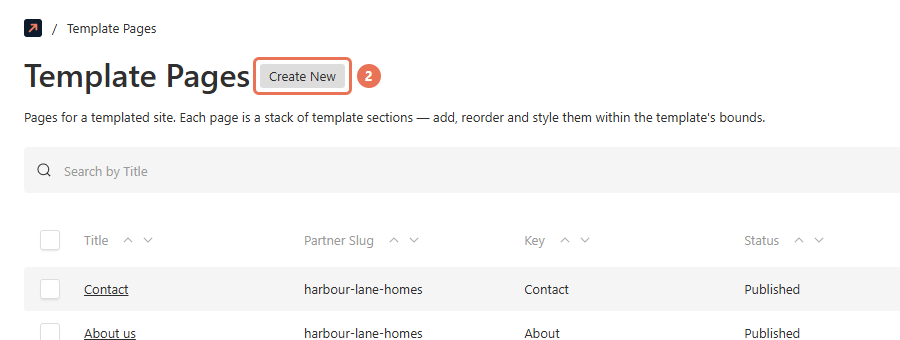
Click Create New beside the Template Pages heading. A new, unpublished page opens straight away.
 Select the image to view it full size.
3. Choose the web address
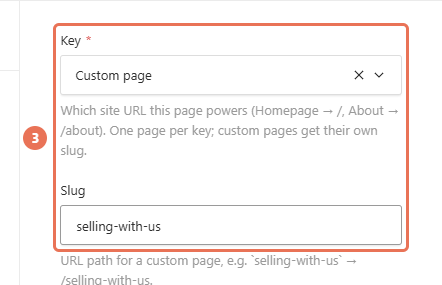
In the right-hand column, Key is already set to Custom page; leave it as it is. In Slug, type the end of the page's address, for example selling-with-us. The field's hint shows the address without its language part; the English page will be at an address ending in /en/selling-with-us.
Use lowercase letters, numbers and single hyphens. Each address can be used only once on your website, and addresses that belong to built-in pages, such as properties, news, about, contact, privacy and cookies, are refused. An address already used on your website is flagged straight away; the other rules are checked when you click Publish changes, and the CMS says which one applies.
 Select the image to view it full size.
4. Name the page
In Content, fill in Title. It is the page's name in the CMS and the title shown on the browser tab, unless you set a different one in the SEO tab.
 Select the image to view it full size.
5. Add sections
Click Add Section and choose a section type, then fill in its fields. Repeat for each part of the page. Edit and reorder page sections explains the section controls.
 Select the image to view it full size.
6. Check the preview
Your changes save automatically as a draft while you work; you can also click Save Draft. Click the eye-shaped Live Preview button beside it, then check the text, images and links at the Mobile and Desktop sizes.
 Select the image to view it full size.
7. Publish the page
Click Publish changes when the page is ready for visitors, then open its address on your website to check the result.
 Select the image to view it full size.
Publishing does not add the page to your menu. To link to it, follow Edit header and footer menus and choose External URL with the page's full address, for example https://www.your-website.com/en/selling-with-us. Internal page does not list pages you add yourself, and an External URL link always opens the language in its address.
Before you change or remove a page
- Changing the address: if you change the Slug of a published page, its old address stops working. Create a redirect from the old address and update any links you have shared.
- Other languages: the page uses the same Slug in every language. Choose a language in the Locale menu in the top right to edit that version, or translate the whole page.
- A page you started by mistake: the CMS saves a new page as a draft as soon as it opens. Delete an empty draft you do not need from the Pages list.
- Key: keep Custom page. Your website already has its Homepage, About and Contact pages, and the CMS refuses a second one of each.