
More in Site settings, design, and SEO
PROPELOS CMS GUIDE
Redirect an old page address
Send visitors from an old website path to a working replacement.
Settings & routing → Redirects
In this guide
Create a permanent redirect so an old link takes visitors to the replacement page.
1. Create a redirect
Click Redirects under Settings & routing, then click Create New.
 Select the image to view it full size.
2. Enter the old path
In From URL, enter the path after your website domain, such as /en/old-guide. Use the exact old address; wildcards do not match a group of pages.
 Select the image to view it full size.
3. Choose the replacement
In To URL Type, choose Internal link and select Document to redirect to, or choose Custom URL and enter its working address. The destination must differ from From URL and must not redirect back to it.
 Select the image to view it full size.
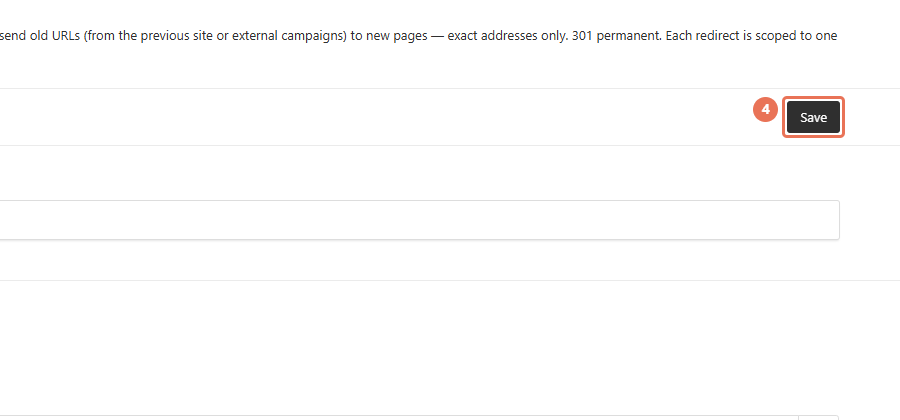
4. Save and test the old link
Click Save to create the redirect. Allow about five minutes for it to take effect, then open the old address on your website’s public domain and check that it reaches the replacement.
 Select the image to view it full size.
Test the replacement before saving and update links you control to use it directly. Some old article slugs, language paths and property short links redirect automatically, so they may not appear in this list.