
More in Pages and publishing
PROPELOS CMS GUIDE
Preview a page or restore an earlier version
Review your saved draft in Live Preview, or use Versions to recover earlier content.
Pages and articles with preview and version history
In this guide
Use Live Preview to check a saved draft before publishing. Use Versions when you need to recover an earlier saved copy.
1. Save your draft
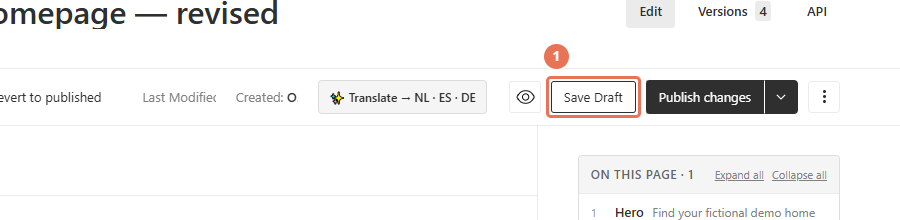
Click Save Draft if it is shown; otherwise wait for autosave to finish. This keeps your changes for review without publishing them.
 Select the image to view it full size.
2. Open Live Preview
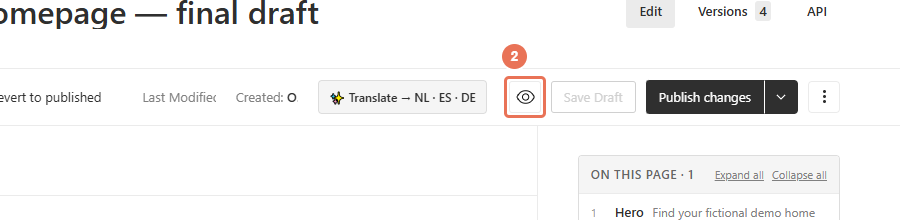
Click Live Preview (the eye icon) in the editor. The preview shows saved content, so wait for a save to finish before checking a recent change.
 Select the image to view it full size.
3. Check the phone layout
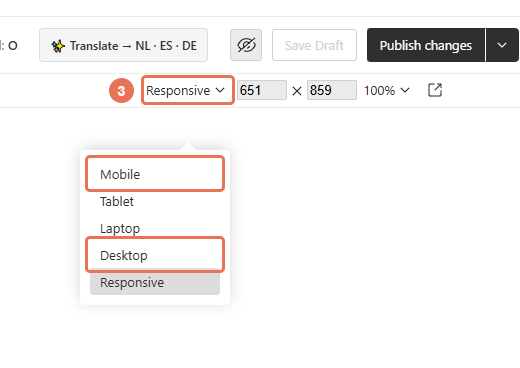
Choose Mobile in the preview’s size controls. Check the text, photo framing and spacing, then switch to Laptop or Desktop for the larger layout.
 Select the image to view it full size.
4. Open Versions if you need to undo changes
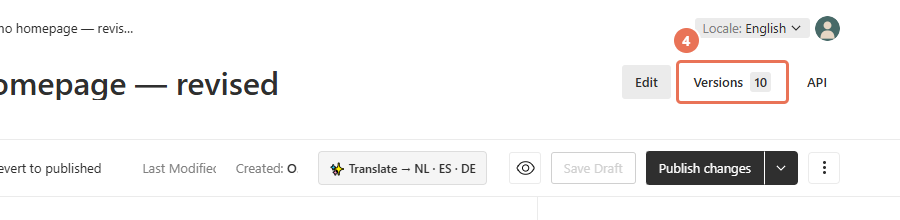
Click Versions near the top of the editor and open the saved version you want to review. Compare it with the current content before restoring it.
 Select the image to view it full size.
5. Choose how to restore
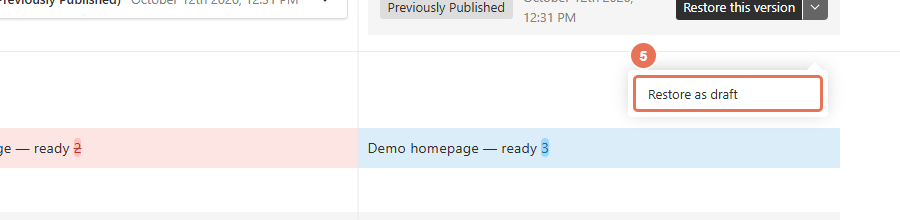
A version includes its saved content across languages, so check any translations updated since that save. To review an earlier published version without changing the live page, open the arrow beside Restore this version and choose Restore as draft.
Restore this version replaces the live content and its publication status. Restoring a published version can make it live immediately; restoring a draft version can unpublish the page in every language. If the selected version is a draft, Restore as draft is not offered. Do not use ordinary restoration of that draft to undo changes on a live page; contact Propelos if you need help recovering it.
 Select the image to view it full size.
6. Confirm the replacement
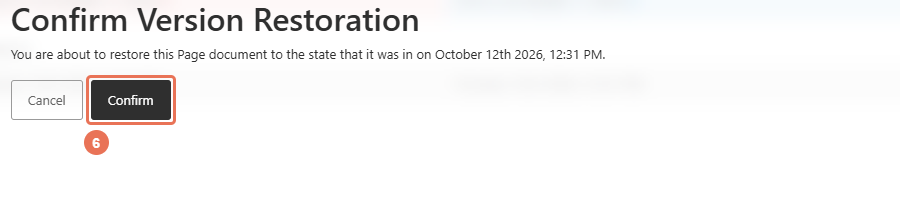
After choosing Restore as draft, click Confirm to replace the current draft with the selected version. Review it in Live Preview before using Publish changes.
 Select the image to view it full size.
Version history retains a limited number of saves, so it is not a permanent backup of every edit. Preview links can show unpublished content; use the website’s normal address when sharing a page.