
More in Languages and translation
PROPELOS CMS GUIDE
Edit your website in another language
Choose a language in the Locale menu and update that version of your content.
Websites available in more than one language
In this guide
Use the Locale menu to edit the text visitors see in another website language.
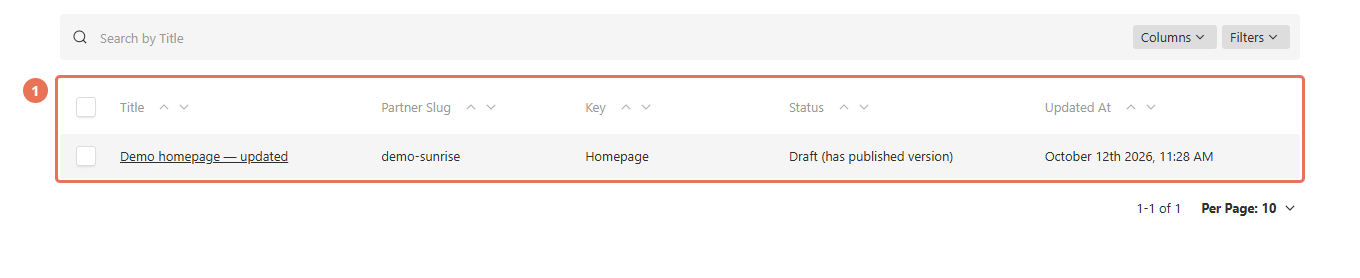
1. Open the content
Open the page, article or other item you want to translate.
 Select the image to view it full size.
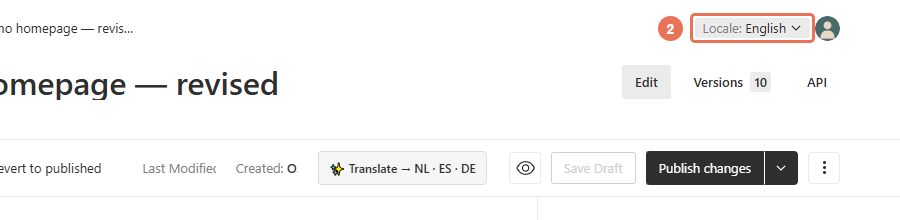
2. Choose the website language
Open the Locale menu in the top right and choose the website language you want to edit.
 Select the image to view it full size.
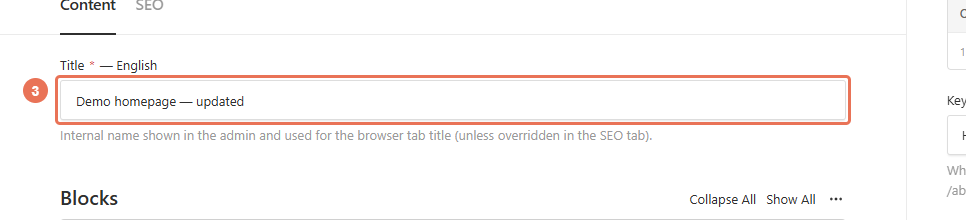
3. Update the text
Edit the wording for the chosen language. To translate an individual field from saved English text, use Translate from English beside that field.
 Select the image to view it full size.
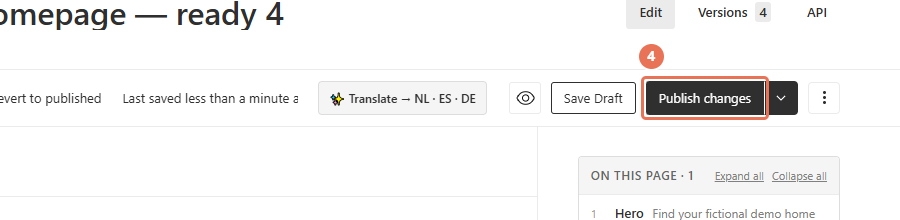
4. Publish your changes
Click Publish changes when you are ready for visitors to see the update. Then open the normal website address in a separate tab and check the result.
 Select the image to view it full size.
Check the same language on the public website after publishing. On items with Save rather than Publish changes, saving can update the live website immediately.
Some facts are shared between languages. A manually added property’s reference, price, dimensions and location change in every language; its title and descriptions have separate translations.
An empty translation can show English fallback text. Also, the editor’s language list can include languages your website does not serve. Contact Propelos if you want to make another language available to visitors.