
More in Site settings, design, and SEO
PROPELOS CMS GUIDE
Edit search titles, descriptions and website defaults
Set SEO text for a page or property and edit website-wide fallback values.
SEO fields on content; Site settings → SEO defaults
In this guide
Choose the title, description and preview image used to describe a page to search engines and social networks.
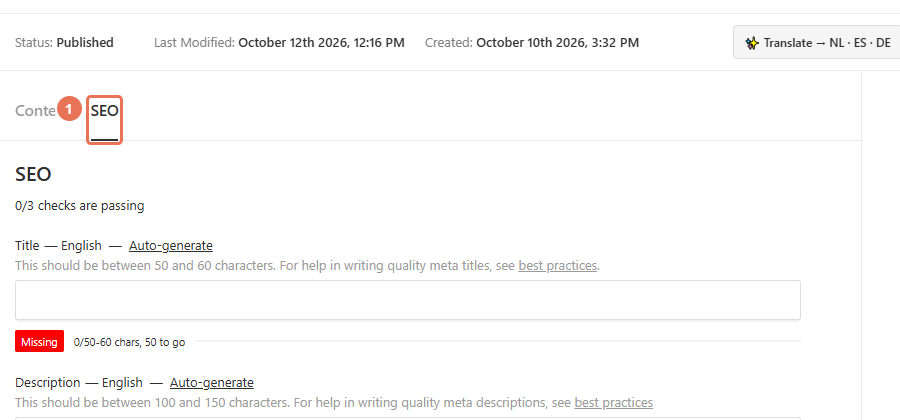
1. Open the page’s SEO tab
Open the page or article, then click SEO. Use the Locale menu at the top right to choose the website language you are editing.
 Select the image to view it full size.
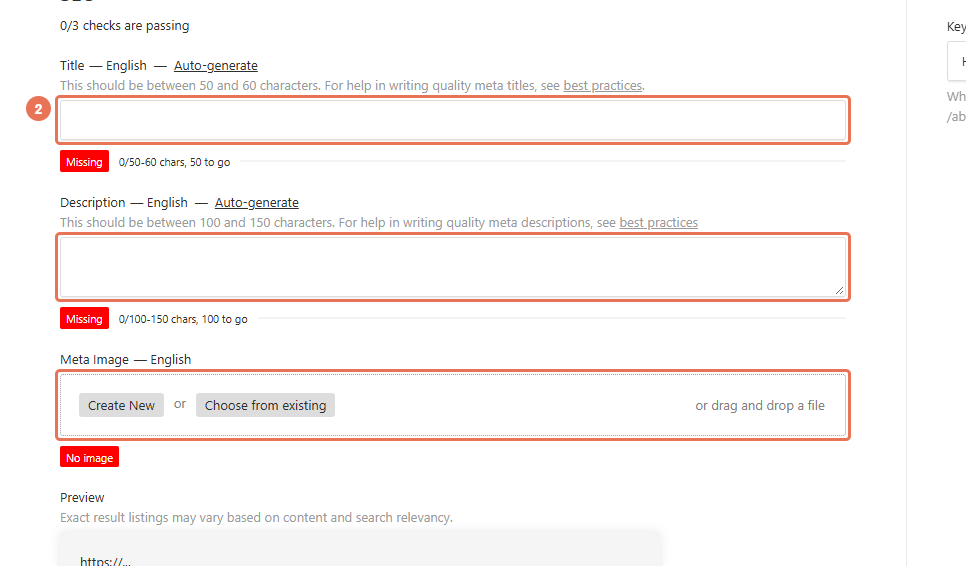
2. Write the page’s SEO text
Edit Title and Description to describe the page accurately, and choose Meta Image for its link preview. Keep the title specific and the description useful; these fields are separate from the visible page heading.
 Select the image to view it full size.
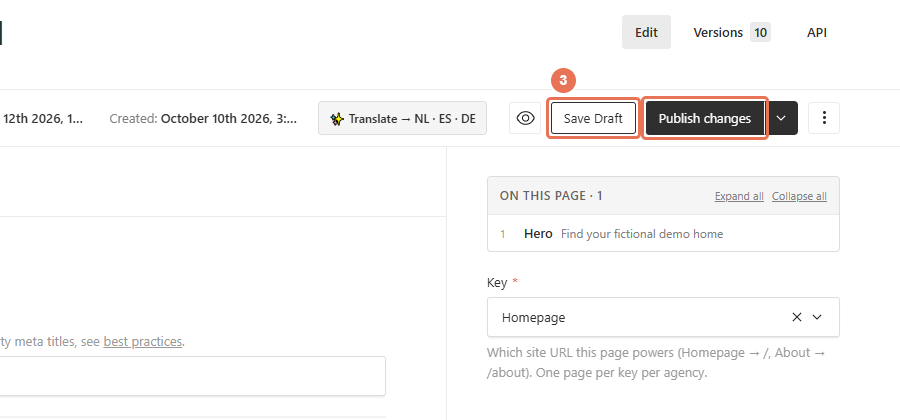
3. Publish the page’s changes
Click Publish changes to put the SEO changes on the public page. Save Draft keeps them for review without changing the published page.
 Select the image to view it full size.
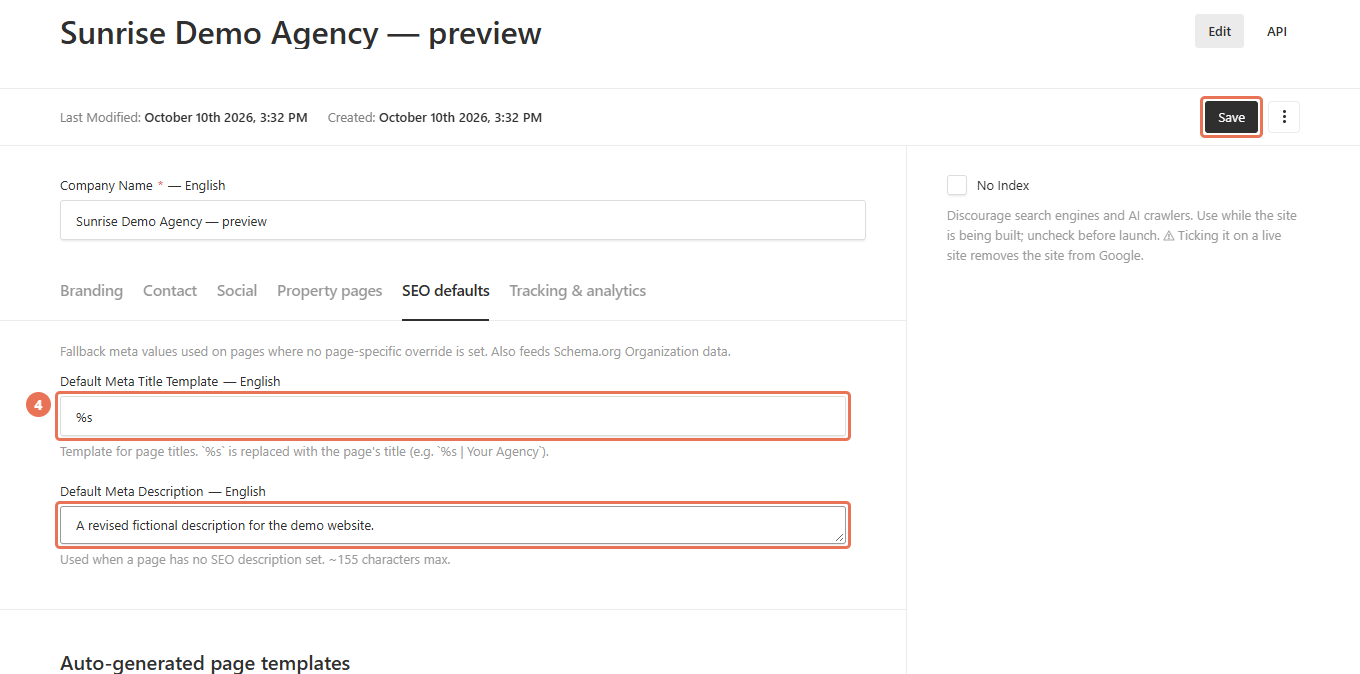
4. Edit website defaults
For fallback text, open Site settings → SEO defaults. Edit Default Meta Title Template and Default Meta Description, then click Save; these settings update immediately.
 Select the image to view it full size.
For one feed listing, use its SEO fields in Properties. Auto-generated page templates sets patterns for location and property pages; preserve the tokens listed in each field’s description. No Index requests exclusion from search results, so ask Propelos to check it if a launched website is still excluded. Search engines and social networks can take time to show changed text.