
More in Pages and publishing
PROPELOS CMS GUIDE
Edit and reorder page sections
Change the text, images and order of sections on a website page.
Website pages with a sections editor
In this guide
Use sections to change a page’s content and the order visitors see it in.
1. Open the page
Click Pages in the left sidebar, then open the page you want to change.
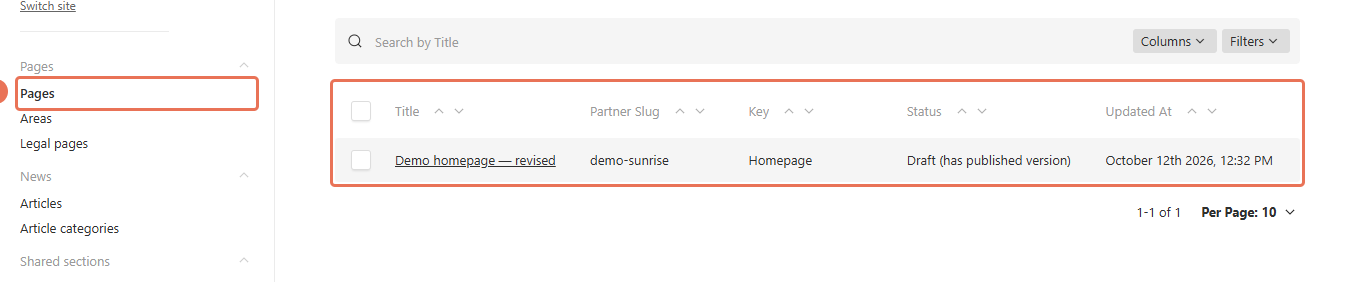 Select the image to view it full size.
2. Choose the website language
Open the Locale menu in the top right and choose the website language you want to edit.
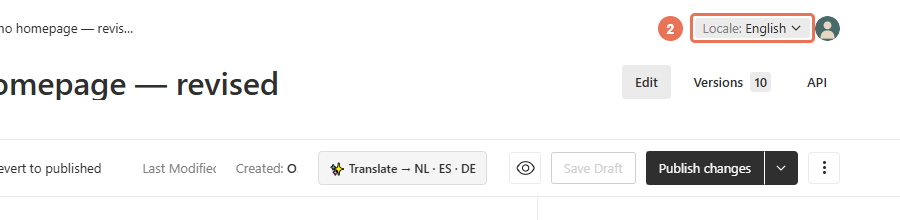 Select the image to view it full size.
3. Expand a section
Click the section’s row to open its fields. On a custom website, On this page also lets you jump to a section. Templated websites do not have this outline; use the section rows instead.
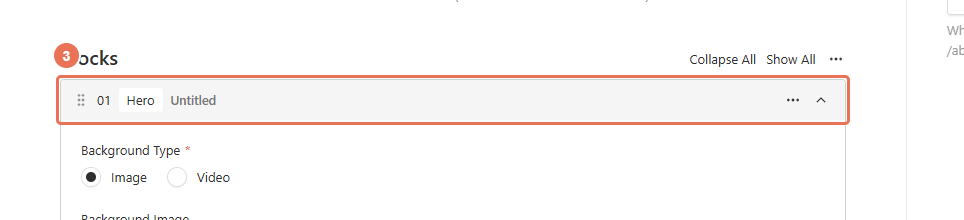 Select the image to view it full size.
4. Edit the section
Change the text, images or links in the expanded section.
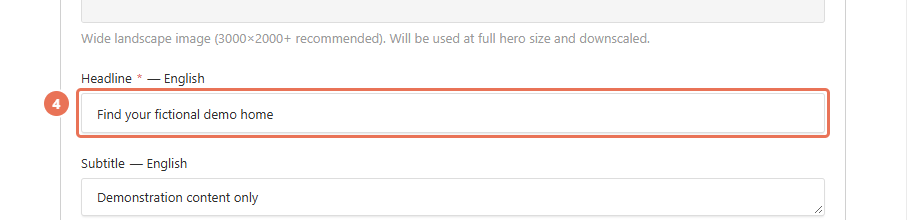 Select the image to view it full size.
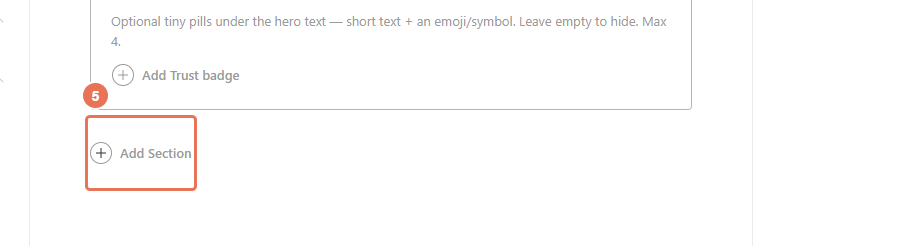
5. Add a section if needed
Click Add Section below the list, then choose the section you want to add. Fill in its required fields.
 Select the image to view it full size.
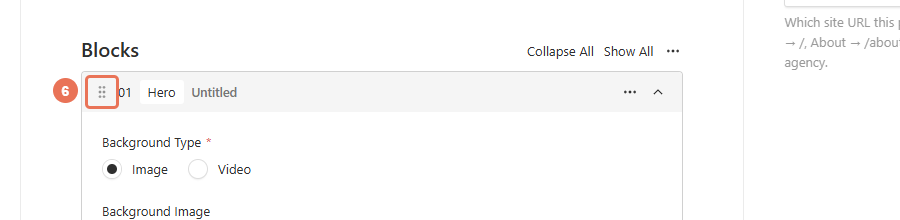
6. Change the section order if needed
Drag the dotted handle at the left of a section’s row to its new position. The website shows sections in this order.
 Select the image to view it full size.
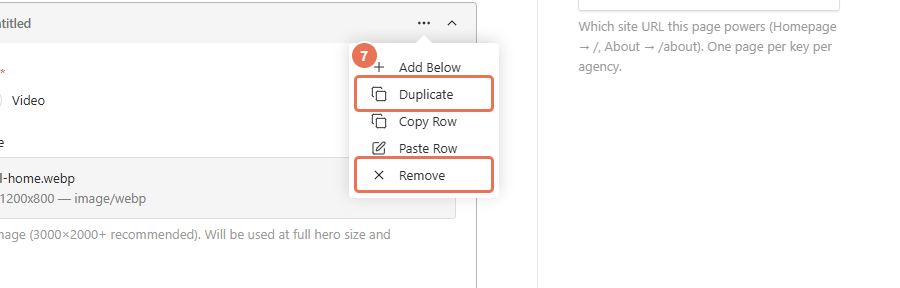
7. Duplicate or remove a section if needed
Open the section’s ⋮ menu and choose Duplicate to copy it or Remove to delete it. Removing a section deletes its content from this page when you publish.
 Select the image to view it full size.
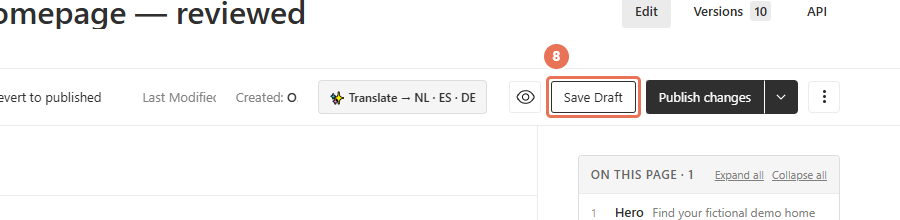
8. Save your draft
Click Save Draft if it is shown; otherwise wait for autosave to finish. This keeps your changes for review without publishing them.
 Select the image to view it full size.
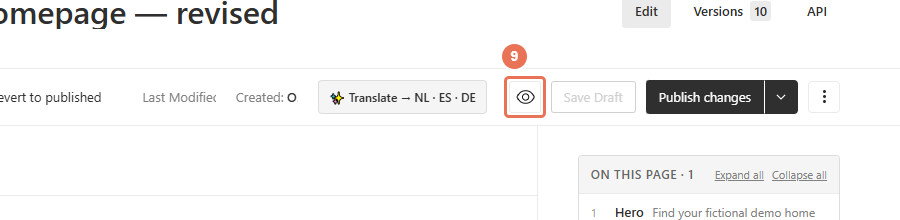
9. Check Live Preview
Click Live Preview (the eye icon) to inspect the saved draft. Check the page at Mobile and Desktop sizes before publishing.
 Select the image to view it full size.
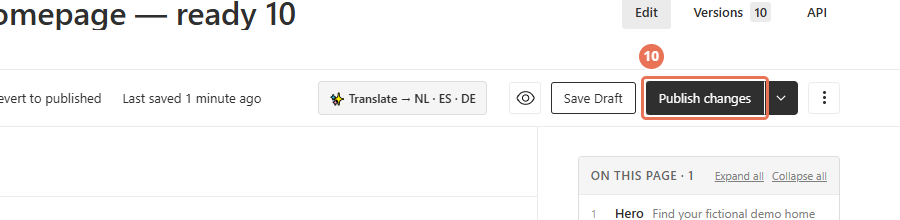
10. Publish your changes
Click Publish changes when you are ready for visitors to see the update. Then open the normal website address in a separate tab and check the result.
 Select the image to view it full size.
If your page has a Photo hero, Background photograph controls its main photo. Clear the current selection with × to choose another image. Crop focus (optional) and Crop focus on phones (optional) let you choose which part stays visible; an empty phone setting uses the main focus. This hero shows the first button on desktop, both buttons on phones, and hides its caption on phones.
If a section has Section style, it changes that section’s appearance. Use Design for changes across the website.