
More in Menus and shared sections
PROPELOS CMS GUIDE
Edit header and footer menus
Change menu labels, destinations and order, then check the desktop and phone menus.
Shared sections → Menus
In this guide
Update the links visitors use to move around your website. Menu changes go live when you save.
1. Open the menu
Click Menus under Shared sections. Choose Header for the main menu or Footer for the link columns at the bottom of the website.
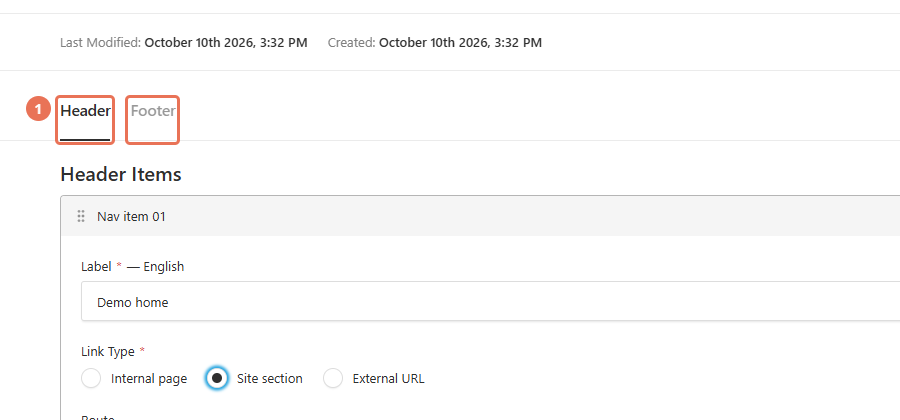 Select the image to view it full size.
2. Change a label
Expand the menu item or footer column you want to change. Use the Locale menu at the top right to choose the website language you are editing, then edit Label; footer columns also have a Heading.
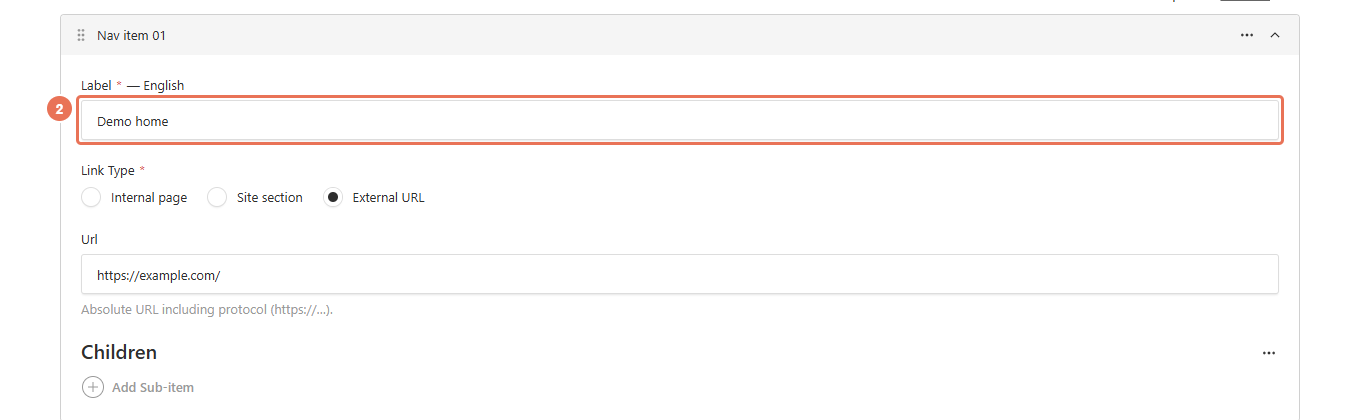 Select the image to view it full size.
3. Choose where the link opens
Set Link Type to Internal page and choose Page, Site section and choose Route, or External URL and enter the full address in Url. Built-in section and page links follow the visitor’s language. On a templated website, Internal page does not list pages you added with Create New: link to one with External URL and its full address, which always opens that language.
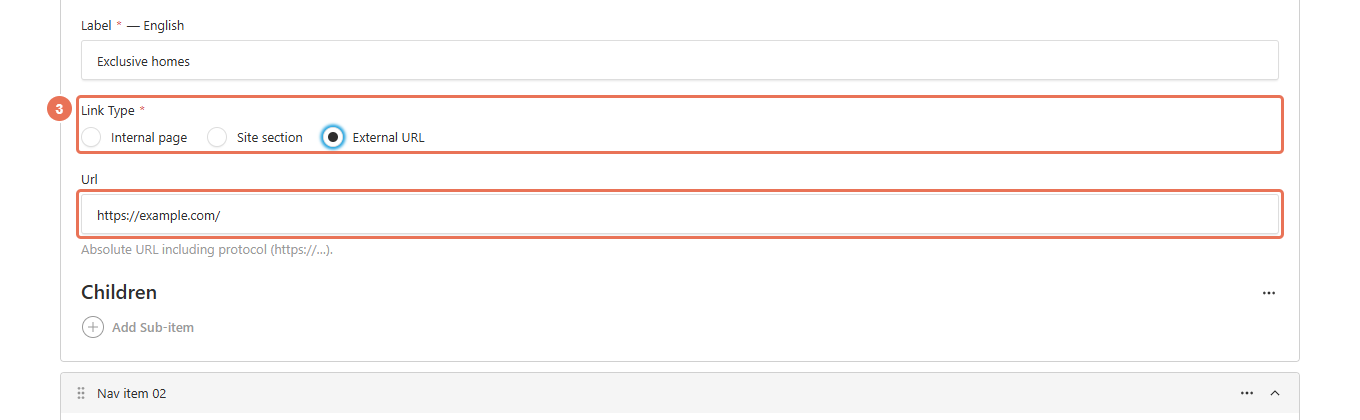 Select the image to view it full size.
4. Arrange items and dropdowns
Drag items into the order you want. Add Sub-items inside a header item to make a dropdown; use Footer to arrange columns and their links.
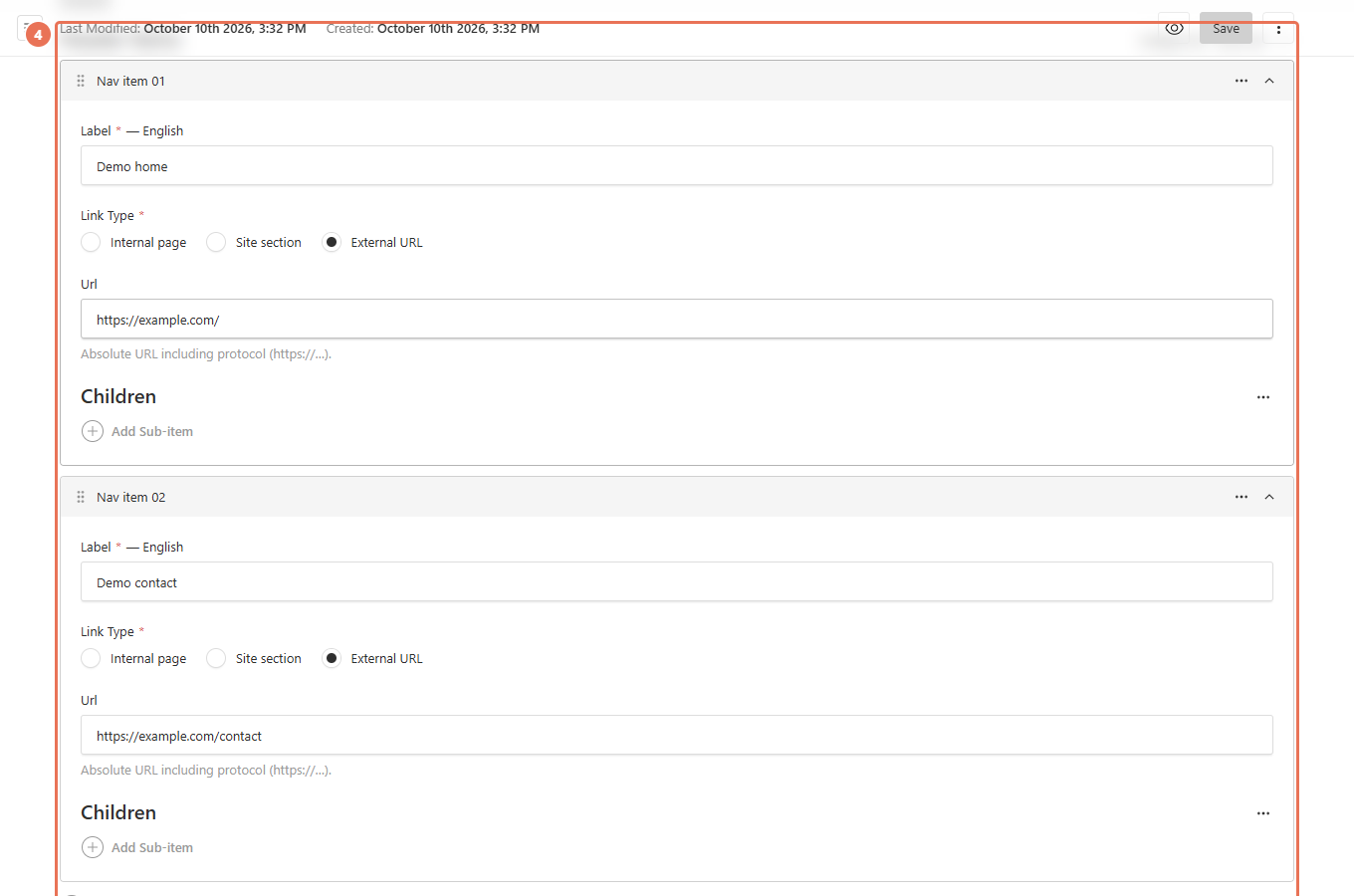 Select the image to view it full size.
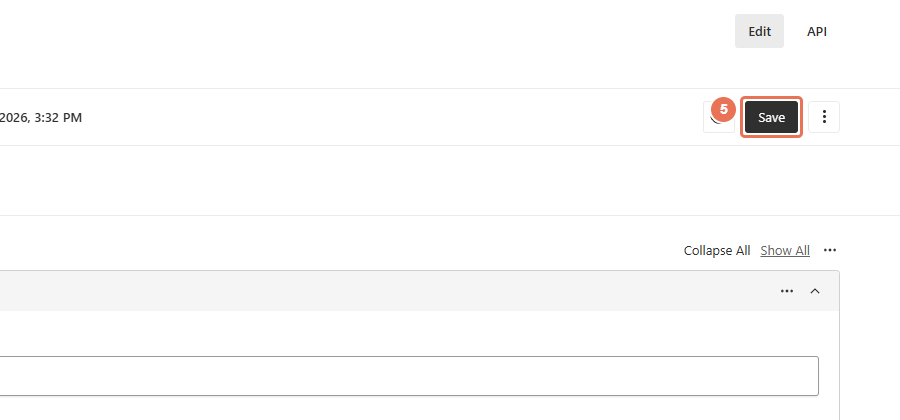
5. Save the menu
Click Save to update the website’s navigation immediately. Test each changed link in the desktop header and phone menu, or the footer.
 Select the image to view it full size.
If the Header button group appears, edit its Label and Opens destination separately. An empty label or destination can restore that part of the original button. Filter (optional) adds a results filter without the leading ?; leave it empty for a plain link. Clearing every menu item can restore the original menu.