
More in Pages and publishing
PROPELOS CMS GUIDE
Save a draft and publish your changes
Keep unfinished changes as a draft, then publish when they are ready for visitors.
Pages, articles, area guides and manually added properties
In this guide
A draft saves your work while the last published content remains available to visitors.
1. Finish your edits
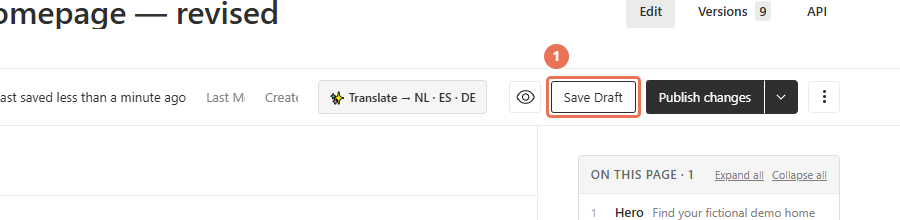
Make your changes and wait for the save indicator to finish. Autosave keeps draft work, but does not publish it.
 Select the image to view it full size.
2. Save your draft
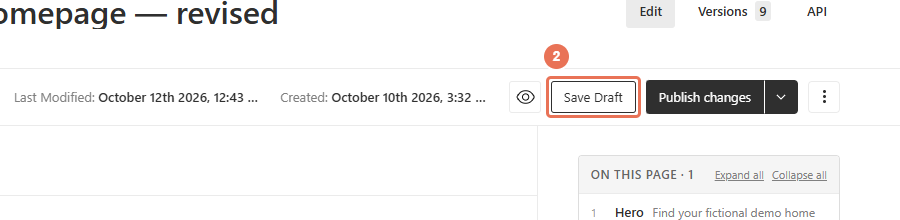
Click Save Draft if it is shown; otherwise wait for autosave to finish. This keeps your changes for review without publishing them.
 Select the image to view it full size.
3. Review the draft
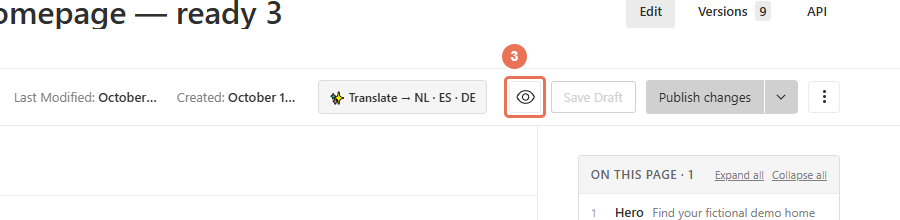
Open Live Preview (the eye icon) to check a page or article. For a manually added property, review its text, facts and photos in the editor before publishing.
 Select the image to view it full size.
4. Publish your changes
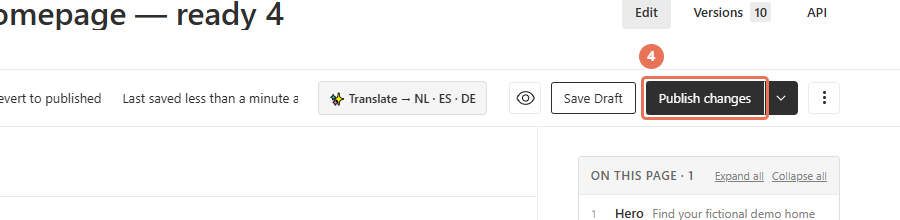
Click Publish changes when you are ready for visitors to see the update. Then open the normal website address in a separate tab and check the result.
 Select the image to view it full size.
Publishing updates the website’s content. Reload the public page to see the result; a tab you already had open does not update by itself.
Save on menus, team profiles, site settings, shared sections and legal pages can update the live website immediately. Those items do not have the same draft-and-publish workflow, so review changes before saving.