
More in Pages and publishing
PROPELOS CMS GUIDE
Edit an existing website page
Change the text or photos on a website page, check the preview, and publish your changes.
Website pages
In this guide
Update a page's text or photos in the CMS. Your changes reach visitors when you publish them.
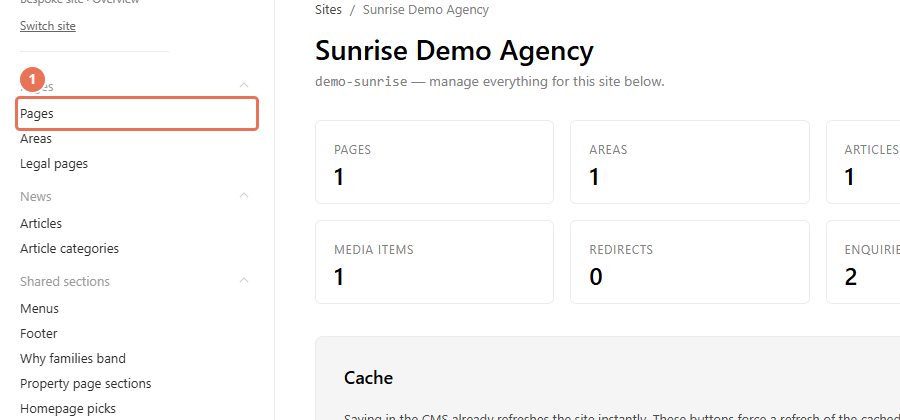
1. Open Pages
Click Pages in the left sidebar. If the sidebar is hidden, click the menu button in the top-left corner first.
 Select the image to view it full size.
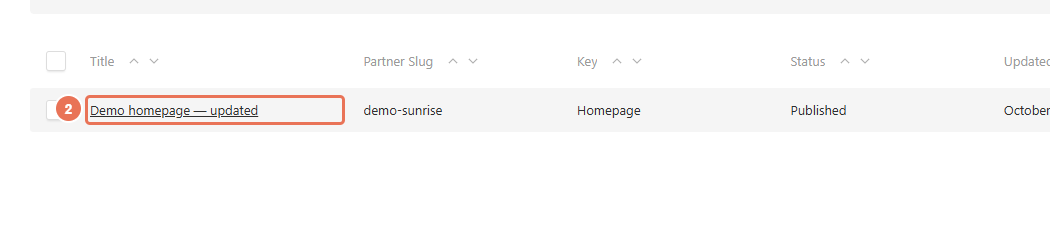
2. Open the page you want to change
Find the page in the list and click its title. Use the search box if you have a long list of pages.
 Select the image to view it full size.
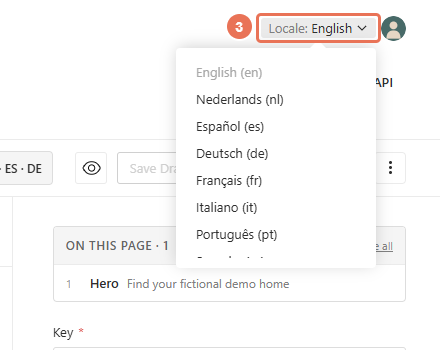
3. Choose the language you want to edit
Check Locale in the top-right corner. Click it and choose the language version of your website you want to change. For example, choose Nederlands (nl) to edit the text shown on the Dutch website.
 Select the image to view it full size.
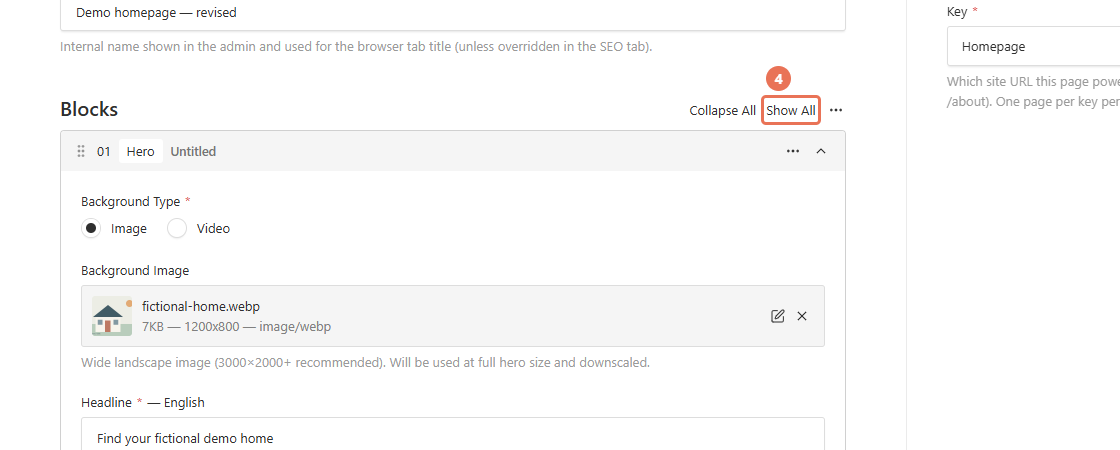
4. Open the section you want to change
In Content, click a section's row to expand it, or click Show All to open every section. On a custom website, On this page on the right also helps you jump to a section. Templated websites do not have this outline; use the section rows instead.
 Select the image to view it full size.
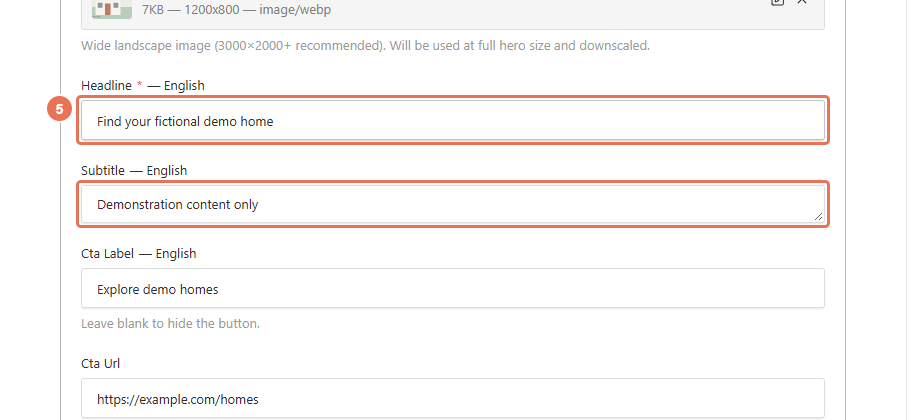
5. Edit the text or photo
Change the fields in that section. For example, Headline changes the large heading in the hero at the top of the page, and Subtitle changes the text underneath it. The Title above the sections is the page's name in the CMS; it is a separate field from the hero heading.
 Select the image to view it full size.
To replace a photo, follow Upload and reuse media files. Leave Key or Page Id as they are when editing an existing page.
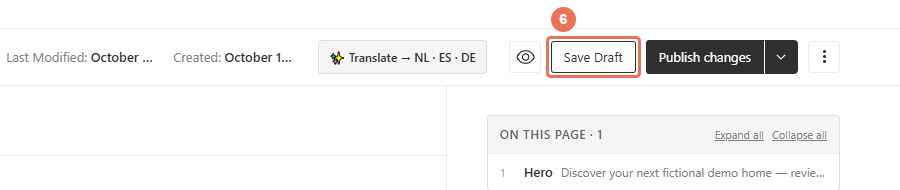
6. Save your draft
Click Save Draft at the top of the editor. Saving a draft keeps your changes out of the published page while you check them. If your editor has only Publish changes, it saves drafts automatically; wait for the saving indicator to finish before leaving the page.
 Select the image to view it full size.
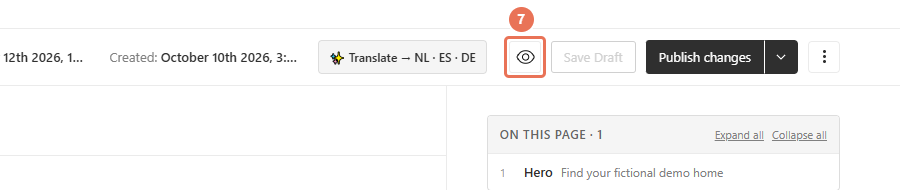
7. Check the preview
Click the eye-shaped Live Preview button beside the save controls. Check the text, images and links. Use the preview's Mobile and Desktop sizes to check how the page fits each screen.
 Select the image to view it full size.
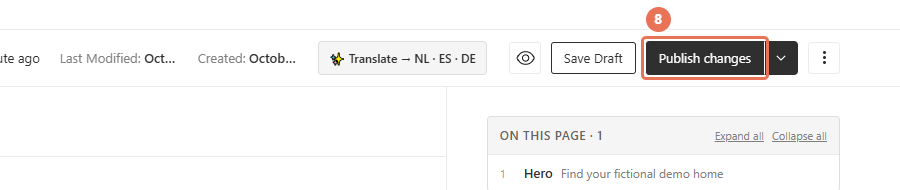
8. Publish your changes
When the page is ready, click Publish changes. Open the page on your website in the language you edited and check the published result.
 Select the image to view it full size.