
More in Site settings, design, and SEO
PROPELOS CMS GUIDE
Update tracking and cookie-banner settings
Add approved tracking snippets and configure the website’s cookie settings.
Site settings → Tracking & analytics
In this guide
Manage the tracking code and cookie-banner preferences used by your website. Have your marketing or technical colleague provide the approved snippets and consent setup before editing.
1. Open Tracking & analytics
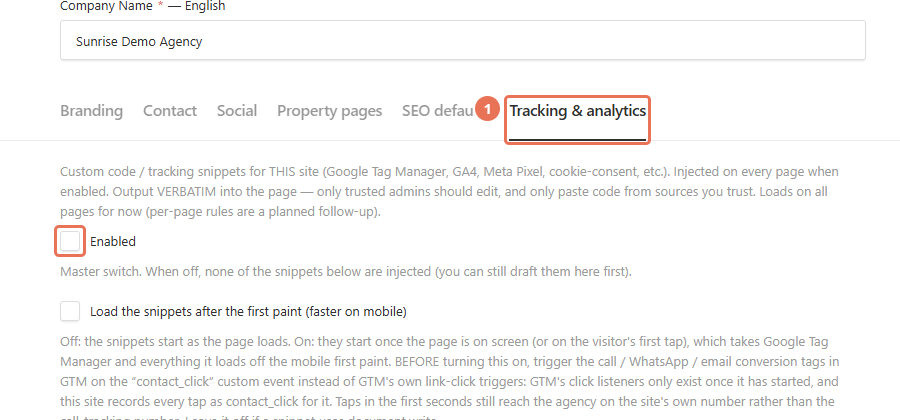
Click Site settings under Settings & routing, then click Tracking & analytics. Enabled is the master switch for the tracking snippets.
 Select the image to view it full size.
2. Paste the tracking snippets
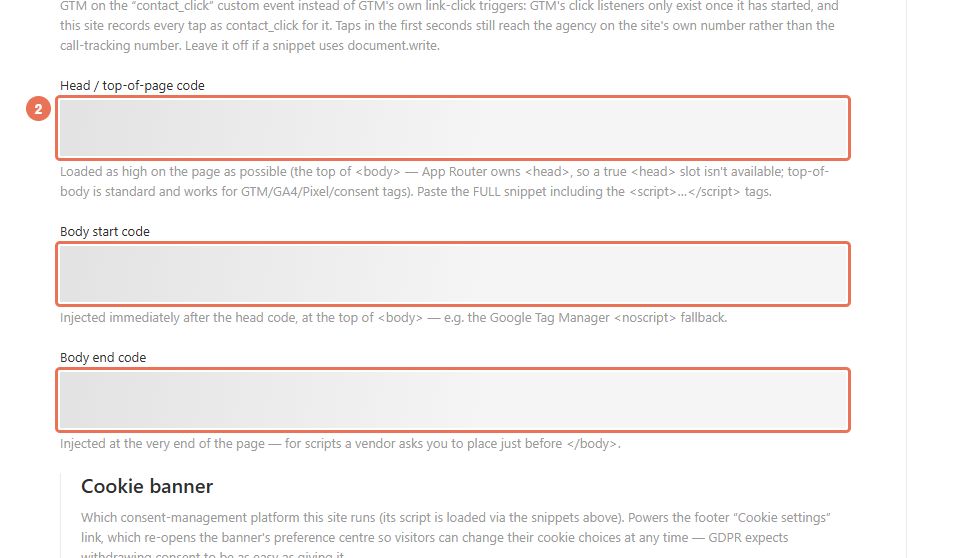
Put each complete snippet in Head / top-of-page code, Body start code or Body end code, following the field descriptions and your supplied setup. The top-of-page slot runs high in the body.
 Select the image to view it full size.
3. Choose the cookie banner
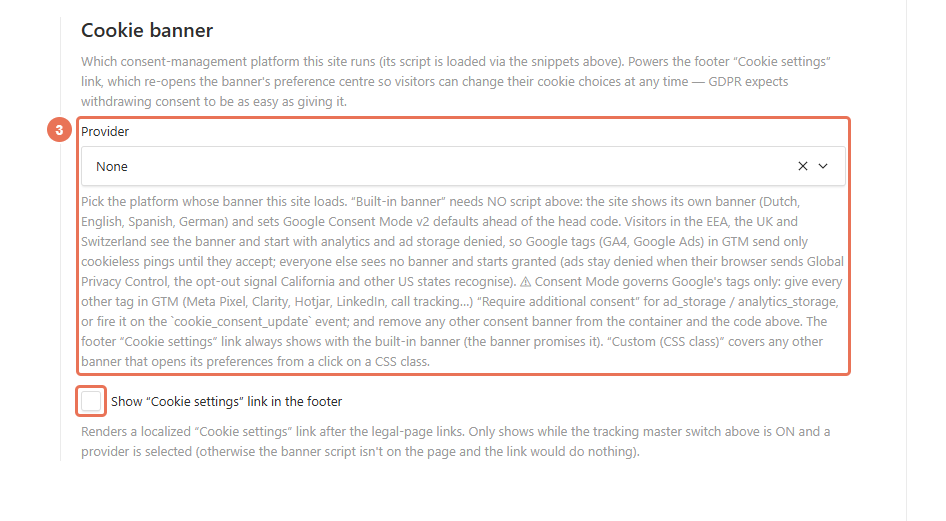
In Cookie banner, choose Provider and decide whether to tick Show “Cookie settings” link in the footer. The built-in banner needs no extra banner script.
 Select the image to view it full size.
4. Save and test the website
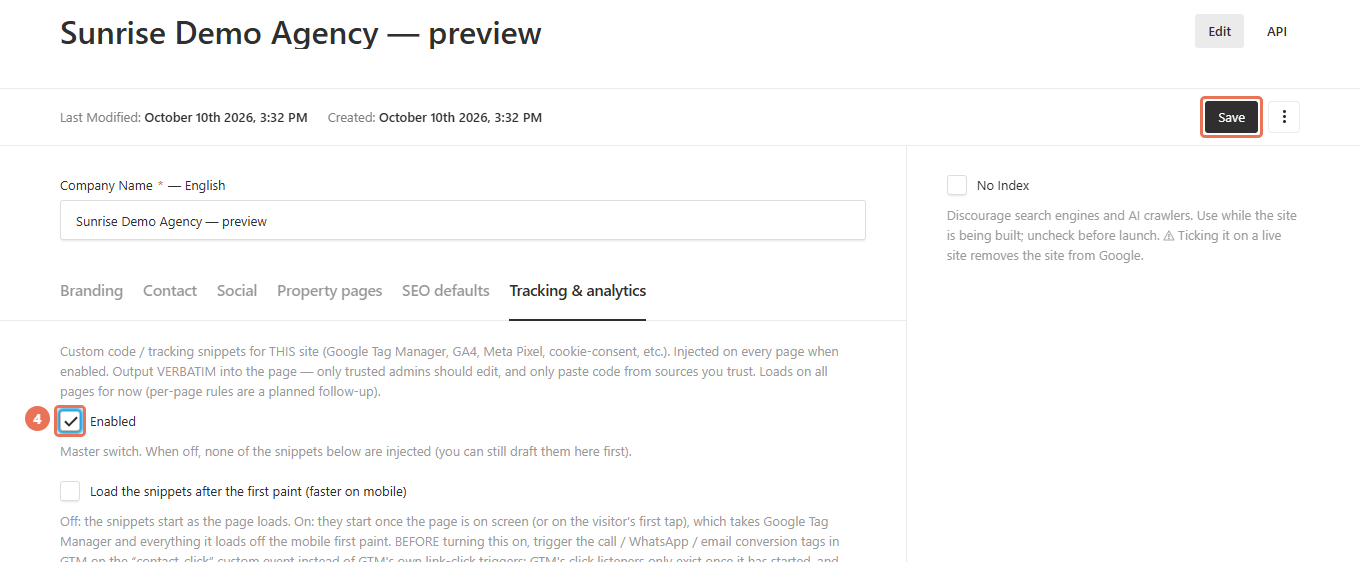
Set Enabled as intended, then click Save to apply the configuration immediately. With Enabled off, the snippets stay saved but do not run; after enabling, check the banner, preferences link and tags on the public website.
 Select the image to view it full size.
Selecting a cookie provider does not configure every third-party tag’s consent conditions. Ask the person responsible for the setup to check consent behaviour and duplicate tags. Editing a policy page alone does not change these controls.