
More in Site settings, design, and SEO
PROPELOS CMS GUIDE
Change your logo, favicon and link-preview image
Choose the images used for your website’s branding and shared links.
Site settings → Branding
In this guide
Update your website’s logos, browser-tab icon and the picture shown when someone shares a link.
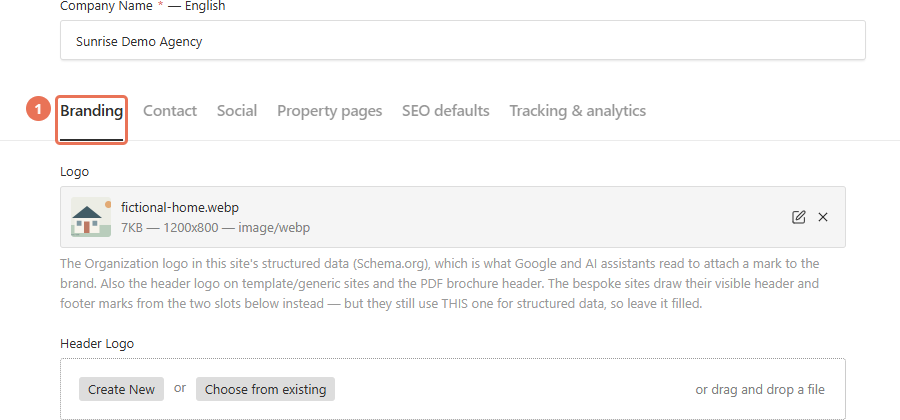
1. Open Branding
Click Site settings under Settings & routing, then click Branding.
 Select the image to view it full size.
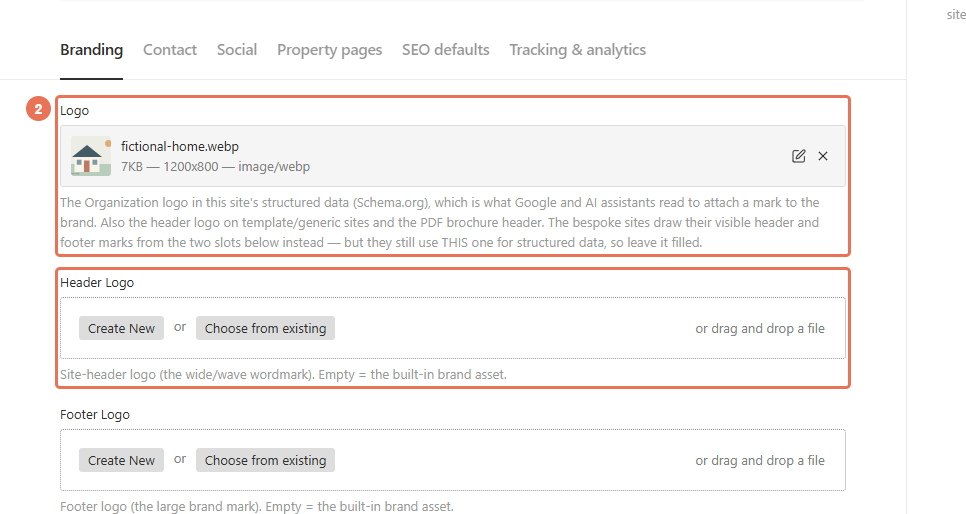
2. Choose the logo images
Select your company mark in Logo. Use Header Logo and Footer Logo for the separate visible logos when those fields are shown; click × to clear an old selection then Create New to upload another image or Choose from existing to select one.
 Select the image to view it full size.
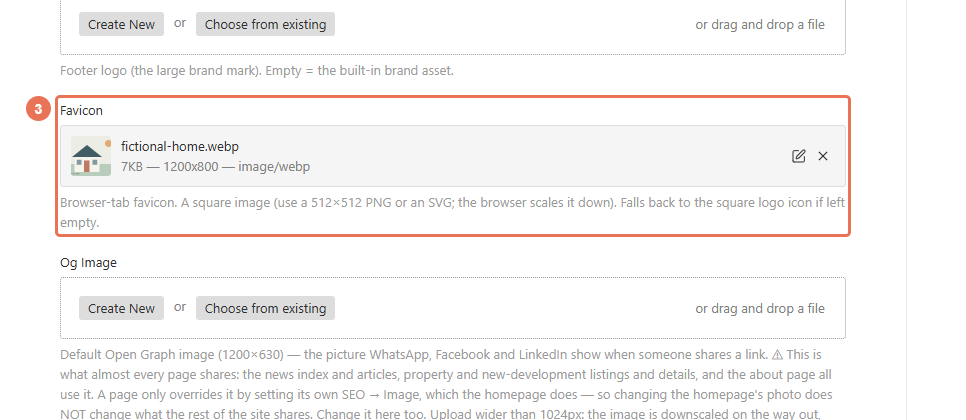
3. Set the browser-tab icon
Choose a square image in Favicon; a 512 × 512 source works well. If Logo Icon appears, it supplies the browser-tab fallback when Favicon is empty.
 Select the image to view it full size.
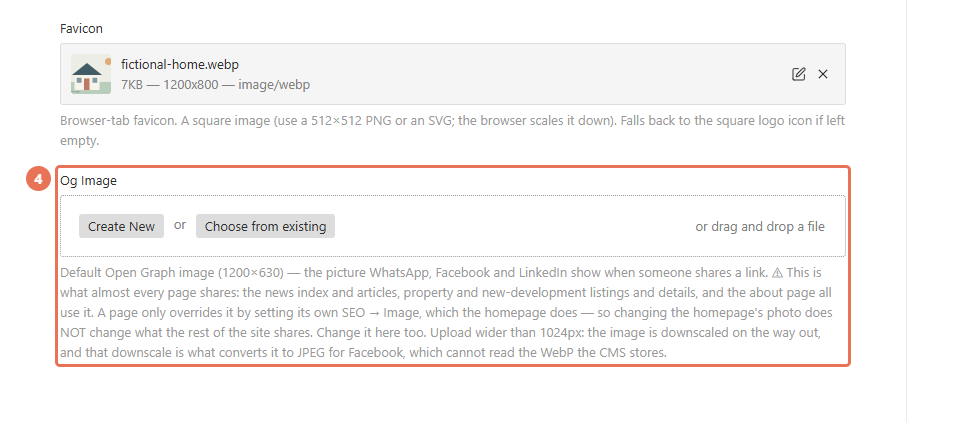
4. Set the shared-link picture
Choose Og Image for the default link-preview image. Use a landscape image around 1200 × 630 pixels and wider than 1024 pixels; a page’s SEO → Meta Image can override this default.
 Select the image to view it full size.
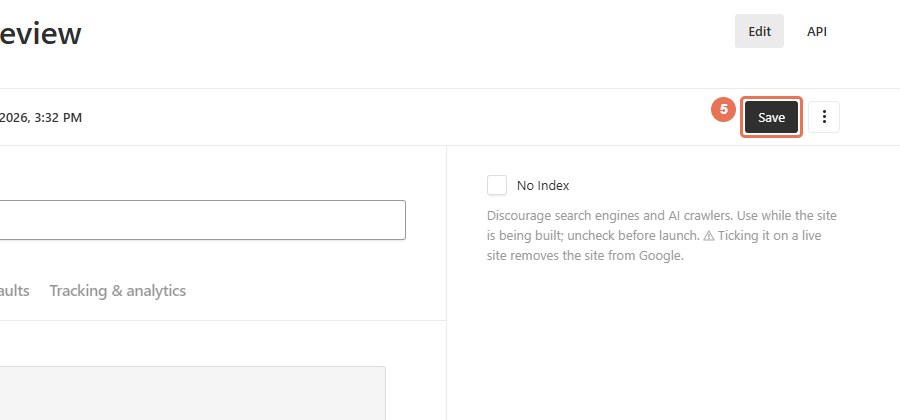
5. Save the branding
Click Save to update the website immediately. Check the visible logos and browser tab; a social network may keep its previous link preview until it refreshes the URL.
 Select the image to view it full size.
Changing the homepage photo does not change the default link-preview image. Logo also identifies your company to search engines and can appear on brochures, so keep it filled even when Header Logo supplies the visible website mark. Footer accreditation logos are edited in Shared sections → Footer → Accreditation marks.