
More in News and articles
PROPELOS CMS GUIDE
Change an article’s web address
Edit an article’s Slug or Localized Slug and test both its new and old links.
Websites with articles
In this guide
Change an article’s web address when you need a clearer URL. You do not need to change it each time you update the headline.
1. Open the article
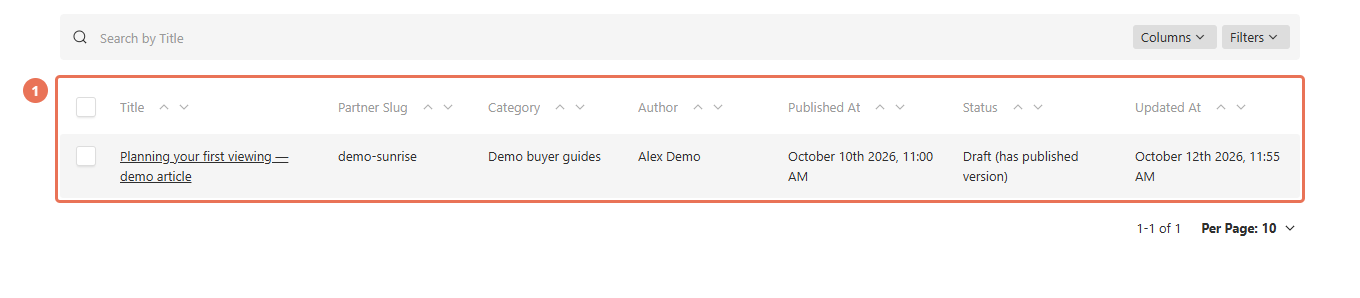
Click Articles under News, then open the article. Copy its current public address so you can test it later.
 Select the image to view it full size.
2. Choose the language
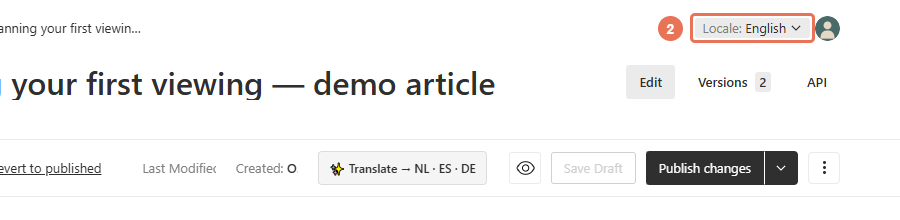
Open the Locale menu in the top right and choose the language whose address you want to change.
 Select the image to view it full size.
3. Change the slug
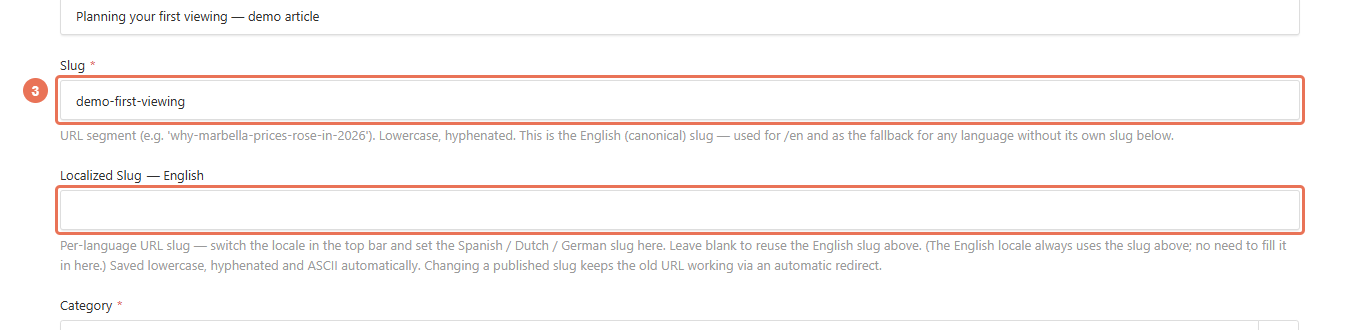
For English, edit Slug. For another language, edit Localized Slug. Use short lowercase words separated by hyphens.
 Select the image to view it full size.
4. Publish your changes
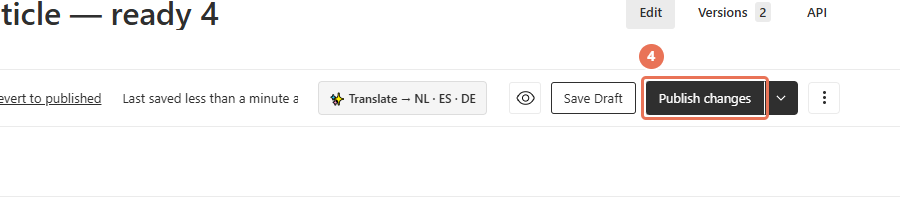
Click Publish changes when you are ready for visitors to see the update. Then open the normal website address in a separate tab and check the result.
 Select the image to view it full size.
Test both the new address and the old published address. The CMS remembers previously published slugs so old links can redirect to the article. Leave Previous Slugs unchanged; it is managed automatically.
Update menu, campaign and social links you control to use the new address. A language without its own slug can use the English one. Whole-page translation fills a missing translated slug and keeps one that already exists.