
More in Troubleshooting
PROPELOS CMS GUIDE
Refresh website content that appears out of date
Use the Cache panel to refresh published content or newer property-feed data.
Overview → Cache
In this guide
Refresh cached content when the published website still shows an older version. Saving or publishing normally refreshes CMS content automatically.
1. Open the Cache panel
Click your website name above the sidebar to open Overview, then scroll to Cache.
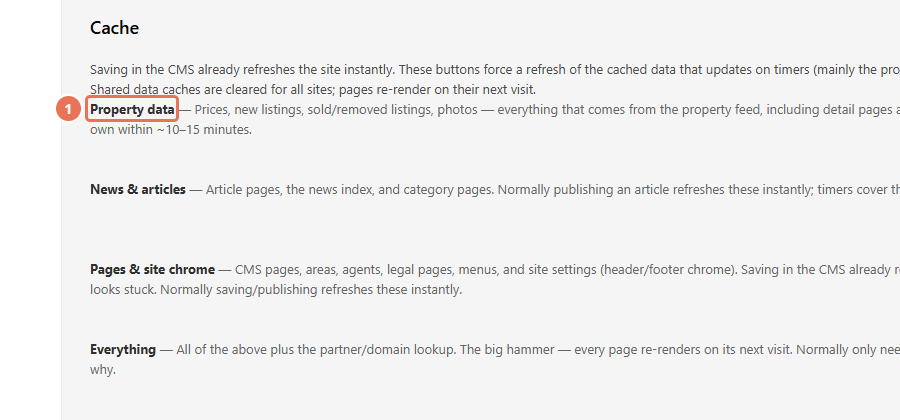 Select the image to view it full size.
2. Choose what needs refreshing
Find Property data for listings, News & articles for articles, or Pages & site chrome for pages, menus and settings. Choose the row matching the content that appears out of date.
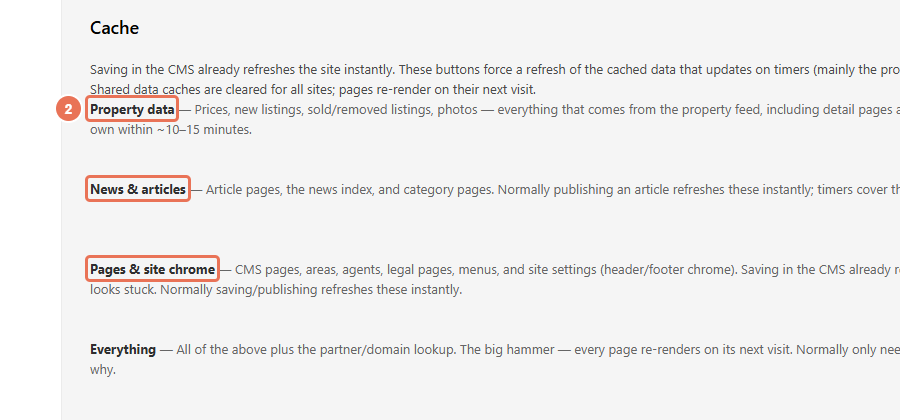 Select the image to view it full size.
3. Clear that cache
Click Clear on the matching row and confirm the selection. Pages rebuild with current data when they are next visited; wait for the completion message before reopening the public page.
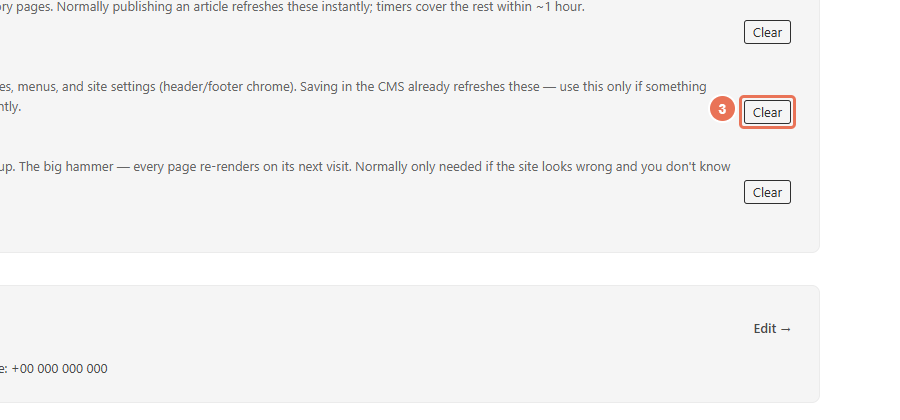 Select the image to view it full size.
Everything refreshes all of these groups when a wider refresh is needed. The same group has a one-minute cooldown, and shared caches can also refresh other websites’ data. Clearing cache does not publish a draft or fix an incorrect price in your CRM or feed. Correct the source first.