
More in Site settings, design, and SEO
PROPELOS CMS GUIDE
Change your website’s colours and fonts
Adjust global colours, typography, spacing and header or footer choices.
Websites with Design in the sidebar
In this guide
Use the Design controls to change the look of your website across several pages.
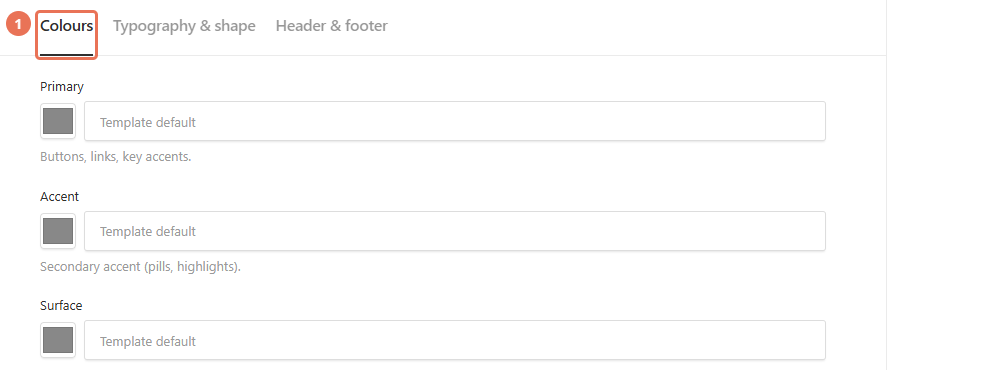
1. Open Design
Click Design in the left sidebar. If the style fields are locked, ask Propelos for the change you need.
 Select the image to view it full size.
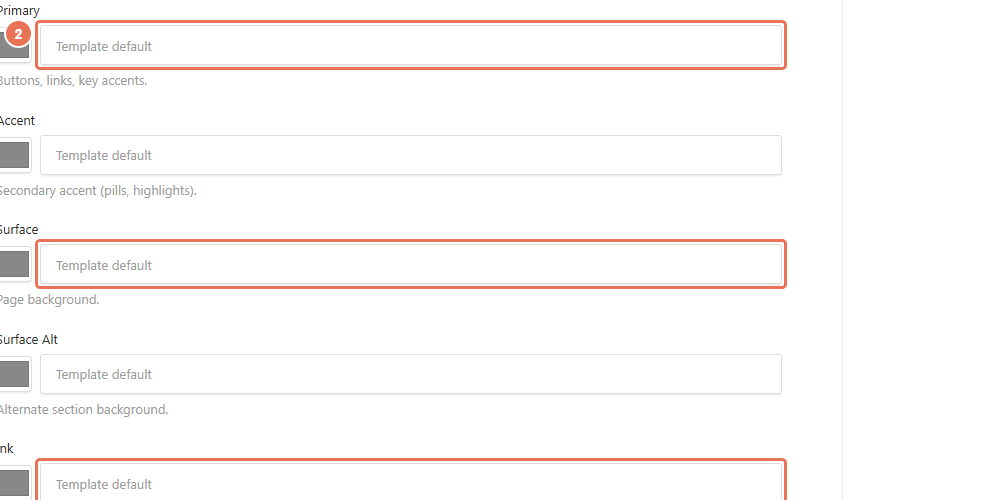
2. Choose colours
In Colours, change Primary for buttons and key accents, Surface for page backgrounds and Ink for main text. Leave an optional colour empty to use the template’s original value.
 Select the image to view it full size.
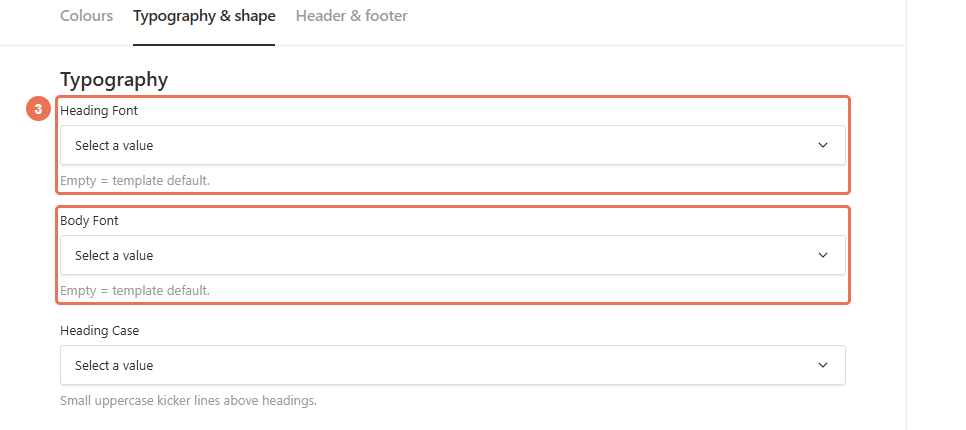
3. Choose fonts and spacing
Click Typography & shape. Choose Heading Font, Body Font, card and button shapes, and Density; use the offered choices to keep the layout consistent.
 Select the image to view it full size.
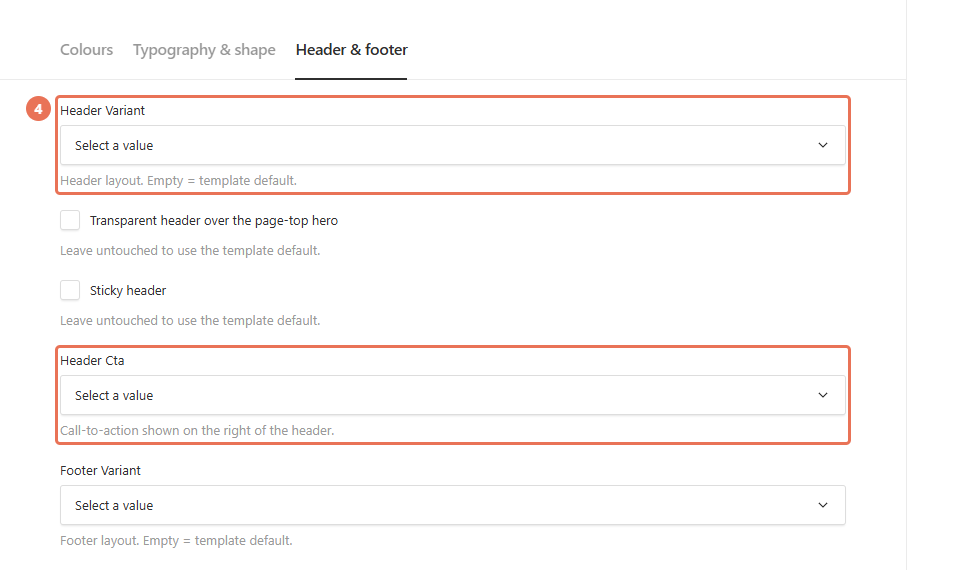
4. Adjust the header and footer
Click Header & footer and choose the styles you want. Page-section colours and layouts are edited in that page’s Section style controls.
 Select the image to view it full size.
5. Save and review several pages
Click Save to apply the design immediately across the website. Review the homepage, a content page and a property page on desktop and phone, paying particular attention to text contrast.
 Select the image to view it full size.
The base Template and design lock are managed by Propelos. Websites with a fixed custom design may have no Design item in the sidebar.