
More in Site settings, design, and SEO
PROPELOS CMS GUIDE
Change property galleries, results and contact options
Adjust the property-page controls shown in your settings and test the result on a phone.
Site settings → Property pages
In this guide
Choose how visitors browse property photos and contact your agency from the results page.
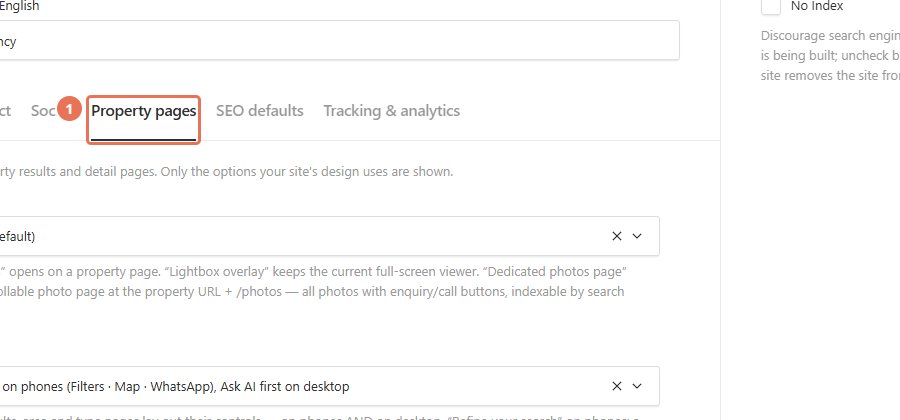
1. Open Property pages
Click Site settings under Settings & routing, then click Property pages. The fields shown here are the choices your website uses.
 Select the image to view it full size.
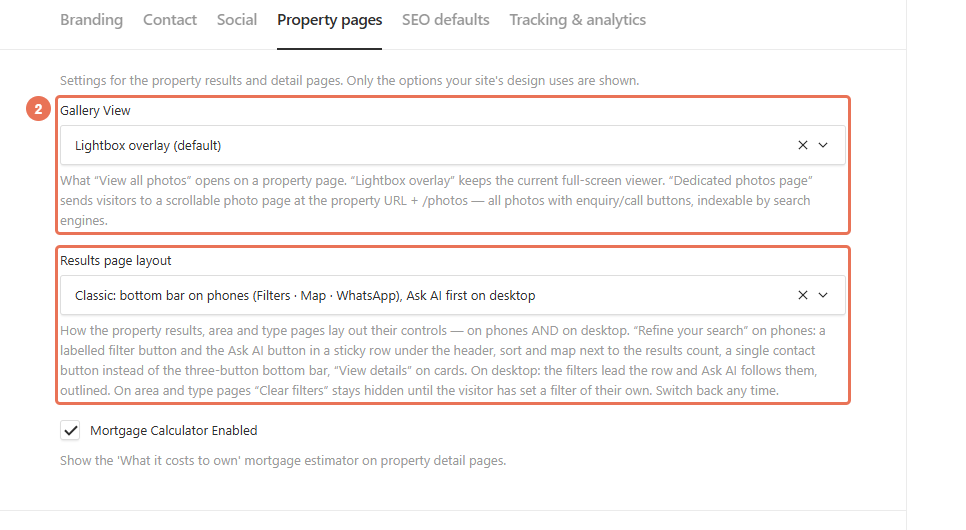
2. Choose the gallery and results layout
Use Gallery View to choose a lightbox overlay or a separate photos page, and Results page layout to choose the results controls. If a field is absent, your website keeps its fixed choice.
 Select the image to view it full size.
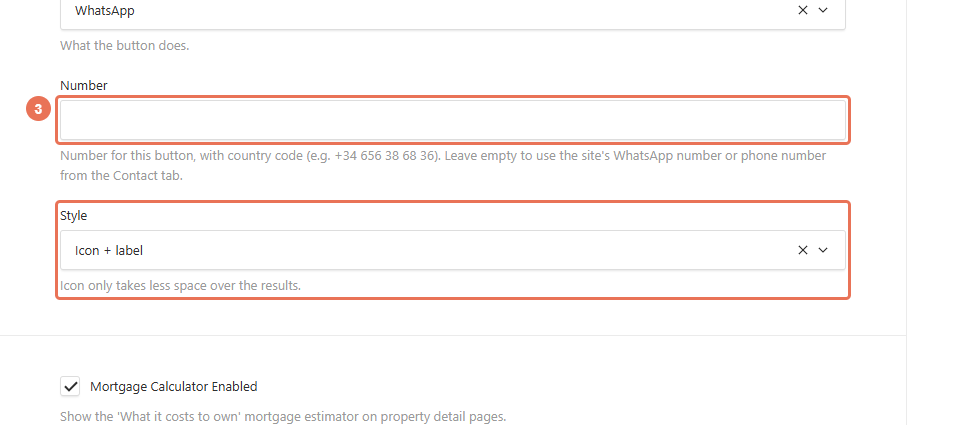
3. Set the phone contact button
Expand Results contact button (phones). Set its Number and Style; choose Action if the field offers call and WhatsApp choices.
 Select the image to view it full size.
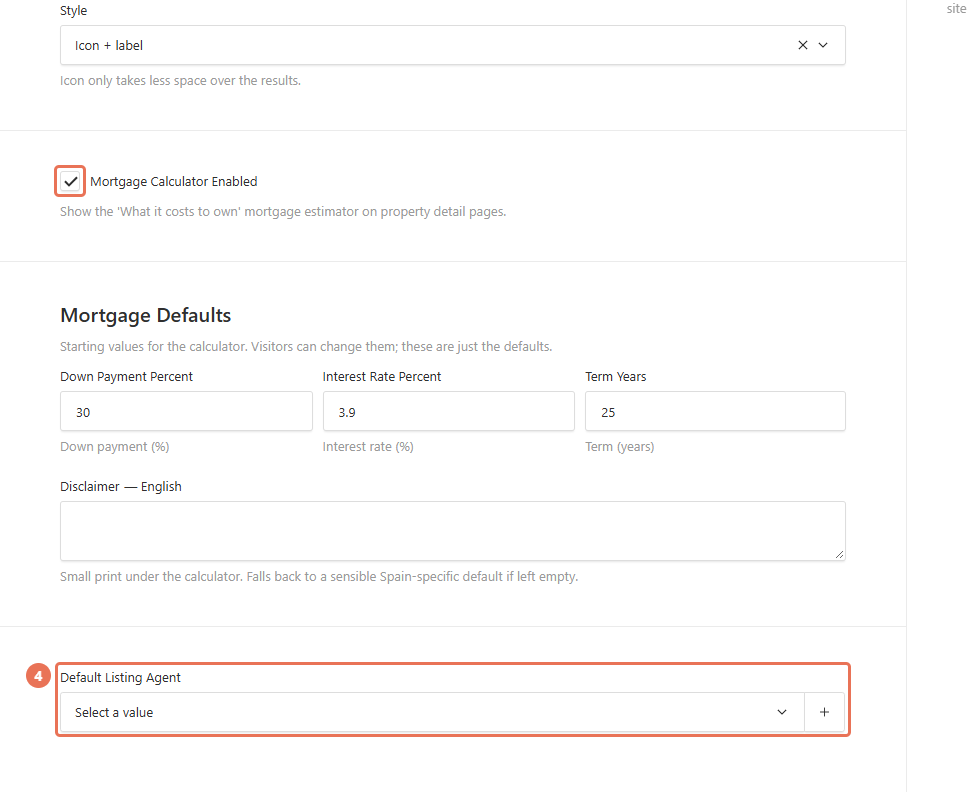
4. Set the default agent or calculator
Choose Default Listing Agent for homes without their own agent. If Mortgage Calculator Enabled appears, use it and Mortgage Defaults to set the estimator’s starting values and disclaimer.
 Select the image to view it full size.
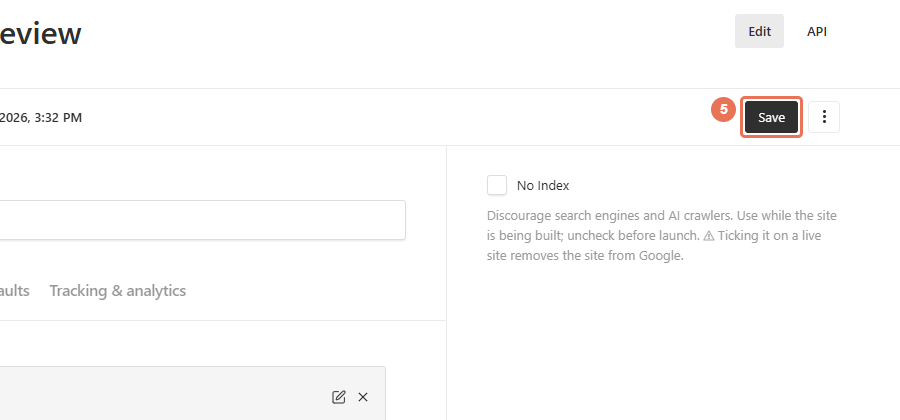
5. Save and try the controls
Click Save to apply these choices immediately. Open results and a property page on desktop and phone, try View all photos, and check that the contact button uses the intended number.
 Select the image to view it full size.
A calculator shows estimates visitors can change. Use your agency’s approved disclaimer. Websites with fixed results layouts or a calculator turned off show fewer choices in this tab.