
More in Site settings, design, and SEO
PROPELOS CMS GUIDE
Update contact details and the enquiry inbox
Change public contact information and choose the inbox receiving website enquiry notifications.
Site settings → Contact
In this guide
Keep your public contact details current and send website enquiry notifications to the right team inbox.
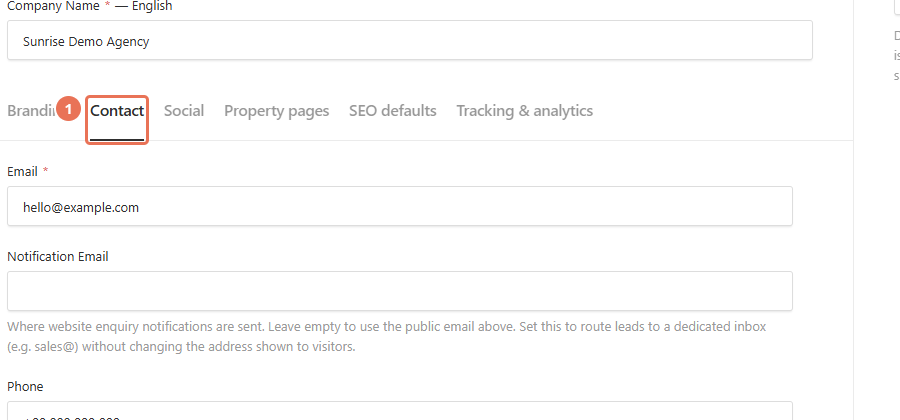
1. Open Contact settings
Click Site settings under Settings & routing, then click Contact.
 Select the image to view it full size.
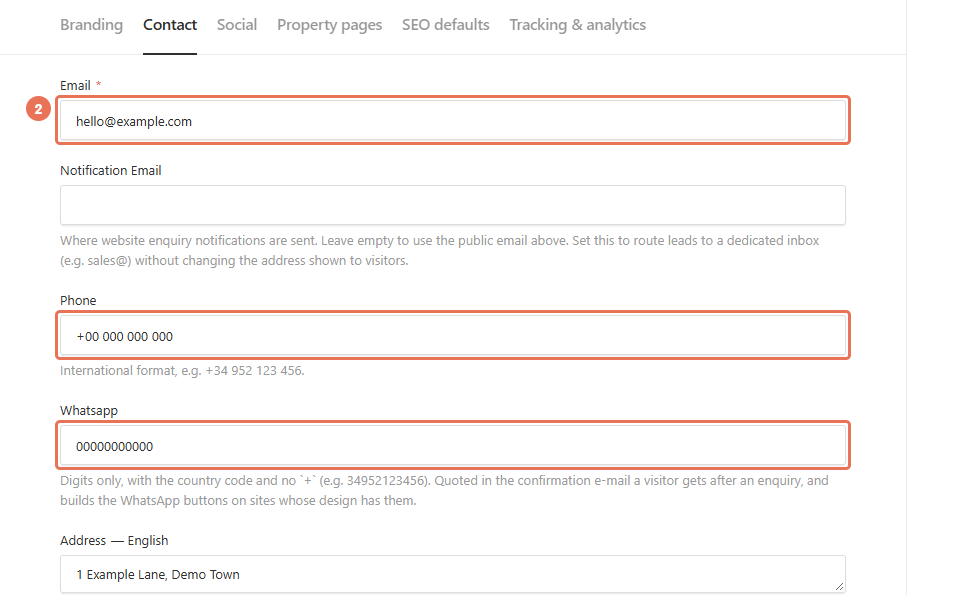
2. Update public contact details
Edit Email, Phone and Whatsapp. Phone numbers use international format; Whatsapp uses country-code digits without a plus sign and can also appear in visitor confirmation emails.
 Select the image to view it full size.
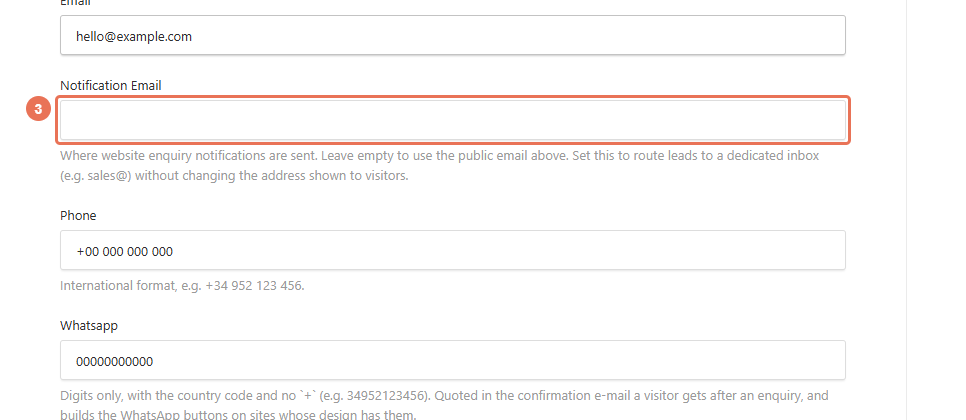
3. Choose the notification inbox
Enter the inbox that should receive website enquiry messages in Notification Email. Leave it empty to use Email; this does not change the public address shown to visitors.
 Select the image to view it full size.
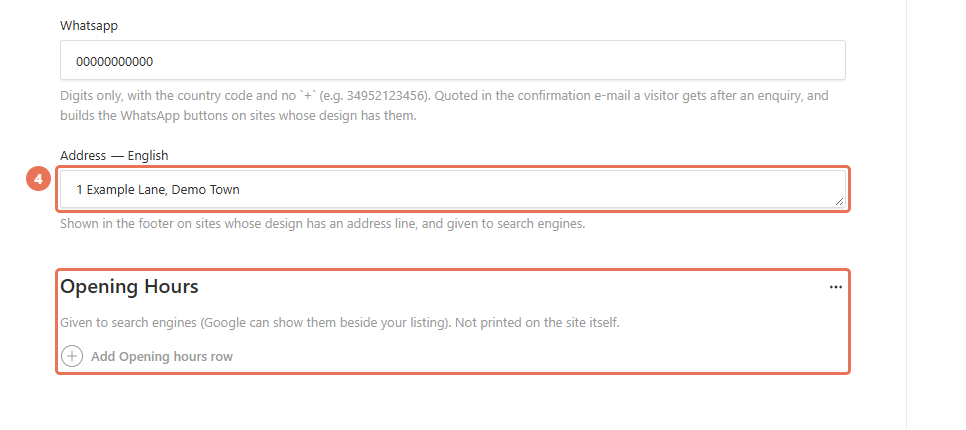
4. Update address and hours
Use the Locale menu at the top right to choose the website language you are editing before changing Address. Opening Hours supplies hours to search engines; it does not add an opening-hours section to the website.
 Select the image to view it full size.
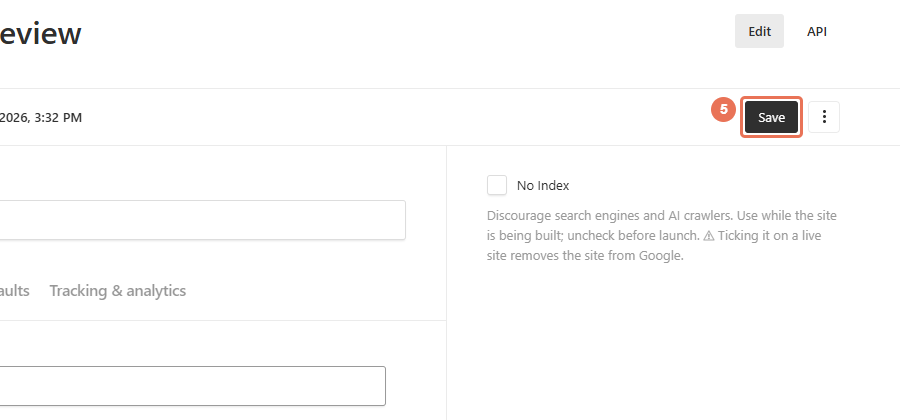
5. Save and check delivery
Click Save to apply the new details immediately. Check the public contact links, then arrange a test enquiry with your team and check the notification inbox, Enquiries and your CRM.
 Select the image to view it full size.
CRM connections are configured in Overview → CRM connection, separately from the notification inbox. A saved enquiry, an email notification and a CRM entry are separate delivery stages. A Whatsapp number does not add a website button to a design that uses calls instead.