
More in Leads and CRM
PROPELOS CMS GUIDE
Read enquiries and mark them contacted or closed
Find a website enquiry, check its delivery status and update your team’s working status.
Leads → Enquiries
In this guide
Read property enquiries, contact messages and emailed shortlists in one inbox, then track your team’s follow-up.
1. Find the enquiry
Click Enquiries under Leads. Use the search or filters to find the message, then click the person’s name; Type shows which website form they used.
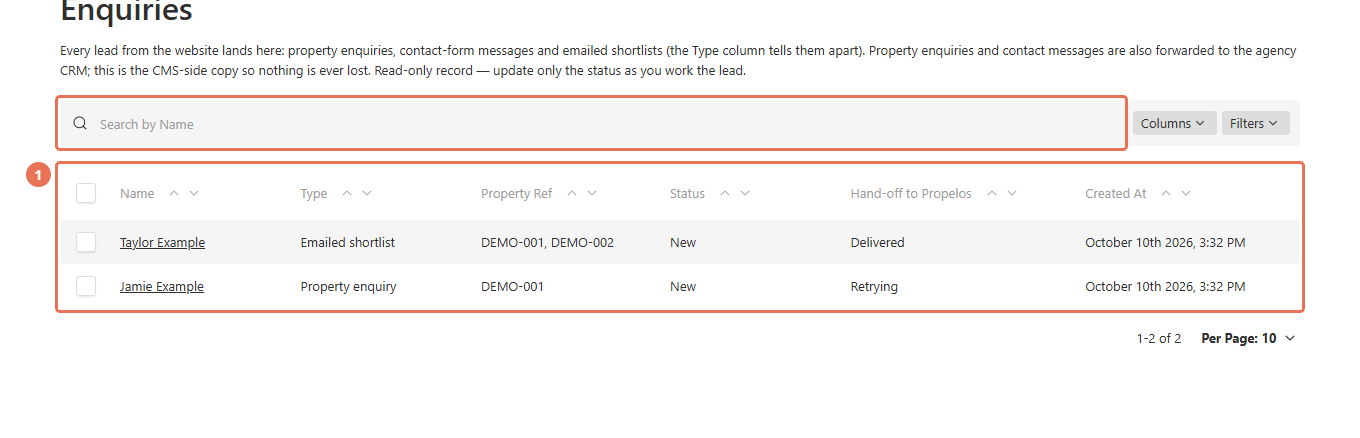 Select the image to view it full size.
2. Read the request
Review Name, Email, Phone, Message and the property details. The original request stays unchanged; reply or call through your usual team tools.
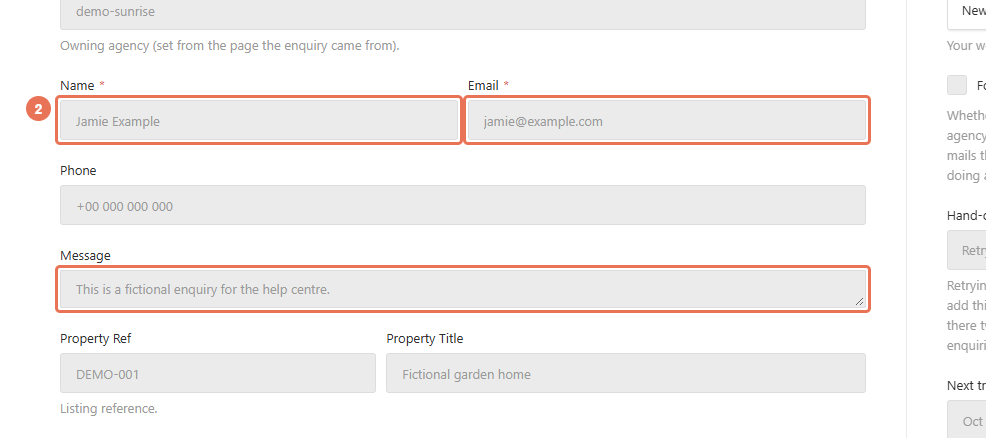 Select the image to view it full size.
3. Check the hand-off
Read Hand-off to Propelos before adding anything to your CRM manually. Delivered means Propelos accepted it; Retrying means automatic attempts are still running, and Gave up means those attempts stopped.
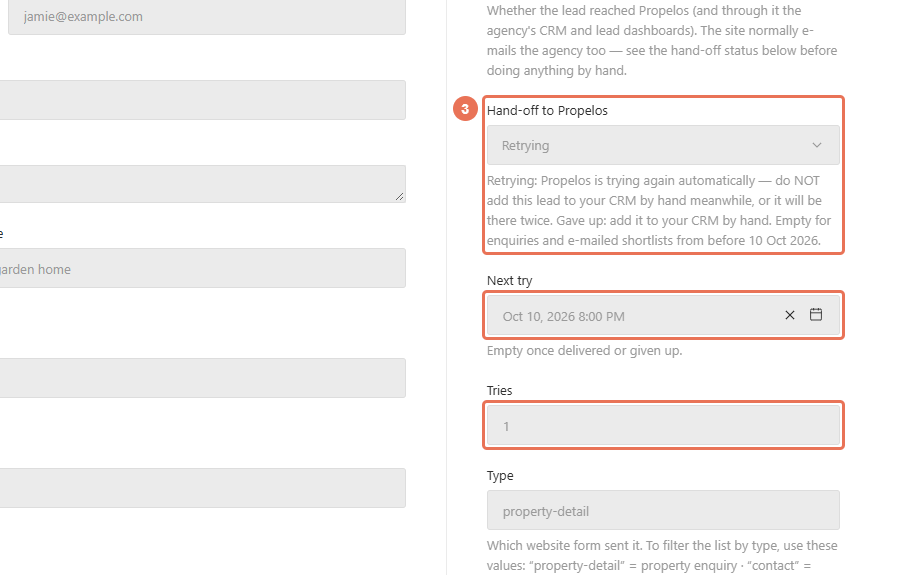 Select the image to view it full size.
4. Save your follow-up status
After following up, change Status to Contacted or Closed, then click Save. This updates your team’s working status; it does not send a message or change delivery status.
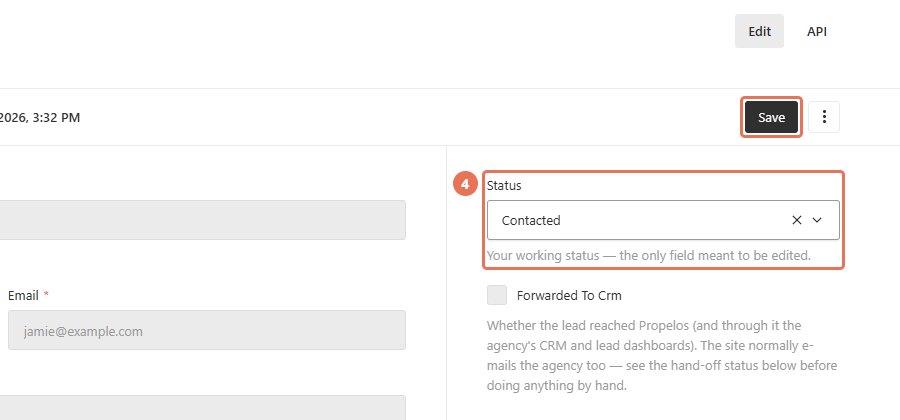 Select the image to view it full size.
While Retrying, you can contact the person, but do not enter the lead into your CRM manually because a retry can still arrive. For Gave up, check the CRM first, then enter it manually if missing and report the problem to Propelos. Delivered and Forwarded To Crm do not prove the CRM received it; check the CRM itself. Older enquiries can have a blank hand-off status.
For a Type filter, enter property-detail for Property enquiry, contact for Contact form or saved-shortlist for Emailed shortlist.