
More in Account and integrations
PROPELOS PARTNER PORTAL GUIDE
Choose weekly reports and send a preview
Set your account's email report preferences and preview the available summaries.
Partner Portal accounts; available reports depend on enabled products
In this guide
Choose the weekly reports sent to your sign-in email for this account and send yourself a preview.
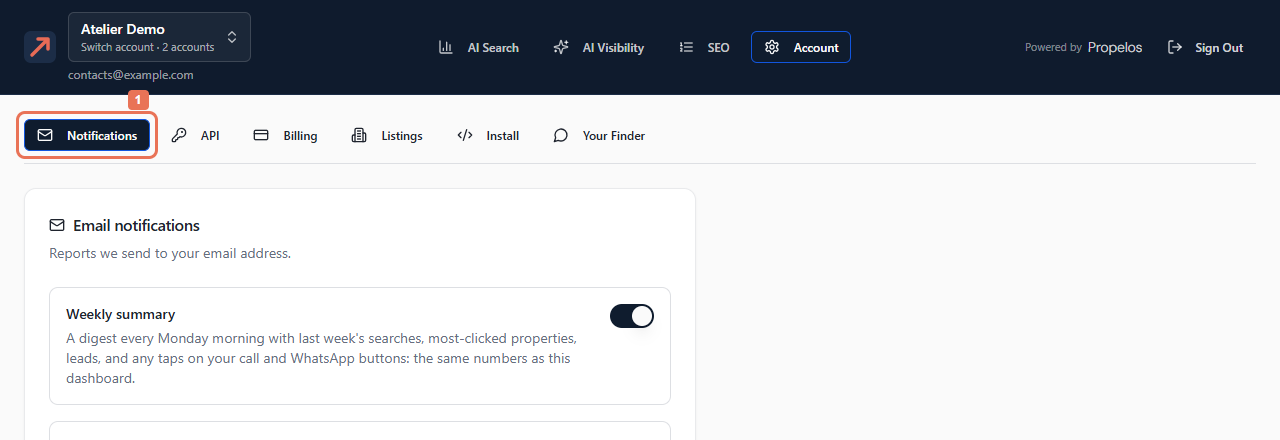
1. Open Notifications
Open Account → Notifications.
 Select the image to view it full size.
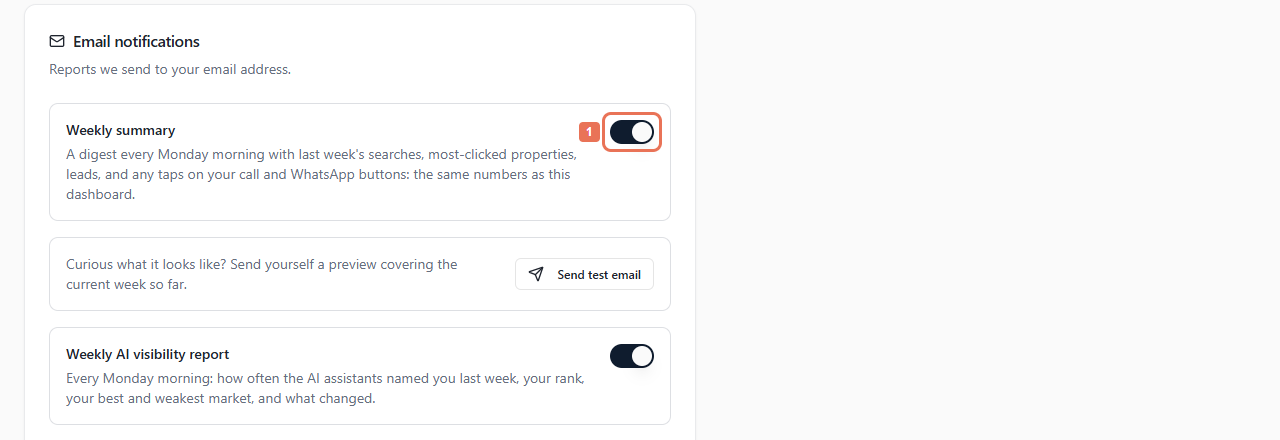
2. Choose your reports
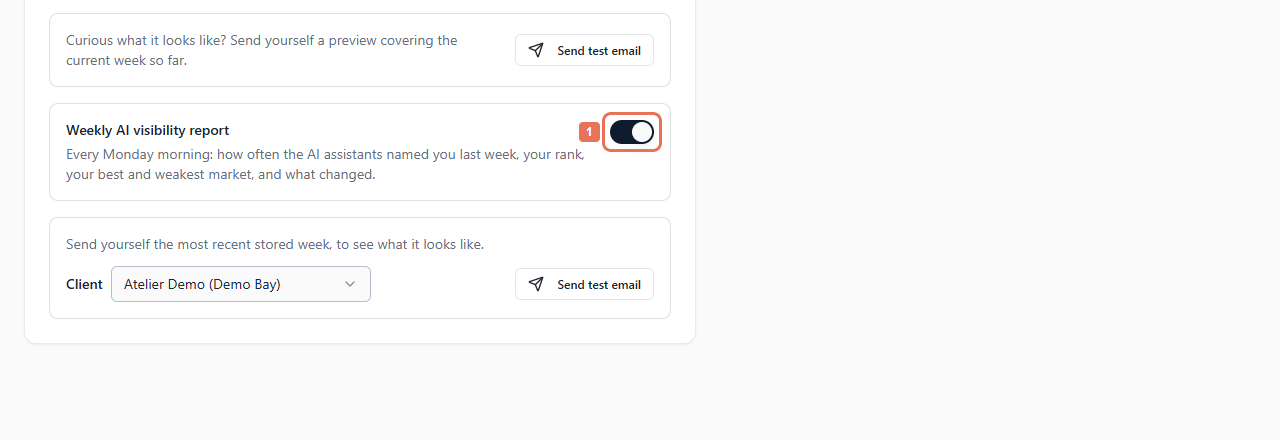
Switch Weekly summary on/off for AI Search, and Weekly AI visibility report for tracked visibility clients. Wait for the save confirmation: switches save automatically.
 Select the image to view it full size.
 Select the image to view it full size.
These preferences apply to your membership in this account. They do not change everyone else's emails. A failed save restores the previous switch state and shows an error.
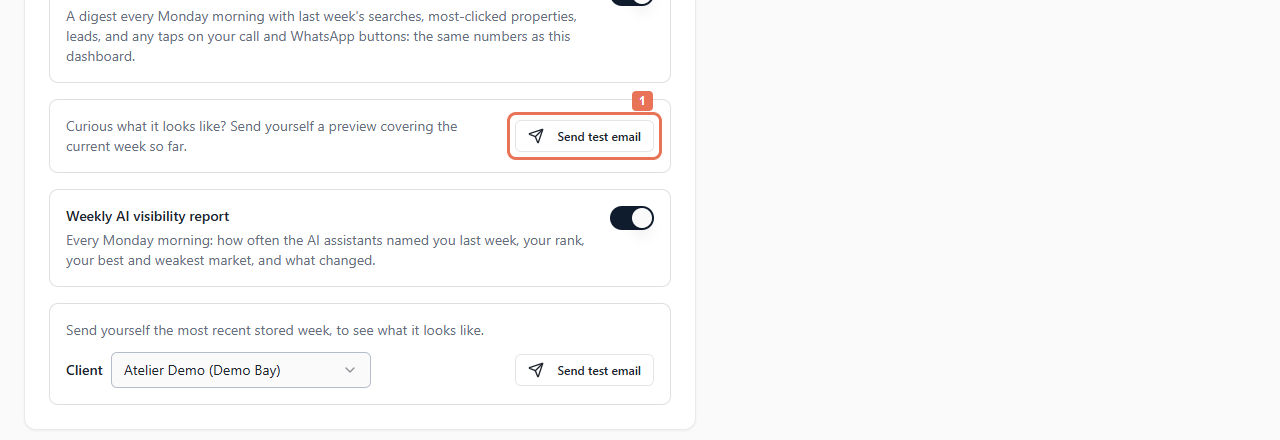
3. Send a preview
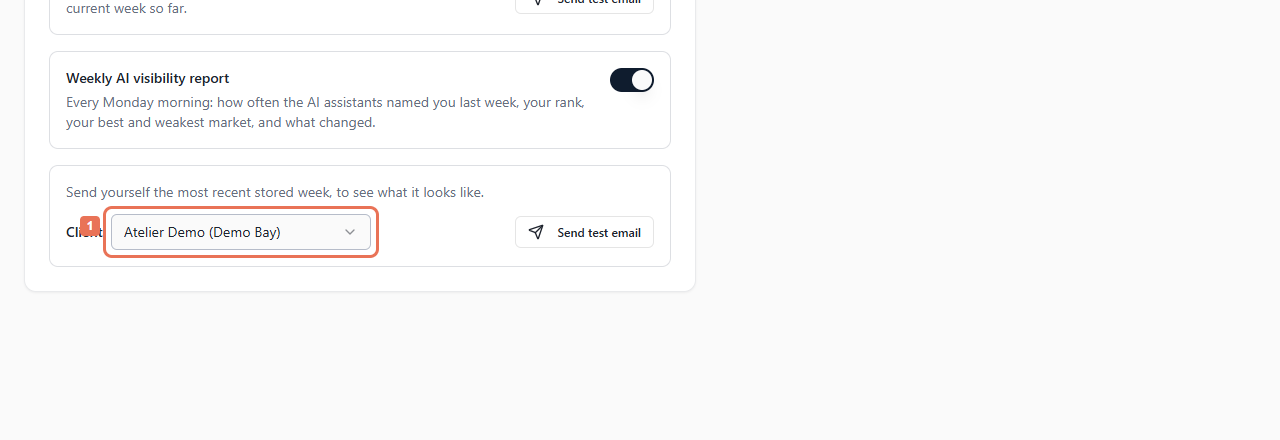
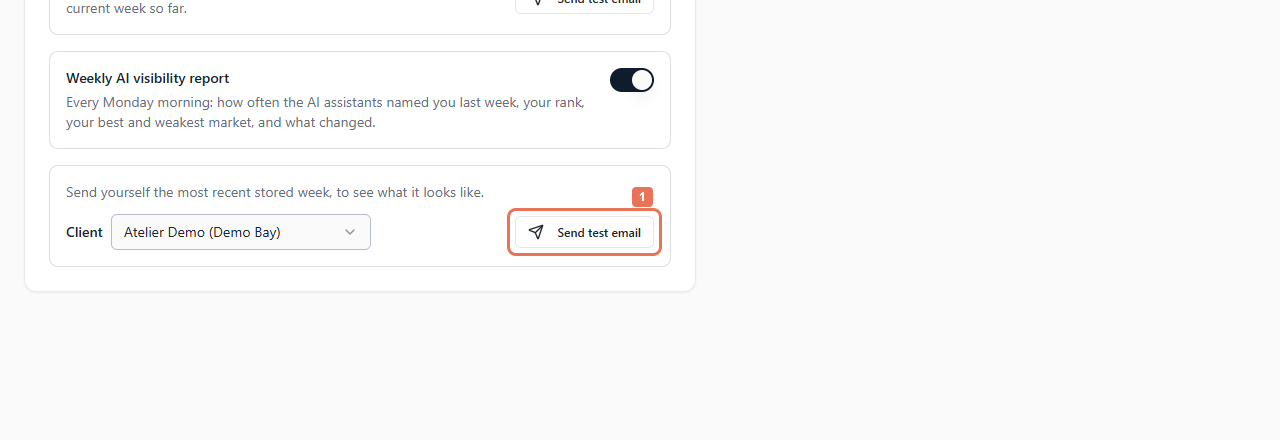
Select the relevant Send test email. For AI Visibility, first choose Client if offered. Wait at least one minute between tests.
 Select the image to view it full size.
 Select the image to view it full size.
 Select the image to view it full size.
Weekly reports arrive Monday morning. AI Search covers the previous week; its test covers this week so far. AI Visibility uses the stored measurement; its test uses the latest stored week. The client choice changes the preview target.
For No measurement yet or Nothing to send yet, check the linked client and wait for data. If a successful preview is missing, check junk mail and your sign-in address. Read-only views disable changes and tests.