
More in AI Search analytics
PROPELOS PARTNER PORTAL GUIDE
Read AI Search activity and choose dates
Review the Finder overview, select a reporting period and distinguish leads from direct contact taps.
Accounts with AI Search
In this guide
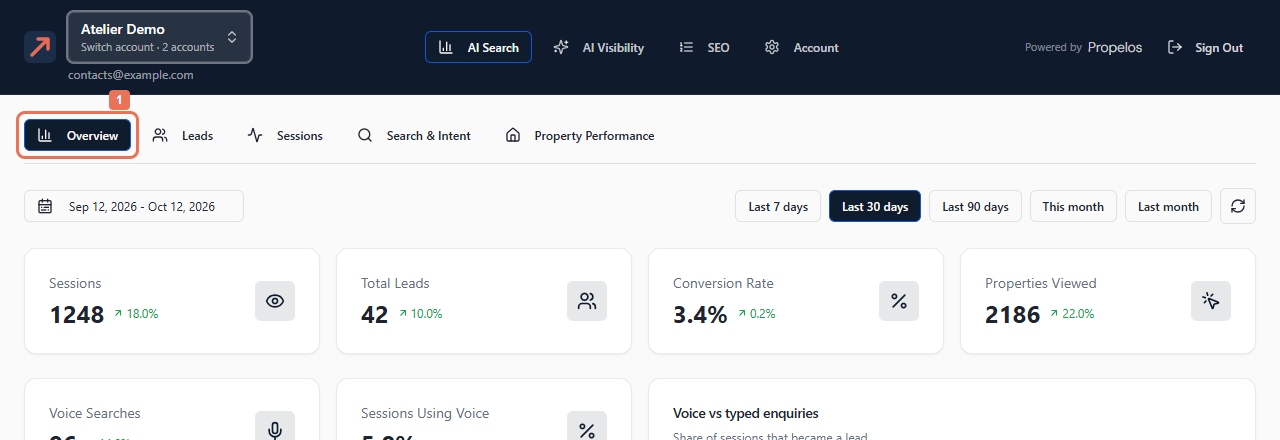
Use AI Search → Overview to see Finder activity and choose the period you want to review. It starts on Last 30 days.
1. Open Overview
Select AI Search, then Overview. Read Sessions, Total Leads, Conversion Rate and Properties Viewed above the activity chart.
 Select the image to view it full size.
2. Choose reporting dates
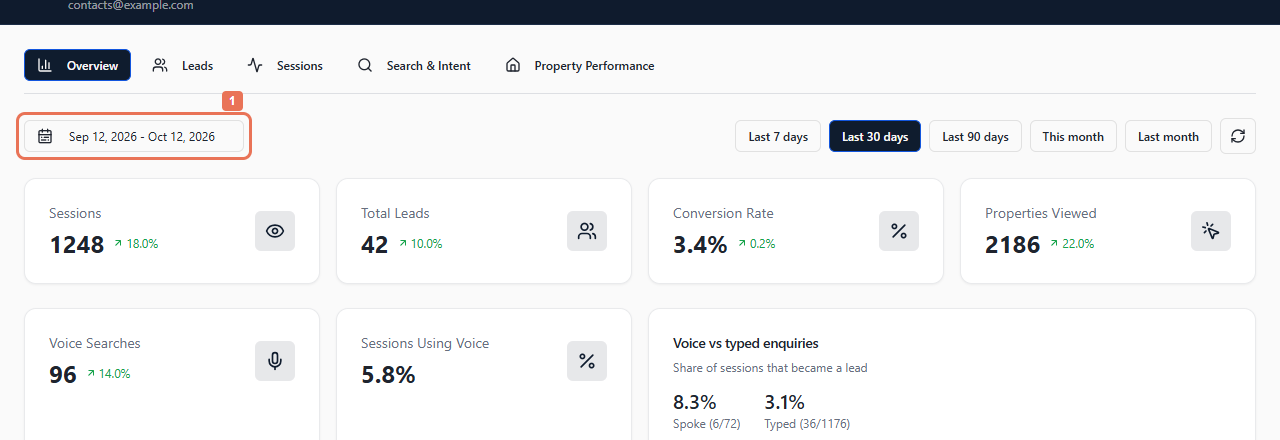
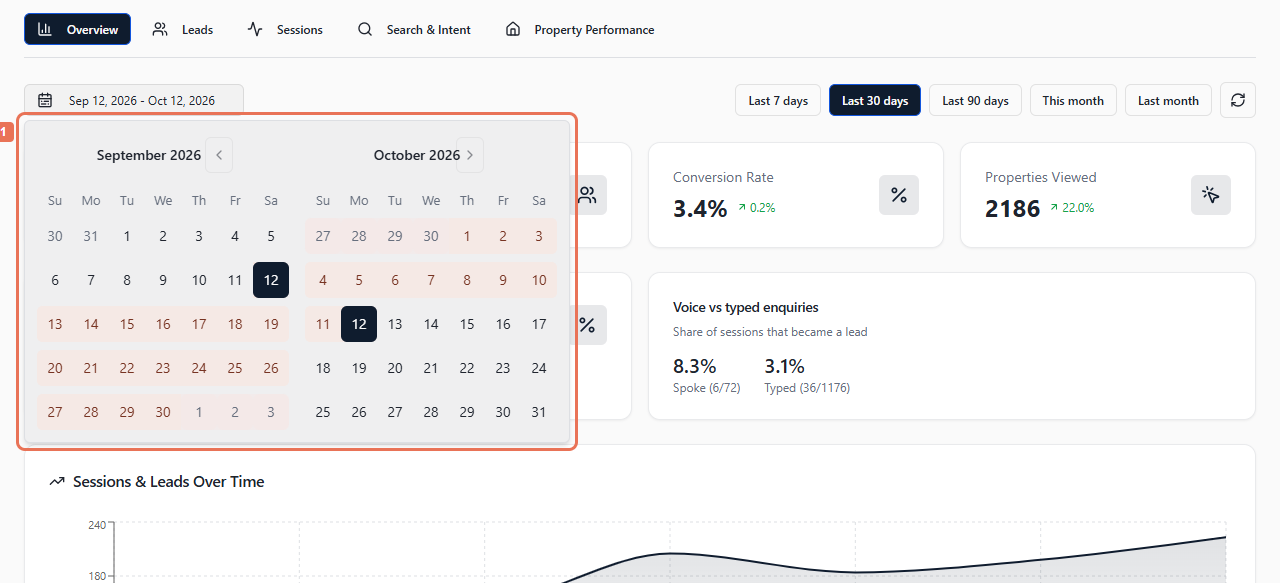
Select a preset such as Last 7 days or This month. For another period, open the date button and select both a start and end date. Selecting only one date keeps the previous range.
 Select the image to view it full size.
 Select the image to view it full size.
The period carries across Sessions, Search & Intent and Property Performance, including when you leave AI Search and return. Switching accounts resets it. Use the refresh icon beside the dates to reload this report.
3. Compare enquiry and contact activity
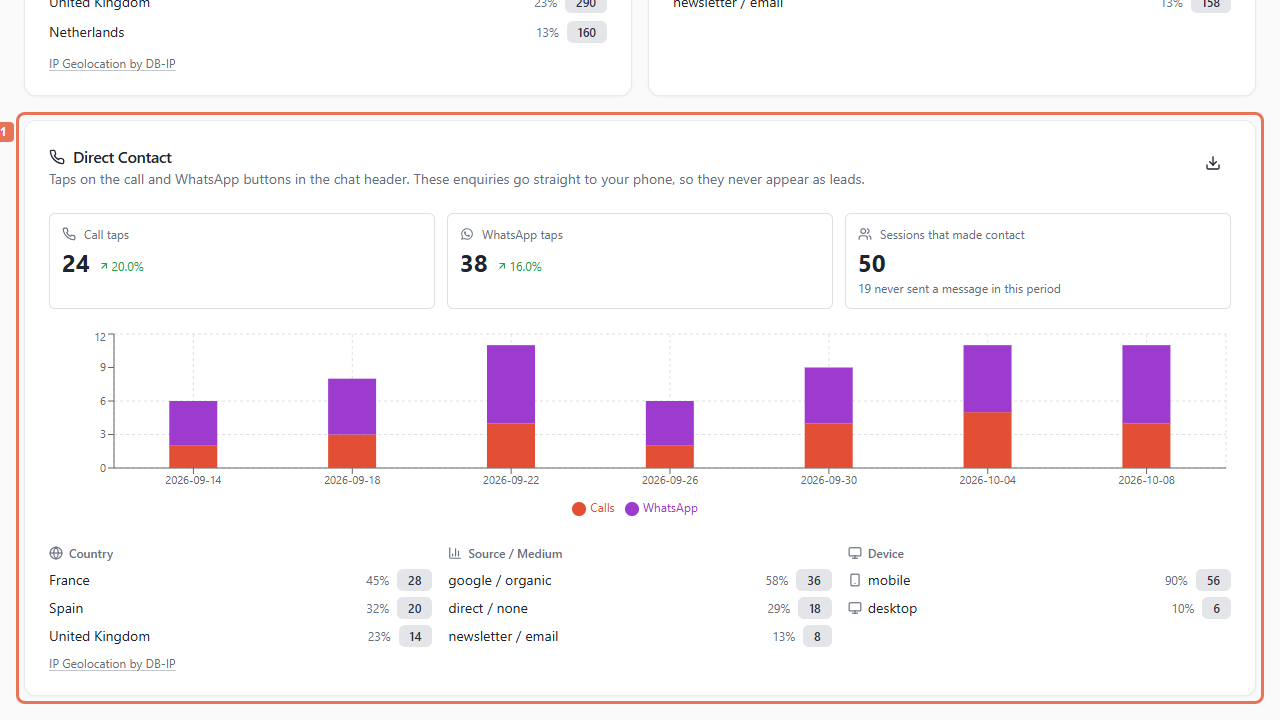
Scroll to Direct Contact for call and WhatsApp taps. Read the country, source and device breakdowns alongside the activity totals.
 Select the image to view it full size.
A tap does not prove a completed call or message and does not create a lead. Some visitors tap without chatting. Recent Leads shows up to five enquiries in the selected period; the full Leads list has its own scope.
Where voice activity is available, Voice Searches, Sessions Using Voice and Voice vs typed enquiries show spoken inputs, adoption and enquiry rates.