
More in Getting started and access
PROPELOS PARTNER PORTAL GUIDE
Switch accounts and find available products
Move between linked accounts and understand why product and Account controls differ.
Users with one or more Partner Portal accounts
In this guide
Switch accounts to read the right agency's reports or change its settings.
1. Open the account menu
Select the account name at the top of the portal. The menu shows the accounts available with your current login.
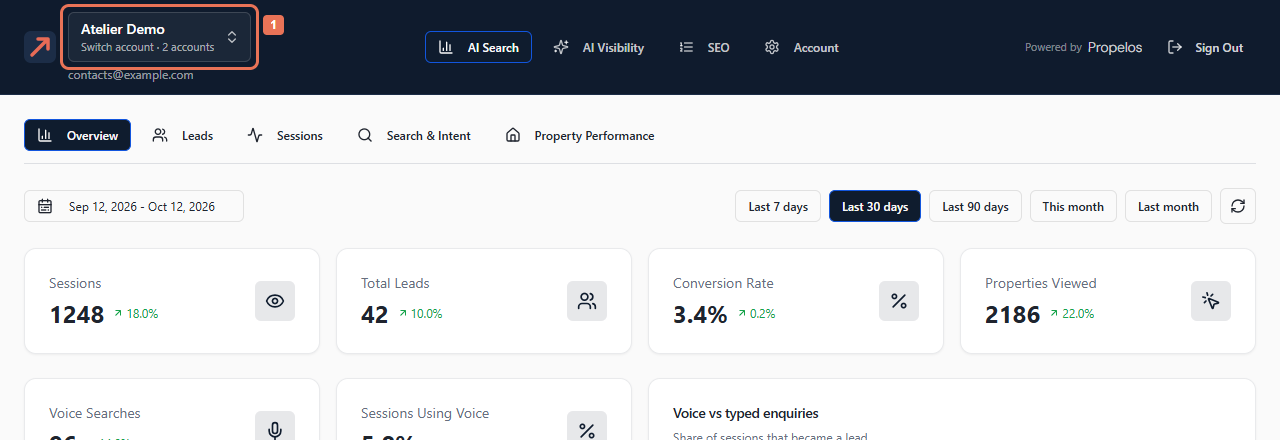 Select the image to view it full size.
2. Choose the account
Select the required agency or product account. Wait for its dashboard to load, then use its available product areas.
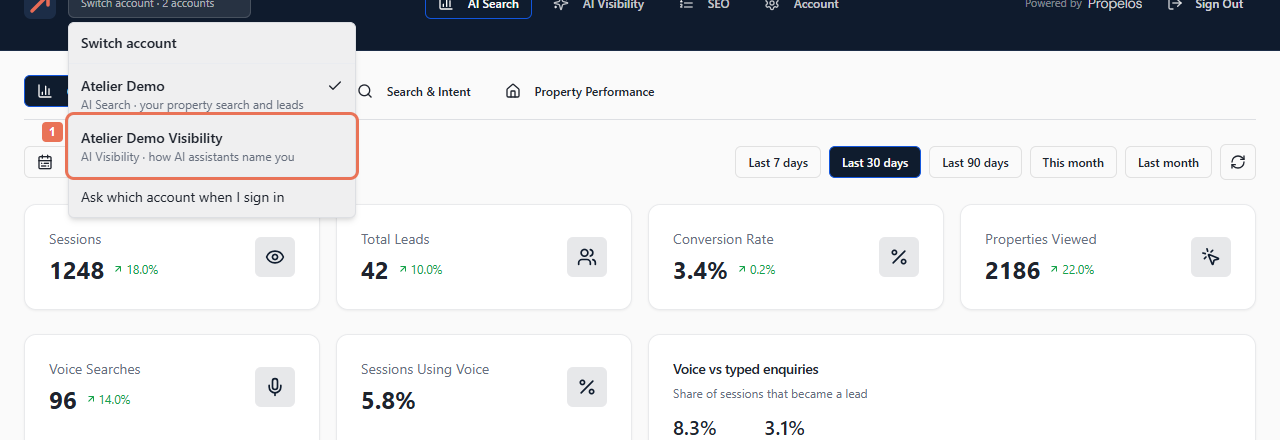 Select the image to view it full size.
Switching accounts resets the AI Search reporting period. Accounts with separate passwords may require signing out and signing in with the other password.
3. Choose what happens next time
Select Ask which account when I sign in in the account menu if you want to choose an account each time. At Choose an account, the remember option can keep your preferred choice for this browser.
 Select the image to view it full size.
If an account is missing, ask Propelos to check your invitation or assignment. Returning to another browser tab can show a changed account, so read the account name before continuing there.