
More in Menus and shared sections
PROPELOS CMS GUIDE
Edit area text and property-type introductions
Update an area’s photo, description, FAQs and introductions for specific property types.
Pages → Areas
In this guide
Add useful local information around the homes shown for an area. The listings themselves continue to come from your property catalogue.
1. Open the area
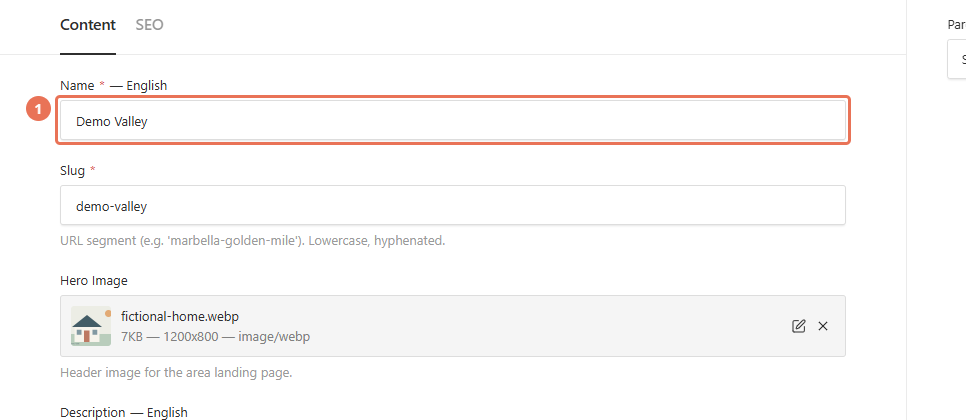
Click Areas under Pages, then click the area name. Use the Locale menu at the top right to choose the website language you are editing.
 Select the image to view it full size.
2. Edit the area introduction
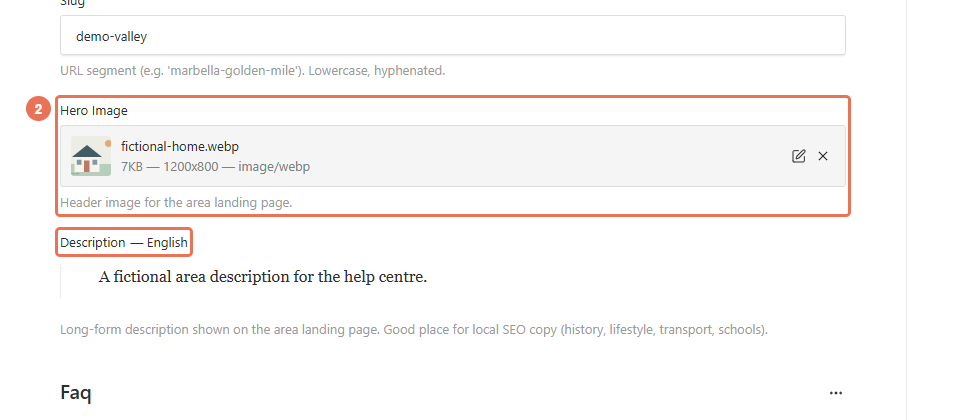
Update Hero Image and Description, then expand Faq to edit questions and answers. Keep the existing Slug and location hierarchy when you are only changing the wording.
 Select the image to view it full size.
3. Add property-type text
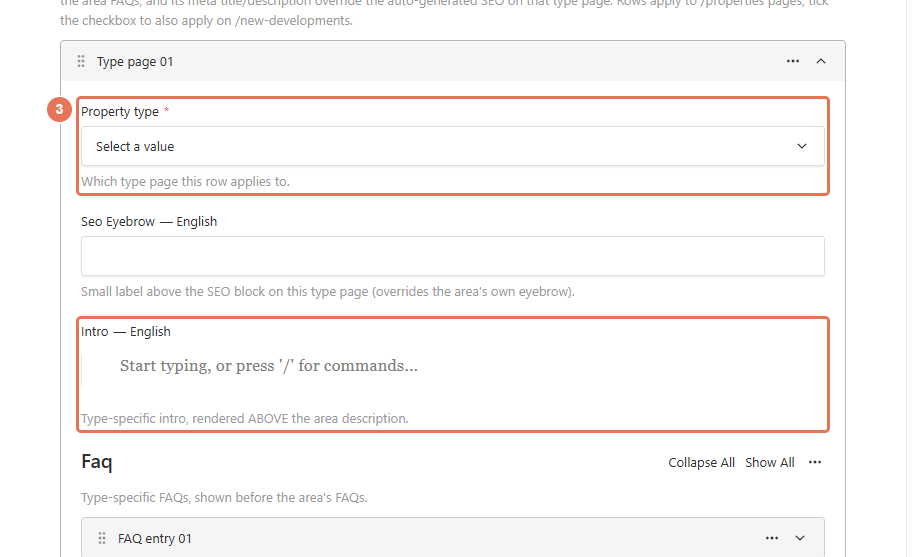
Expand Type pages (Villas in this area, Apartments …) and choose Property type. Add an Intro, FAQs and SEO text for that type; use one row per type.
 Select the image to view it full size.
4. Review and publish
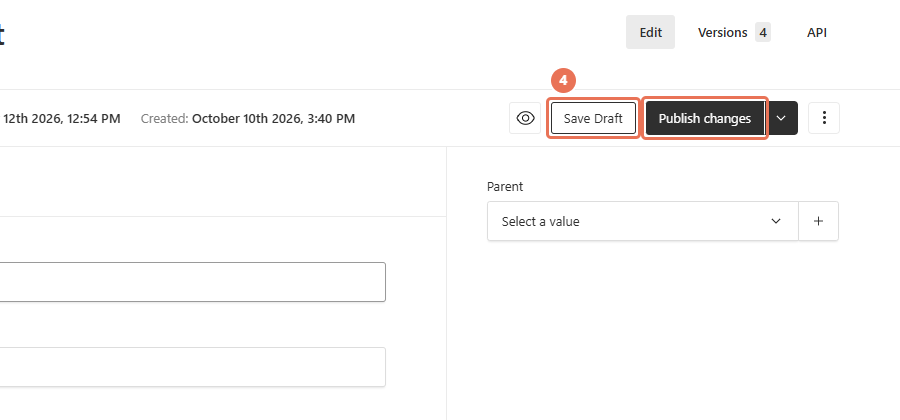
Click Save Draft, or wait for autosave to finish, to keep your work for review. When ready, click Publish changes, or Publish on a new draft, to update the area’s public results page, then check that page and any type page you edited.
 Select the image to view it full size.
A type row’s Show On New Developments option also applies its text to the matching new-development page. Filtered combinations of several search criteria can use their own headings without displaying this area introduction or FAQs. If your sidebar has Pages but no Areas, open the area guide in Pages and edit its sections instead.