
More in Media and agents
PROPELOS CMS GUIDE
Update an agent’s profile
Change an agent’s photo, biography, contact details and display order.
Shared sections → Agents
In this guide
Keep the people visitors see on your website up to date. Agent profiles can also supply article bylines and property contacts.
1. Open the agent
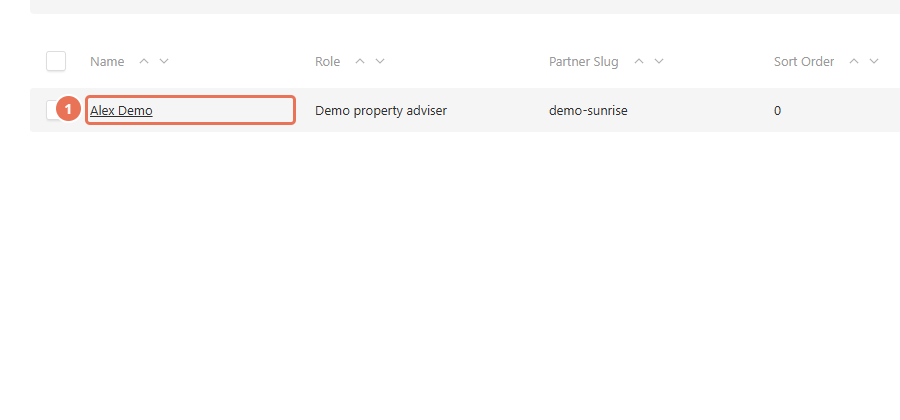
Click Agents under Shared sections, then click the person’s name. To add a person, click Create New.
 Select the image to view it full size.
2. Update their profile
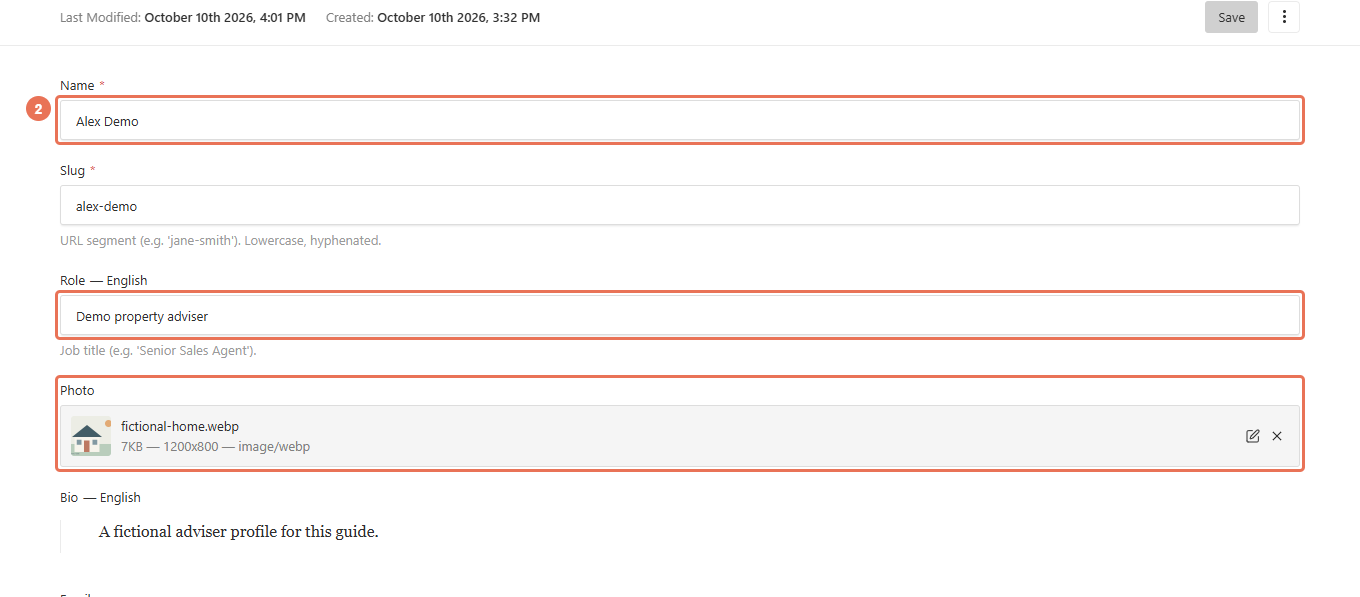
Edit Name, Role, Photo and Bio. For the role and biography, use the Locale menu at the top right to choose the website language you are editing; a new profile also needs a lowercase, hyphenated Slug, such as alex-morgan.
 Select the image to view it full size.
3. Add contact details and languages
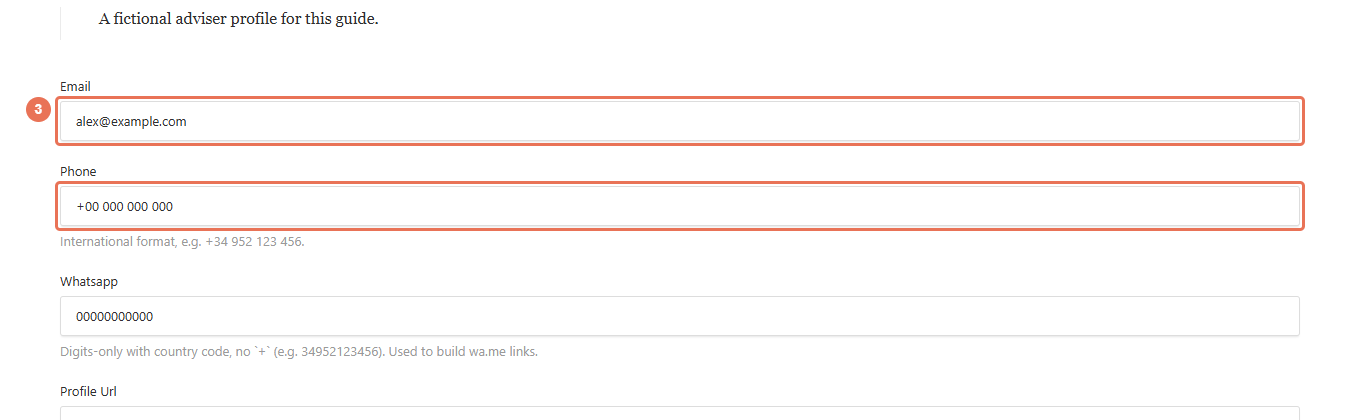
Enter Email and Phone, and add the languages the person speaks under Languages. Use an international phone number; Whatsapp takes country-code digits without a plus sign.
 Select the image to view it full size.
4. Choose the display order
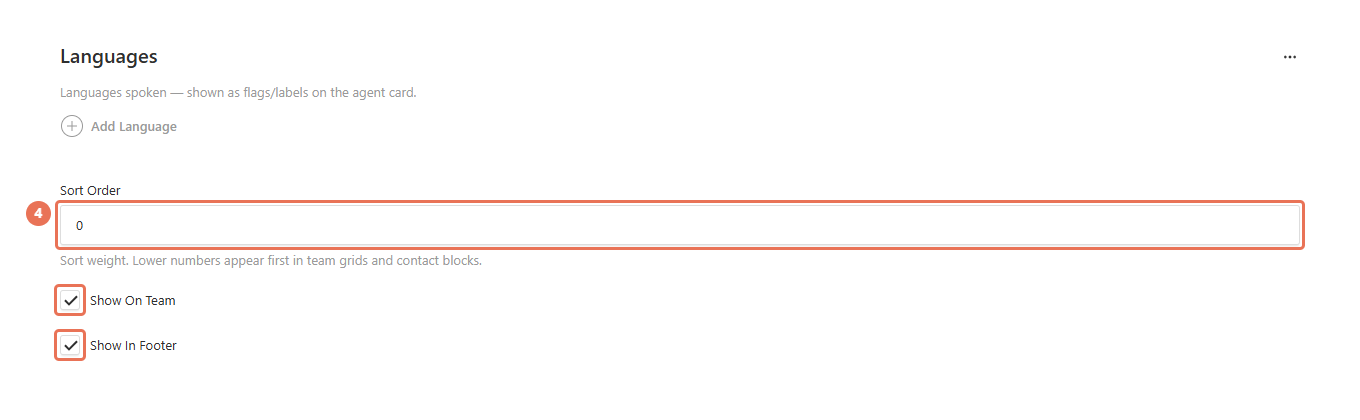
Set Sort Order; lower numbers appear first. Tick Show In Footer to include the person in footer contact cards, and use Show On Team for team sections that draw from Agents.
 Select the image to view it full size.
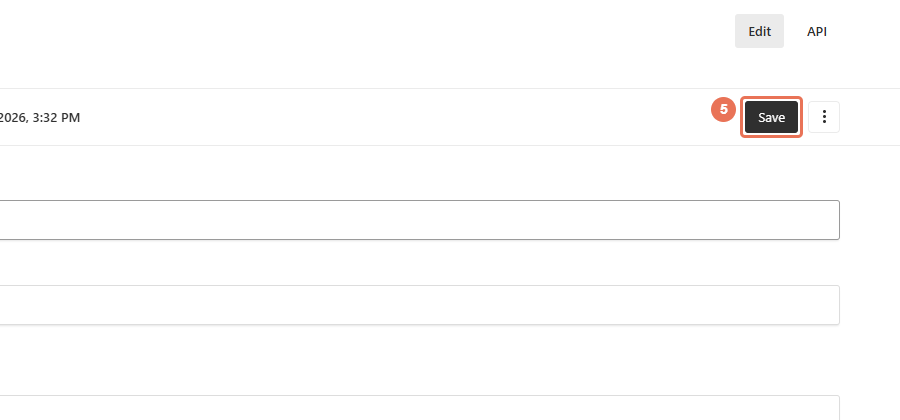
5. Save and check the profile
Click Save to update the public profile immediately. Check the photo, phone number and name in the footer, property contact card or article byline where the person appears.
 Select the image to view it full size.
Some footers display at most two people; others display every selected person with a photo. In footers that fall back to all photographed agents, unticking every Show In Footer box brings those agents back rather than hiding the section. A team section with its own people fields is edited on the page itself. A property’s Listing Agent can override the website’s default agent. These profiles do not give anyone CMS access.