
More in Properties
PROPELOS CMS GUIDE
Hide a feed property or change its agent
Use Hidden to remove a property from your website or choose its Listing Agent.
Properties supplied by your property feed
In this guide
You can hide a feed property from your website or choose the team member shown with it.
1. Open the property
Click Properties in the left sidebar, above Manually added, then find and open the property by reference.
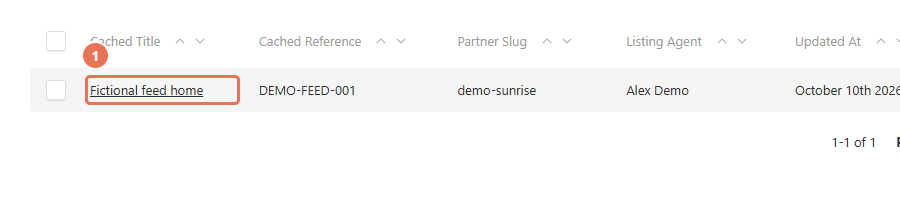 Select the image to view it full size.
2. Hide the listing if needed
Select Hidden to remove the property from the public website. Clear it when you want the listing to appear again.
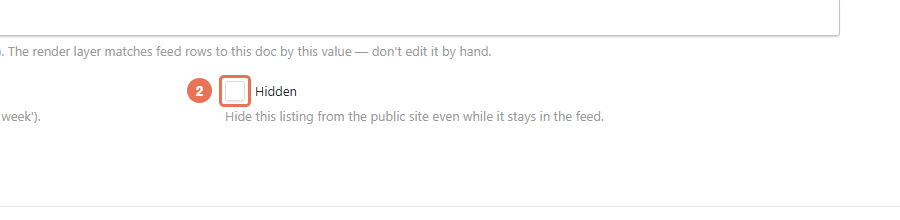 Select the image to view it full size.
3. Choose the listing agent
In Marketing, choose the team member in Listing Agent. For a feed property, this takes priority over the website’s Default listing agent.
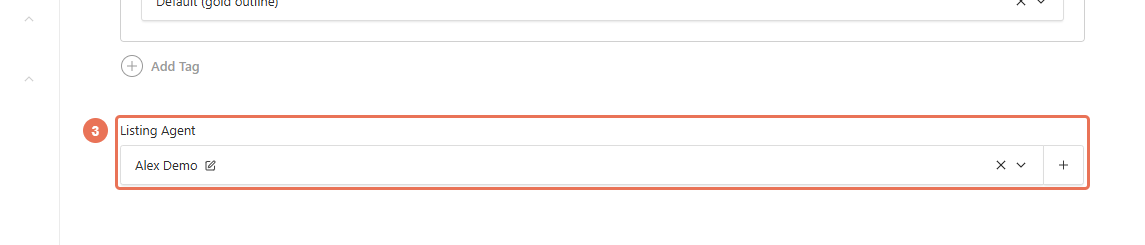 Select the image to view it full size.
4. Save the change
Click Save. The visibility and agent changes can take effect on the live website immediately.
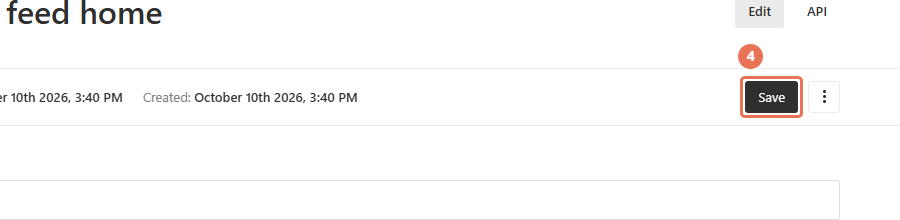 Select the image to view it full size.
Check the property page and search results after saving. Hidden affects your website; it does not change sold or available status in your CRM.
Leave Listing Agent empty to use Site settings → Property pages → Default listing agent. The agent named in the feed is not used as this fallback. For a manually added property, its own Agent choice takes priority over Listing Agent, followed by the site default.
Add a photo to the agent’s profile if they do not appear on the property page; some website layouts require one. Homepage selection is managed separately from the property’s Featured setting.