
More in Menus and shared sections
PROPELOS CMS GUIDE
Choose the properties shown on your homepage
Select featured homes and backup choices for homepage spotlights.
Shared sections → Homepage picks
In this guide
Put the homes you want to promote first on the homepage. The website uses listings that are still available and skips homes that are no longer live.
1. Open Homepage picks
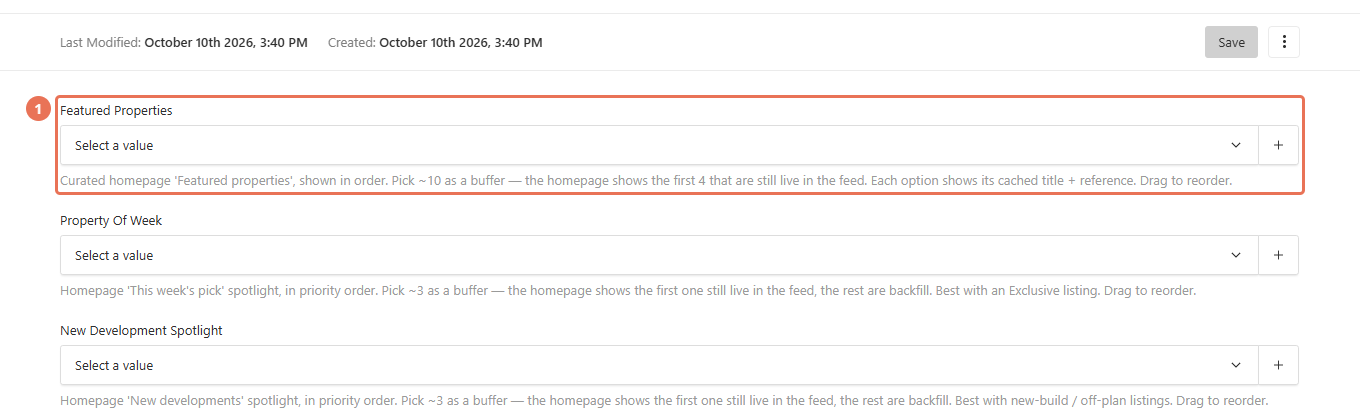
Click Homepage picks under Shared sections. You will see separate selections for the featured homes and each spotlight.
 Select the image to view it full size.
2. Choose featured homes
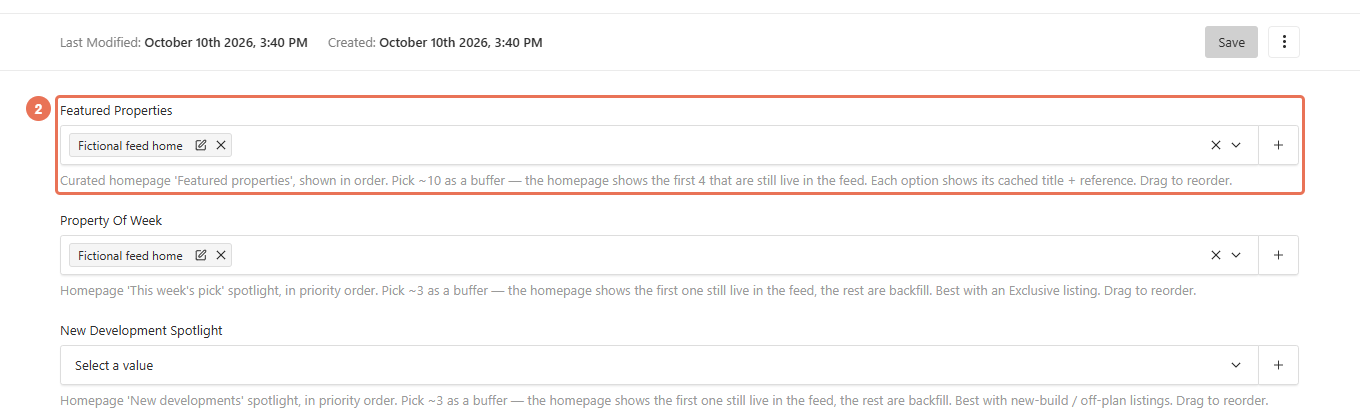
Add homes in Featured Properties by searching for their title or reference. Drag the selections into priority order; the featured band shows the first four live choices, so extra choices provide backups.
 Select the image to view it full size.
3. Choose spotlight backups
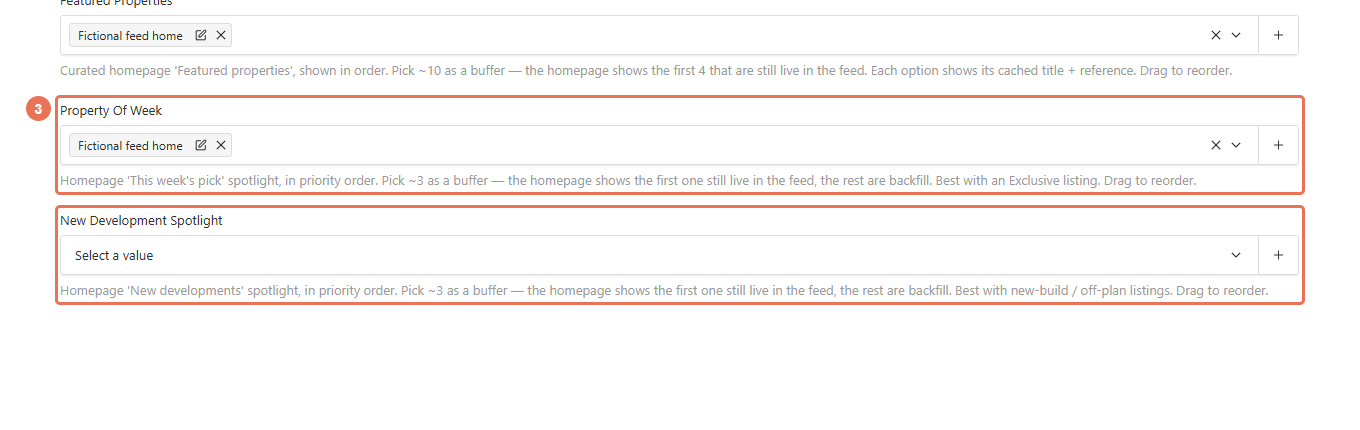
Add your first choice and backups in Property Of Week and New Development Spotlight. Each spotlight uses the first live home in its list.
 Select the image to view it full size.
4. Save your choices
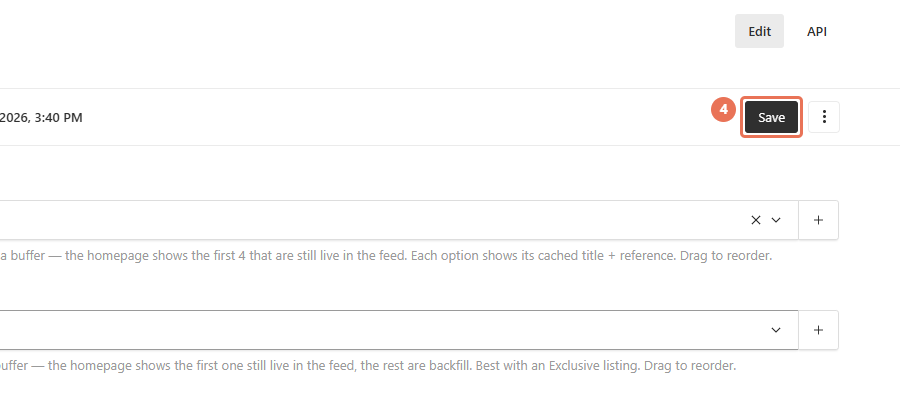
Click Save to change the homepage selection immediately, then open the homepage. If a chosen home is skipped, check that it is still live and has not been hidden.
 Select the image to view it full size.
Leaving a list empty lets the website choose homes from the feed. Selecting a home here does not make an unavailable home live. If a reference is missing from the picker, use Sync from the feed and add listing extras first.