
More in Menus and shared sections
PROPELOS CMS GUIDE
Edit shared property-page text and reviews
Update the ribbon and review summary reused on property pages.
Shared sections → Property page sections or Why families band
In this guide
Change text that appears across several property pages from one place.
1. Open the shared section
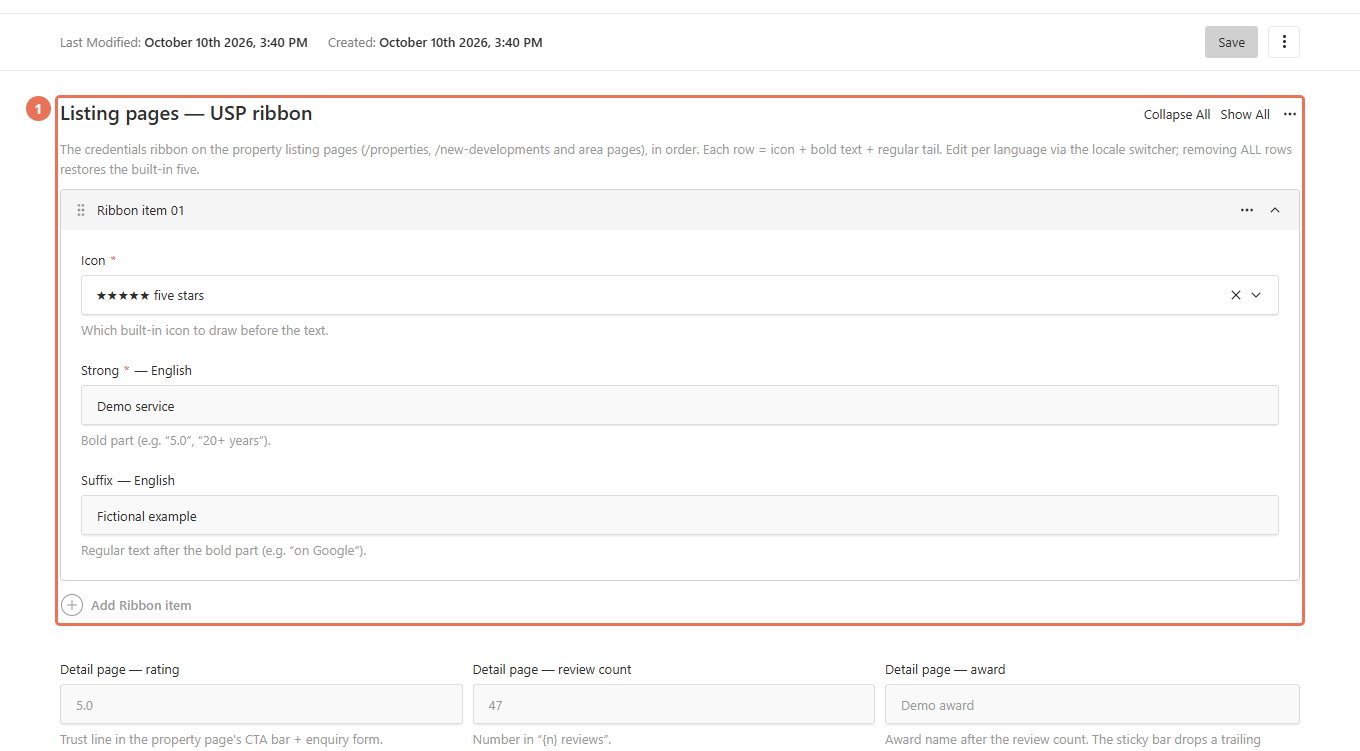
Click Property page sections under Shared sections for the listing ribbon and detail-page review line. Use Why families band for its photo, introduction, testimonials and button.
 Select the image to view it full size.
2. Edit the listing ribbon
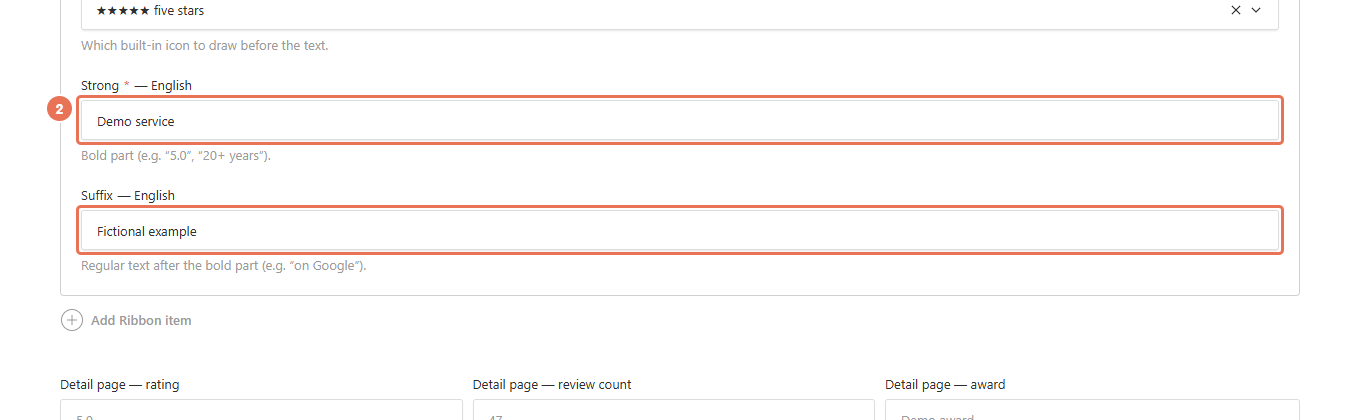
Use the Locale menu at the top right to choose the website language you are editing. Expand Listing pages — USP ribbon, then edit the Strong text, Suffix and Icon in each row.
 Select the image to view it full size.
3. Update the review summary
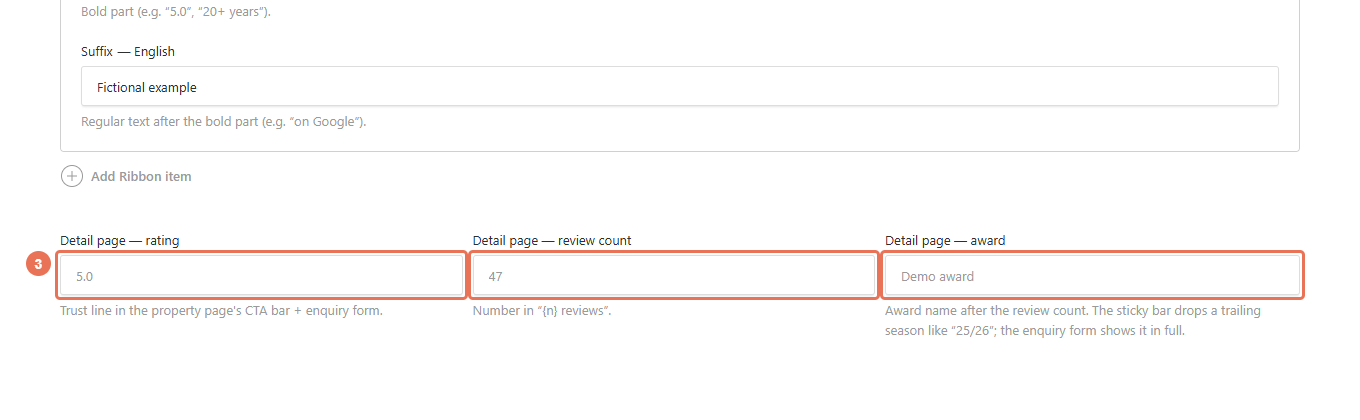
Enter the actual rating in Detail page — rating and the number of reviews in Detail page — review count. Add Detail page — award only if it applies; the review summary is omitted when the rating or positive review count is missing.
 Select the image to view it full size.
4. Save and check property pages
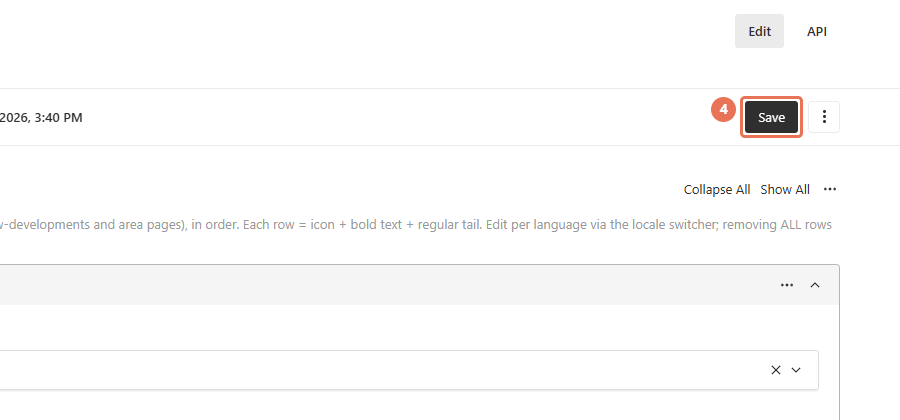
Click Save to update this shared content immediately. Check a property-results page and a property-detail page; an area page with its own image or wording may keep that variation.
 Select the image to view it full size.
Use accurate claims and genuine testimonials. Removing every ribbon row can restore the original ribbon; empty ratings and review counts do not add a review summary. If your sidebar has neither shared section, edit the corresponding section on the page itself.