
More in Properties
PROPELOS CMS GUIDE
Add extras to a property from your feed
Find a feed listing and add tags, an agent, search descriptions or extra media.
Properties supplied by your property feed
In this guide
Add website details to an existing feed listing without changing its original price, description or photo gallery.
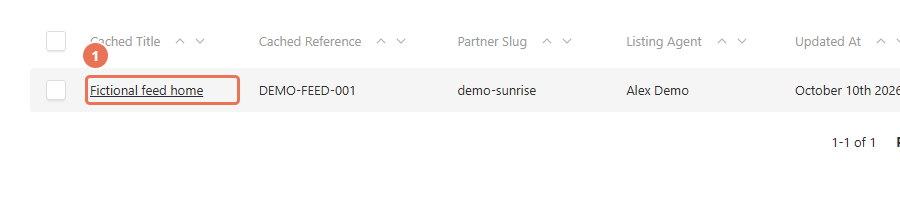
1. Open feed properties
Click Properties in the left sidebar, above Manually added.
 Select the image to view it full size.
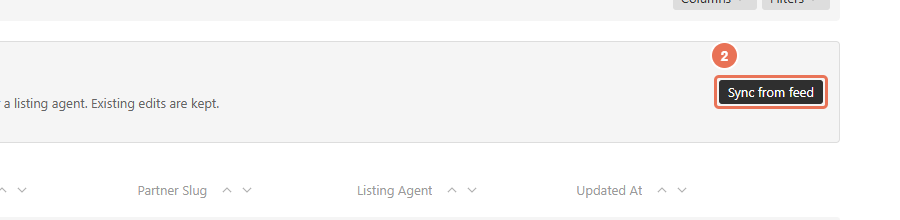
2. Bring in missing listings
If your listing is missing from the list, click Sync from feed. Wait for the list to refresh; existing tags and other CMS edits are kept.
 Select the image to view it full size.
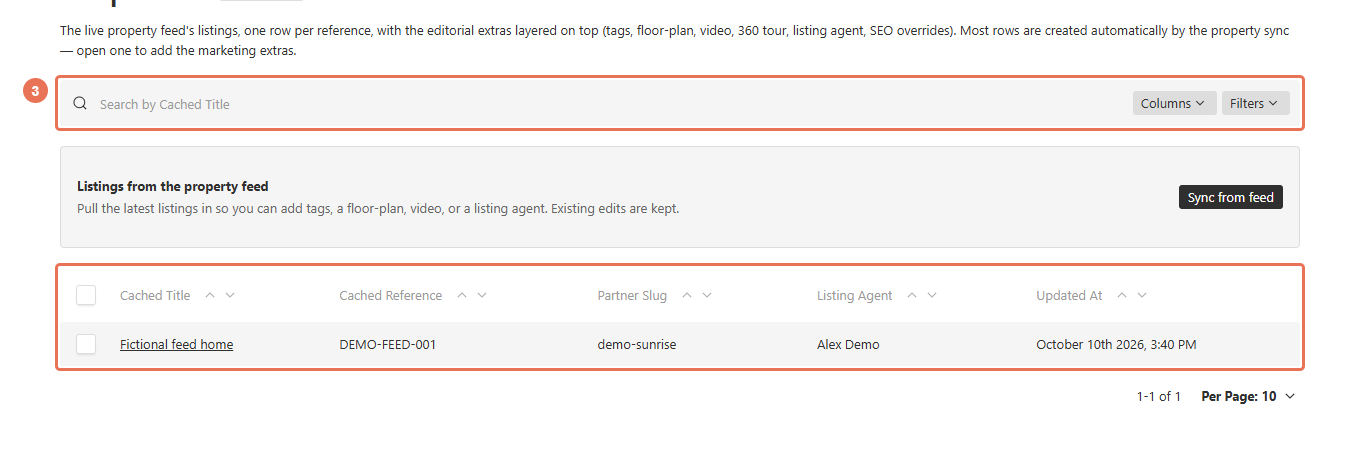
3. Find your property
Search for its reference and open the listing. Leave External Id unchanged; it identifies the property from your feed.
 Select the image to view it full size.
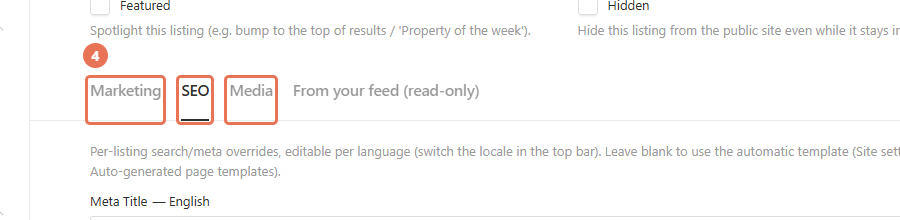
4. Add the extras
Use Marketing for tags and Listing Agent, SEO for a search title and description, or Media for floor plans and tour links. For text in another language, choose it in the top-right Locale menu.
 Select the image to view it full size.
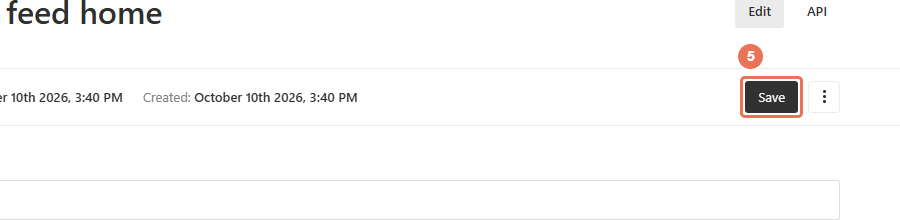
5. Save the update
Click Save. Feed-listing extras do not have a draft stage, so saving can update the live property page.
 Select the image to view it full size.
Open the public listing to check the result. From your feed (read-only) shows a saved copy of feed details for reference; correct those facts in the system that supplies the feed.
If a sync is already running, let it finish. Syncing refreshes the CMS list; it does not connect a new feed or change your CRM setup.