
More in Troubleshooting
PROPELOS CMS GUIDE
Find out why your change is missing from the website
Check the edited field, publication and page language before refreshing cached content.
Pages, articles, settings and properties
In this guide
Work through these checks when the website still shows the old text or image.
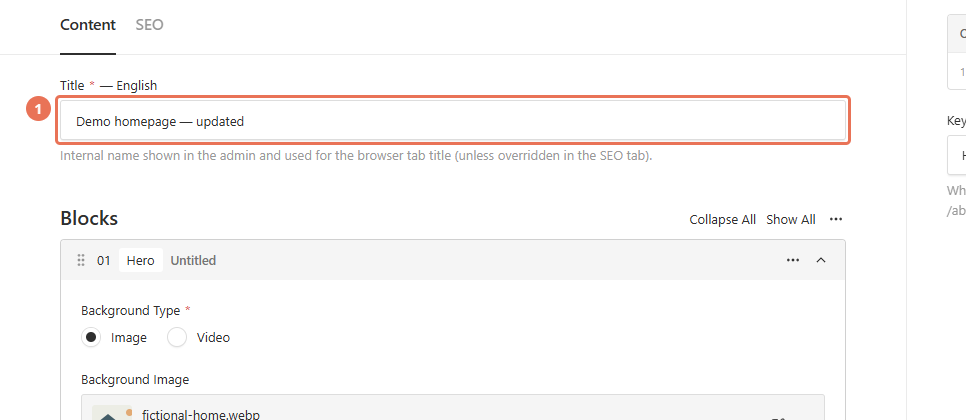
1. Open the content you edited
Open the page or item again and find the field you changed. A page’s Title, section Headline and SEO → Title do different jobs; open the section containing the text visitors actually see.
 Select the image to view it full size.
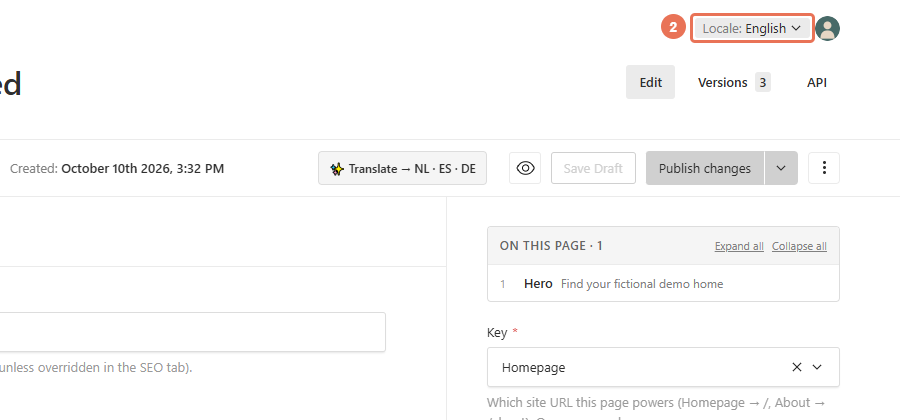
2. Check the language version
Use the Locale menu at the top right to choose the website language you are editing. Check that the changed text is saved in that version, then open the same language on the public website.
 Select the image to view it full size.
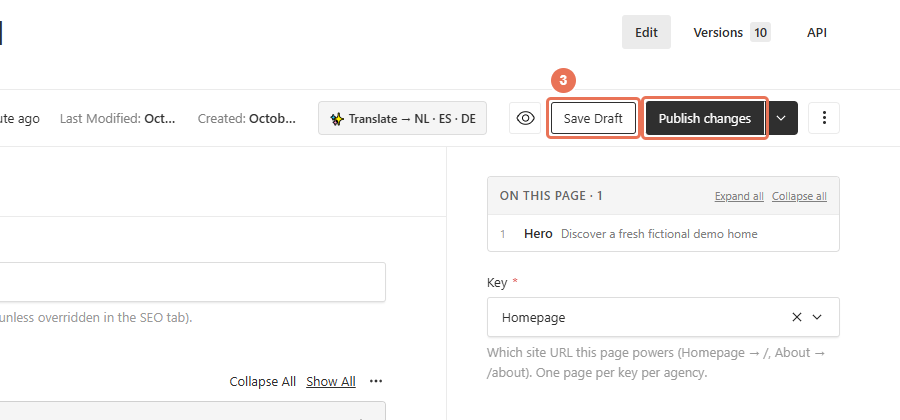
3. Publish a saved draft
If your change is still a draft, click Publish changes to put it on the website. Save Draft keeps the work for review; settings and shared sections with Save update immediately.
 Select the image to view it full size.
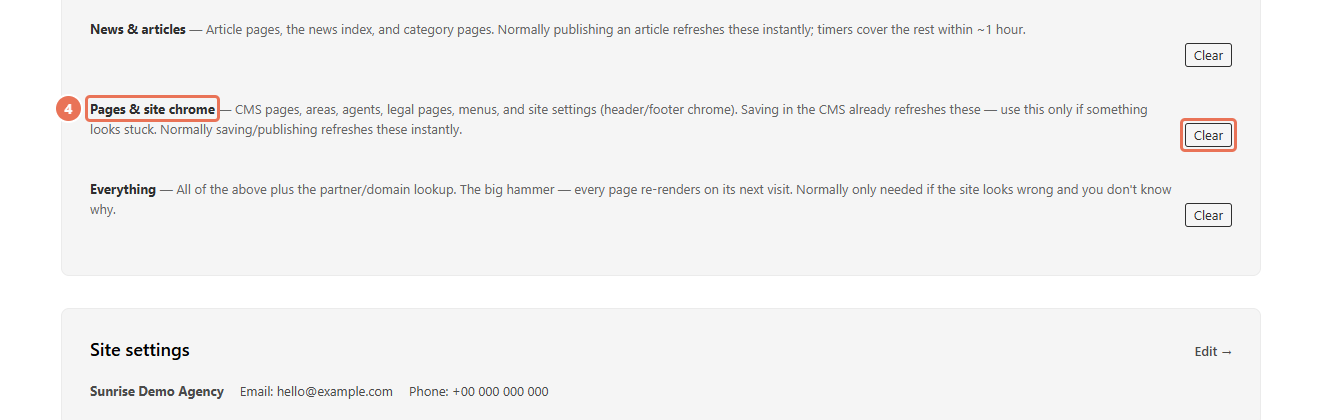
4. Refresh the relevant cache
If the saved, published content is correct, open Overview → Cache and clear the matching group once. Reopen the public page after the completion message.
 Select the image to view it full size.
For a feed listing’s price, description or photos, check the CRM or feed first; the CMS Properties editor adds extras rather than replacing that source. Area-specific content can override shared wording, and empty translated fields can fall back to English. Social networks also keep their own cached link previews. If the change is still missing, use Get Help and include the page address, edited field, language and approximate time.