
More in News and articles
PROPELOS CMS GUIDE
Add buttons or a table to an article
Insert action buttons or a small table in your article’s Body editor.
Websites with articles
In this guide
Use buttons to give readers a clear next action, or a table to compare a few short pieces of information.
1. Open the article body
Open the article under Articles, then click the place in Body where you want to add content.
 Select the image to view it full size.
2. Choose what to insert
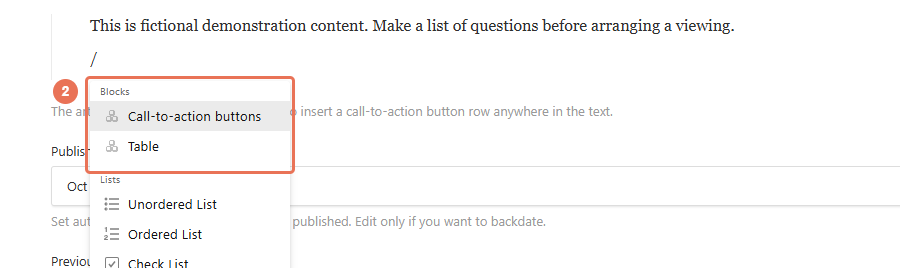
Open the + menu, or type / on a new line. Choose Call-to-action buttons for a button row or Table for a table.
 Select the image to view it full size.
3. Complete the option you chose
For buttons
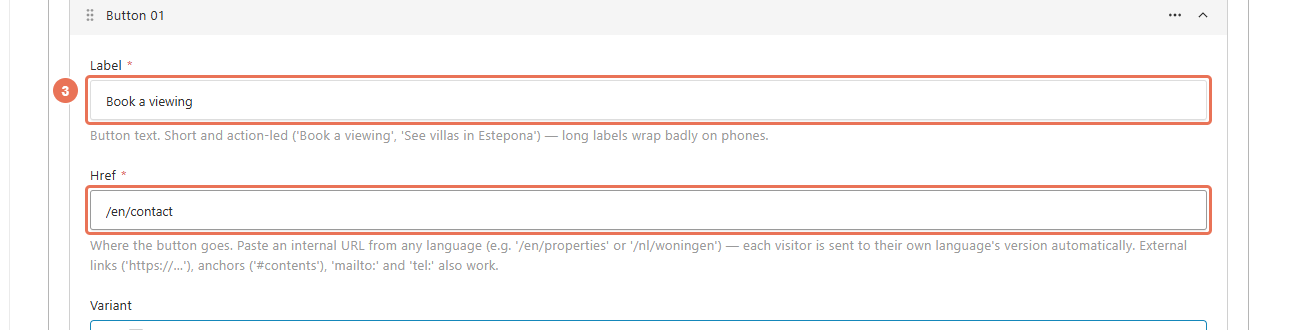
Click Add Button inside the new button row. Enter its Label and destination Href, then choose the offered Variant.
 Select the image to view it full size.
For a table
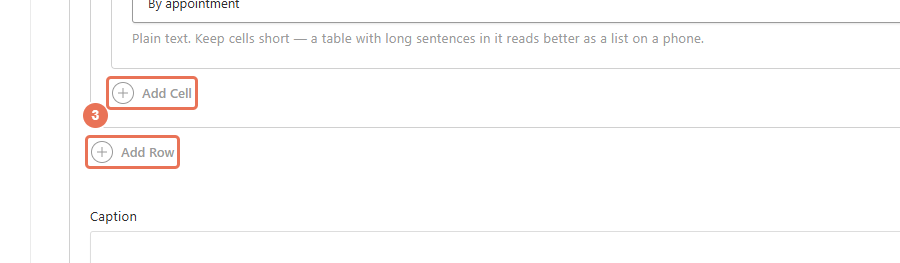
Click Add Row inside the table. Click Add Cell inside that row for each column you need.
 Select the image to view it full size.
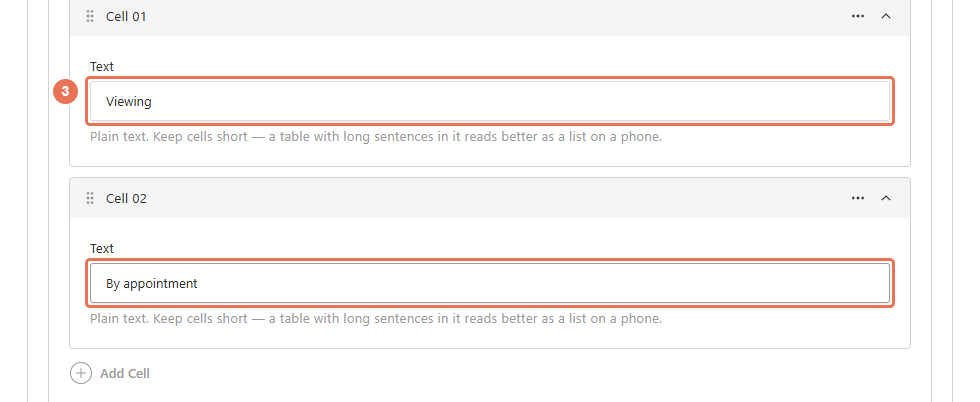
Enter the content in each cell’s Text field. Repeat for more rows, keeping the same number of cells in each row.
 Select the image to view it full size.
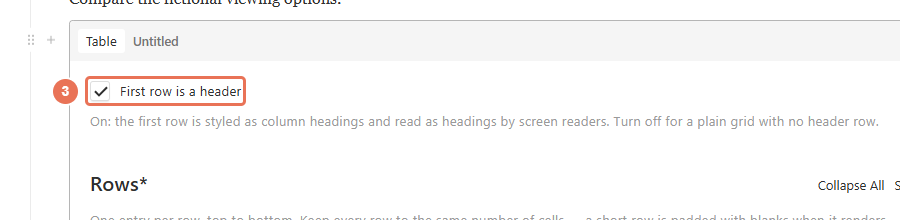
Select First row is a header when the first row contains column names.
 Select the image to view it full size.
4. Save your draft
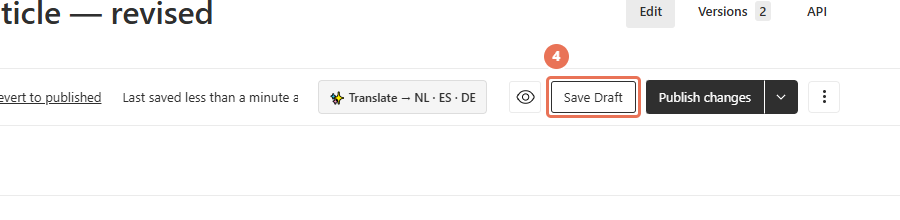
Click Save Draft and wait for the save to finish. This keeps your changes for review without publishing them.
 Select the image to view it full size.
5. Check the buttons or table
Click Live Preview (the eye icon) and choose Mobile to check how the content fits on a phone. Test the button destinations and check table readability.
 Select the image to view it full size.
6. Publish your changes
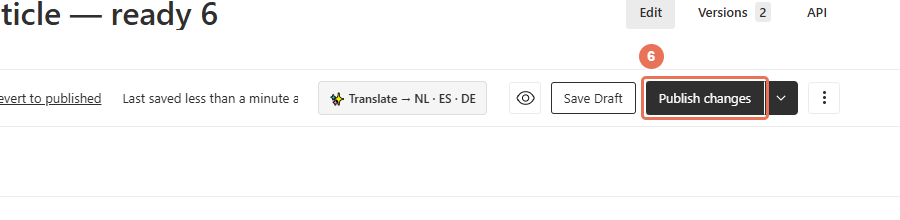
Click Publish changes when you are ready for visitors to see the update. Then open the normal website address in a separate tab and check the result.
 Select the image to view it full size.
Button links to your own website follow the visitor’s language. Use a full https://… address for another website; mailto:, tel: and page anchors are also supported.
Keep button labels and table cells short. Give every table row the same number of cells; Caption can add a source or note below it. Article buttons and tables do not offer all the duplicate controls available on page sections.