
More in Media and agents
PROPELOS CMS GUIDE
Keep the subject in view when an image is cropped
Set separate photo focus for desktop and phones, or crop a shared image in the Media library.
Page photos with Crop focus fields; images in Media
In this guide
Adjust the focus when a face, building or other important part of a photo is cut off. Page focus changes that page; a library crop changes the shared image.
1. Open the photo section
Open your page and expand the section containing the photo. Look below the image for Crop focus (optional) and Crop focus on phones (optional).
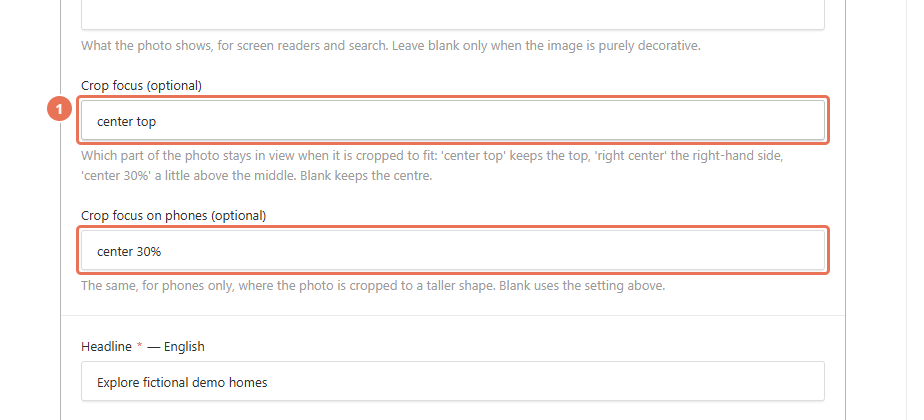 Select the image to view it full size.
2. Set the desktop focus
Enter the part of the photo to keep visible in Crop focus (optional). For example, center top keeps the top in view, right center favours the right side, and center 30% focuses slightly above the middle; leave it empty to centre the photo.
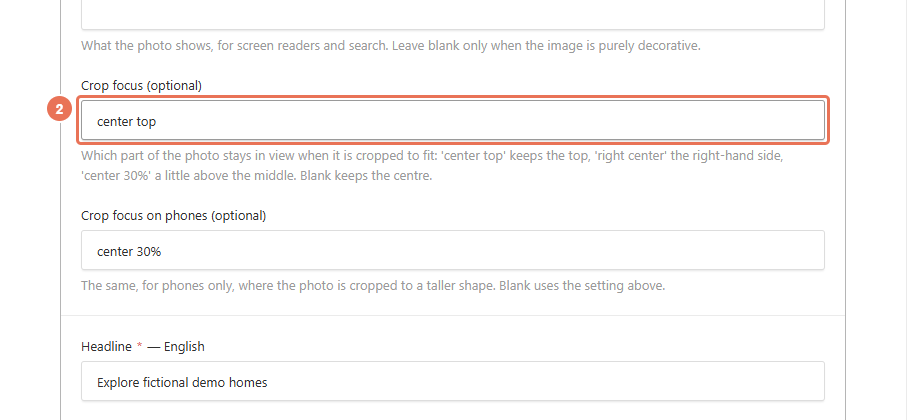 Select the image to view it full size.
3. Adjust the phone focus
Use Crop focus on phones (optional) if the narrower layout needs a different position. Leave it empty to use the desktop setting.
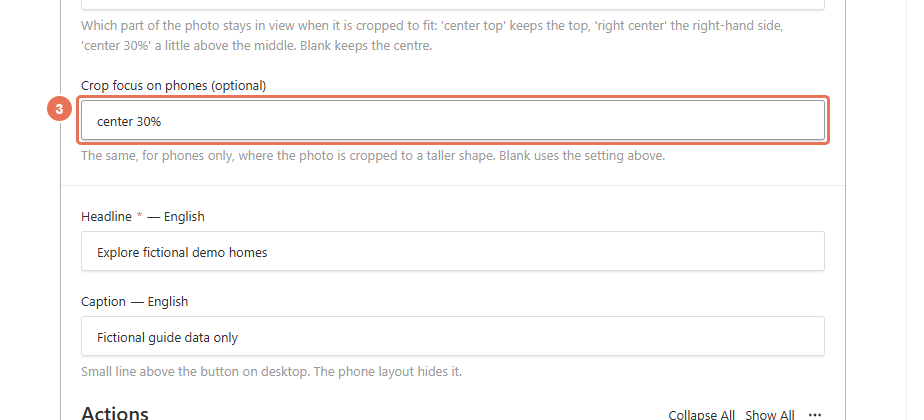 Select the image to view it full size.
4. Publish the page
Click Publish changes to update the website, then open the public page on desktop and phone to check the subject stays visible.
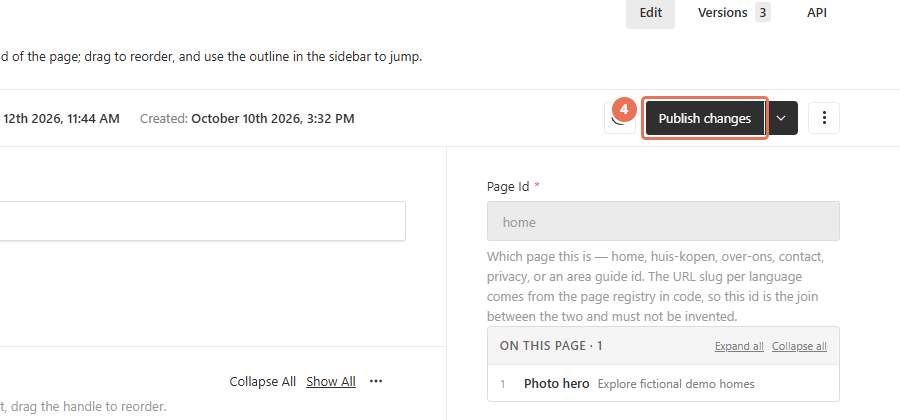 Select the image to view it full size.
To crop the image everywhere it is used, click Media in the left sidebar and open the image, use the image editor’s crop or focal-point controls, then click Save. This changes the shared image immediately, without waiting for page publication. Check the pages using it afterwards.