
More in Properties
PROPELOS CMS GUIDE
Create and publish a manually added property
Add a complete property listing directly in the CMS, then publish it.
Properties absent from your property feed
In this guide
Create a listing in the CMS for a property that your feed does not supply.
1. Create the listing
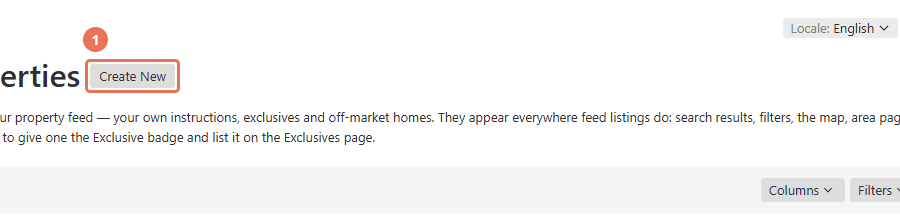
Click Manually added under Properties, then Create New.
 Select the image to view it full size.
2. Set the reference and description
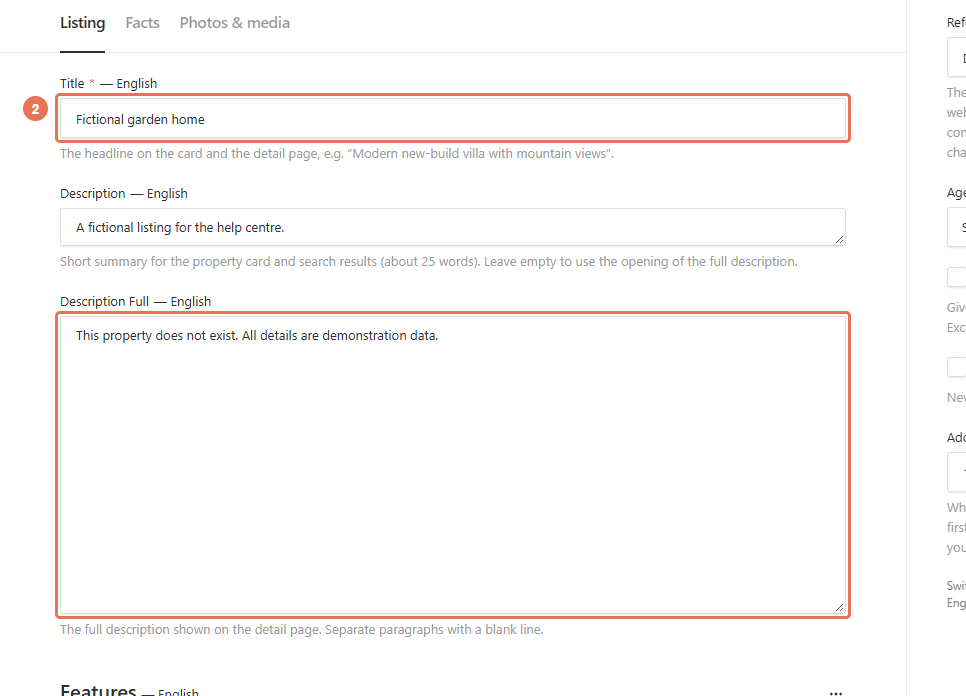
Enter a unique Reference, such as AG-EX-001, and complete the Listing tab. The reference needs letters, numbers or hyphens and at least one number; it forms part of the public address.
 Select the image to view it full size.
3. Add the property facts
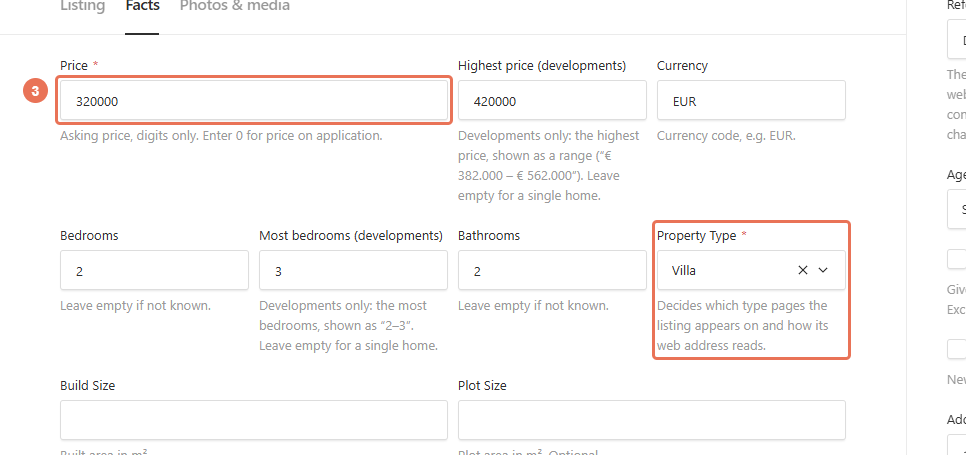
Open Facts and enter the price, property type, location and known measurements. Use digits for Price, or 0 for price on application.
 Select the image to view it full size.
4. Add gallery photos
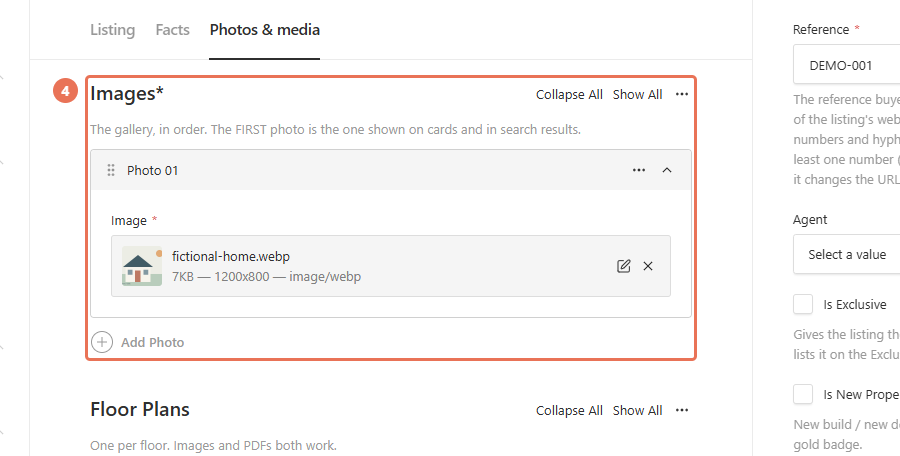
Open Photos & media and add at least one photo in Images. Put the main photo first; it appears on cards and in search results.
 Select the image to view it full size.
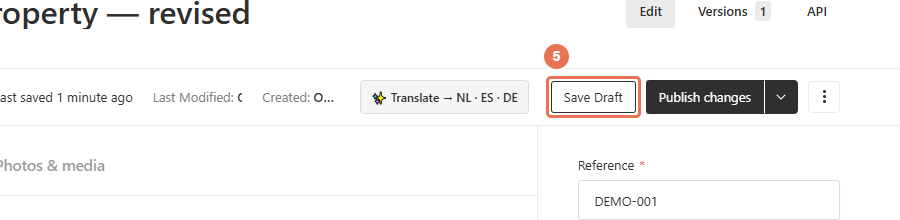
5. Review the listing
Choose an Agent if needed and select the exclusive or new-property options only when accurate. Click Save Draft and review the text, facts, media and any translations.
 Select the image to view it full size.
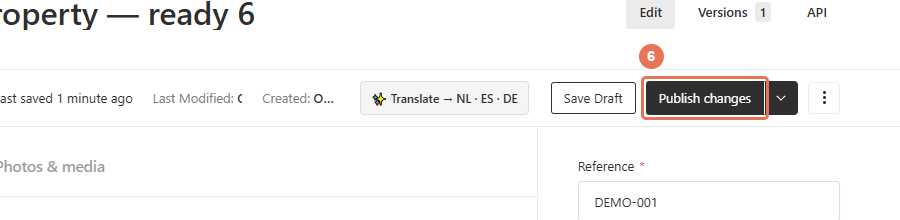
6. Publish your changes
Click Publish changes when you are ready for visitors to see the update. Then open the normal website address in a separate tab and check the result.
 Select the image to view it full size.
Check the property on your website after publishing. Use the same town and area spellings as your other listings. Add both Latitude and Longitude for a map pin; without coordinates there is no map position.
A draft also reserves its reference. Resolve duplicate-reference errors before continuing, and avoid changing a reference after publishing because it changes the listing’s address. Price and location facts are shared between languages; titles and descriptions can be translated using the top-right Locale menu.