
More in Properties
PROPELOS CMS GUIDE
Add price and bedroom ranges to a development
Show the lowest and highest prices and bedroom counts for a manually added development.
Manually added developments
In this guide
Use ranges when one development listing represents homes with different prices or bedroom counts.
1. Open the development facts
Open the listing under Manually added, then click Facts.
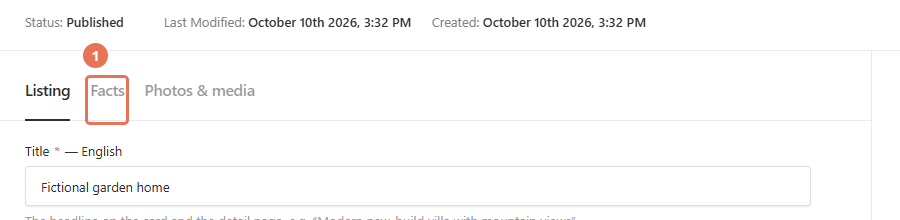 Select the image to view it full size.
2. Set the price range
Enter the lowest asking price in Price and the highest in Highest price (developments). Use digits only; the highest value must be greater than the lowest.
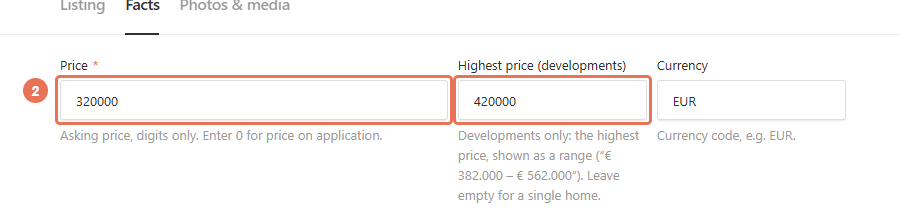 Select the image to view it full size.
3. Set the bedroom range
Enter the fewest bedrooms in Bedrooms and the largest count in Most bedrooms (developments). Leave the upper field empty if every home has the same count.
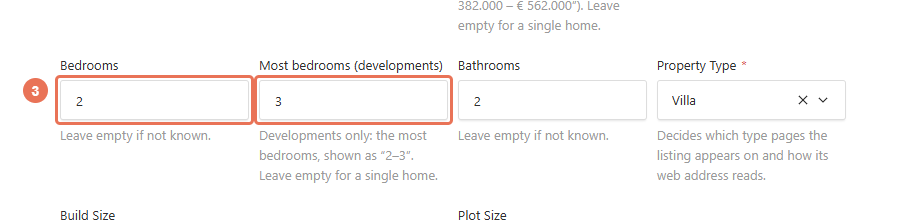 Select the image to view it full size.
4. Save and publish the figures
Click Save Draft to review the listing, then Publish changes when the figures are ready for visitors. Check the ranges on the public property page.
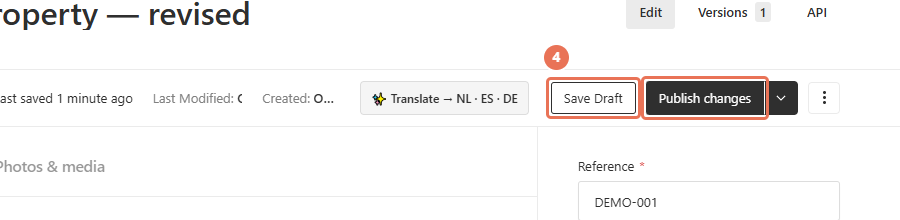 Select the image to view it full size.
Upper values need lower values and must be larger; equal or reversed ranges are rejected. A single home normally needs only one price and bedroom count. Leave upper values empty for price on application, and use only verified figures for available homes. These facts are shared across languages.