
More in Properties
PROPELOS CMS GUIDE
Add floor plans, videos and virtual tours
Add a property’s floor-plan images and links to hosted videos or virtual tours.
Feed properties and manually added listings
In this guide
Give visitors a floor plan, video or virtual tour from the property page.
1. Open the property’s media
For a feed listing, open it under Properties and click Media. For a manually added listing, open it under Manually added and click Photos & media.
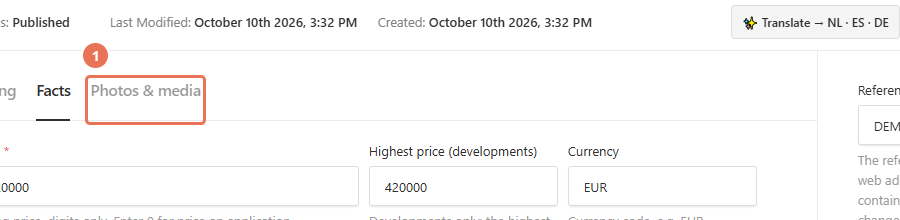 Select the image to view it full size.
2. Add a floor plan
For a manually added listing, add an entry in Floor Plans and choose its image in File. For a feed listing, choose the image in Floorplan; manual listings can have one entry per floor.
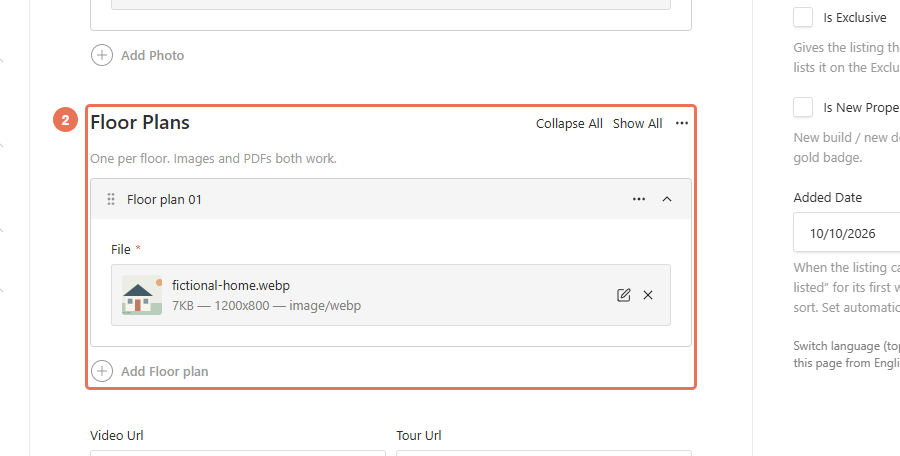 Select the image to view it full size.
3. Add a video or tour link
Paste the complete hosted video address in Video Url and the virtual-tour address in Tour Url. Feed properties instead offer Video360 Url for a 360° tour and Virtual Tour Url for a guided-tour booking link.
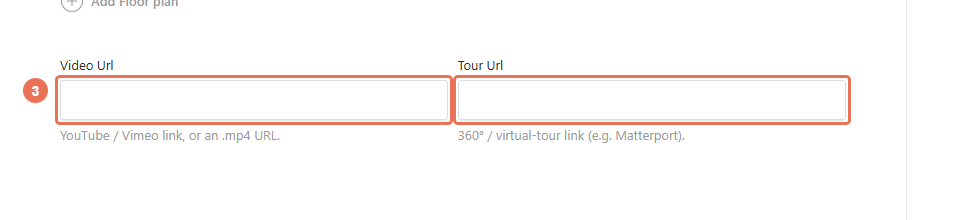 Select the image to view it full size.
4. Save or publish the media
For a manually added listing, click Save Draft to review it, then Publish changes when ready. For a feed listing, Save can update the live page immediately.
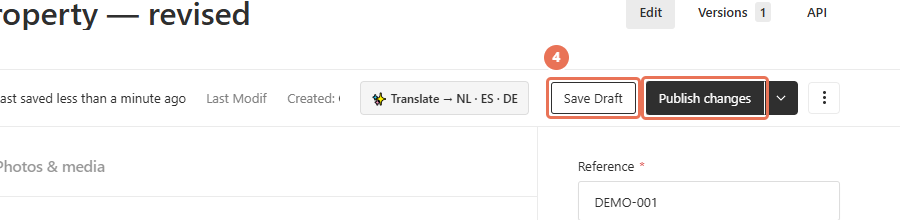 Select the image to view it full size.
Open the public property page and test each media action. Video links can use YouTube, Vimeo or a direct MP4; virtual-tour links need a public address that visitors can open without signing in. A video URL does not upload a video to a hosting service.
The CMS image library accepts images. Property pages can also show PDF floor plans supplied by the feed or already in the catalogue; ask Propelos if you need a PDF-only plan added. Feed media may be used when no CMS replacement is set.