
More in AI Search analytics
PROPELOS PARTNER PORTAL GUIDE
Export leads and analytics
Download lead CSV files and the available reporting breakdowns, with the correct scope for each export.
Accounts with AI Search
In this guide
Download the leads or reporting data you need from the relevant section.
1. Export enquiries
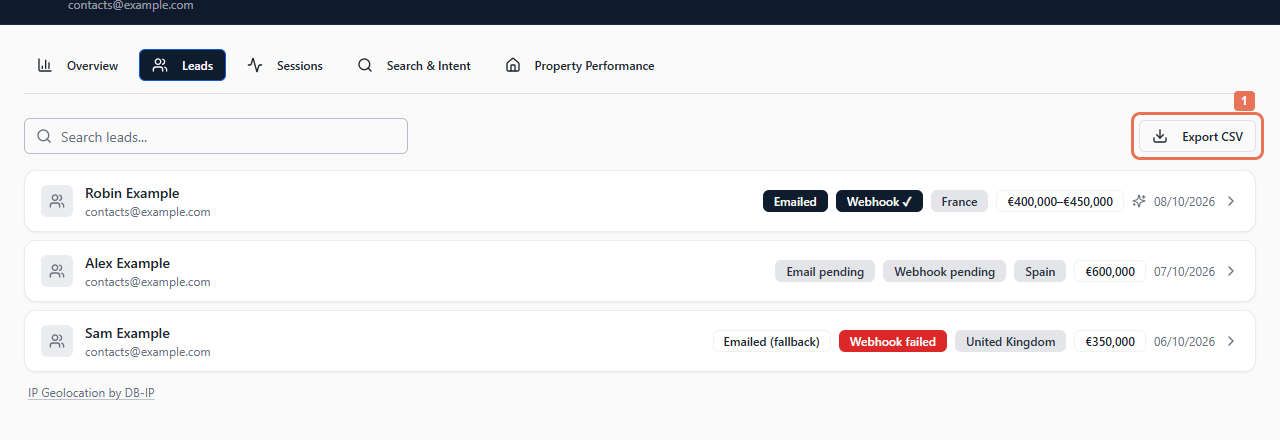
Open AI Search → Leads and select Export CSV. Save the downloaded file where the people handling enquiries can access it.
 Select the image to view it full size.
This export contains the account's exported leads. The lead search box and analytics date range do not limit it. Share contact information only with people who need it.
2. Export a reporting breakdown
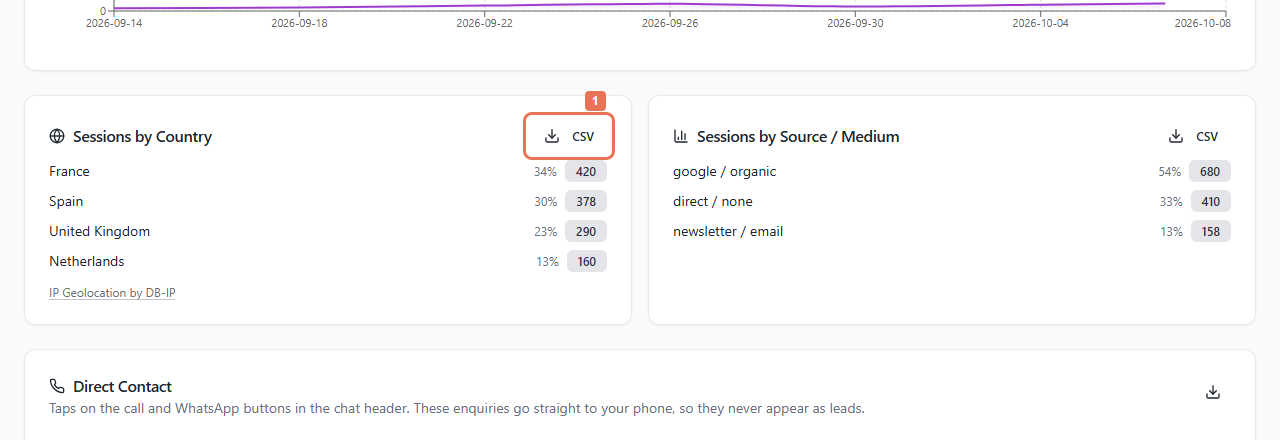
Choose your reporting dates in Overview or Sessions. Select CSV on a populated card, such as Sessions by Country.
 Select the image to view it full size.
The file contains that card's counts and percentages for the loaded period.
3. Export contact or property activity
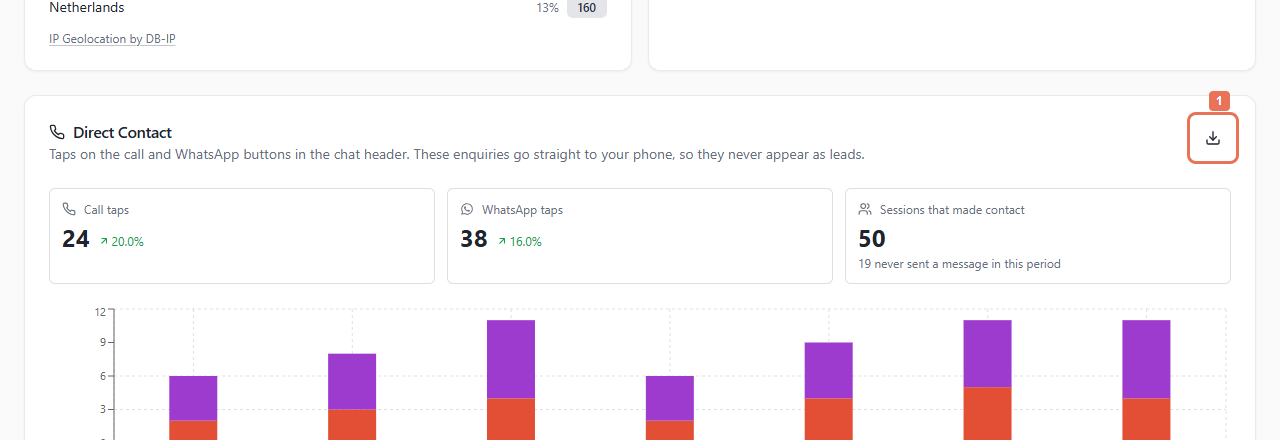
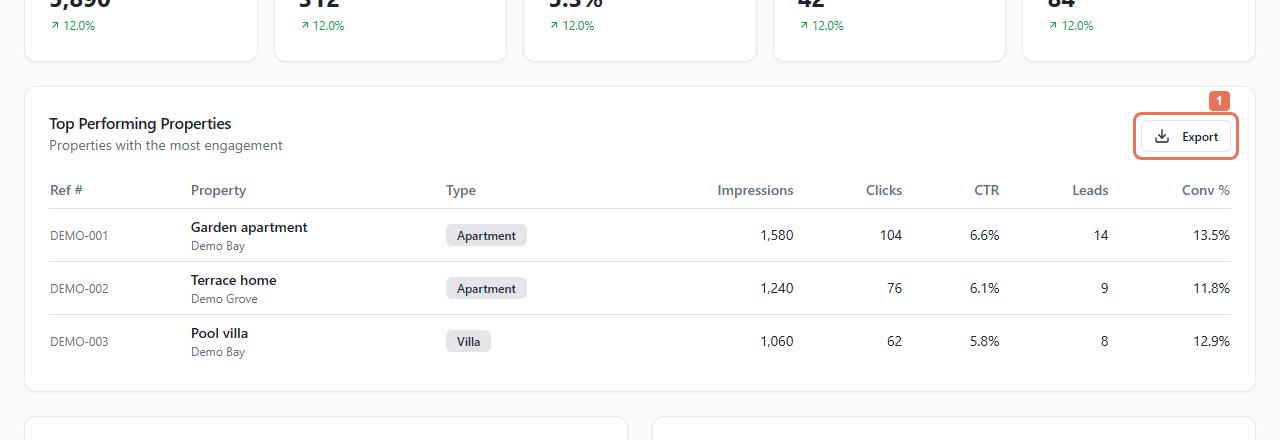
In Overview → Direct Contact, use the download icon when activity is present. In Property Performance → Top Performing Properties, select Export.
 Select the image to view it full size.
 Select the image to view it full size.
Direct Contact exports taps and breakdowns. The property export can include more than the 20 rows shown in the table. These screens have no whole-dashboard, anonymous-session-transcript or GEO CSV export.
If a download does not begin, check your browser's download controls and try again. For a recurring read into another tool, see Account → API.