
More in News and articles
PROPELOS CMS GUIDE
Write and publish a news article
Create an article, add its image and category, and publish it on your website.
Websites with articles or a blog
In this guide
Publish news, advice or a local guide in your website’s articles section.
1. Create an article
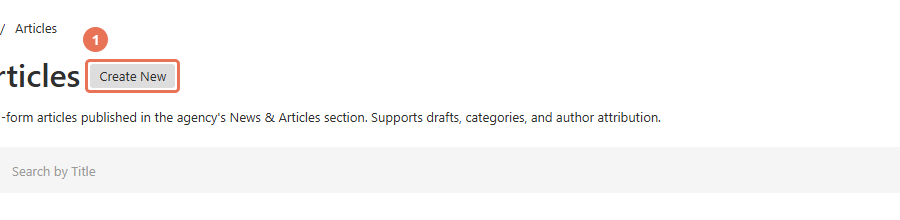
Click Articles under News in the left sidebar, then Create New.
 Select the image to view it full size.
2. Start in English
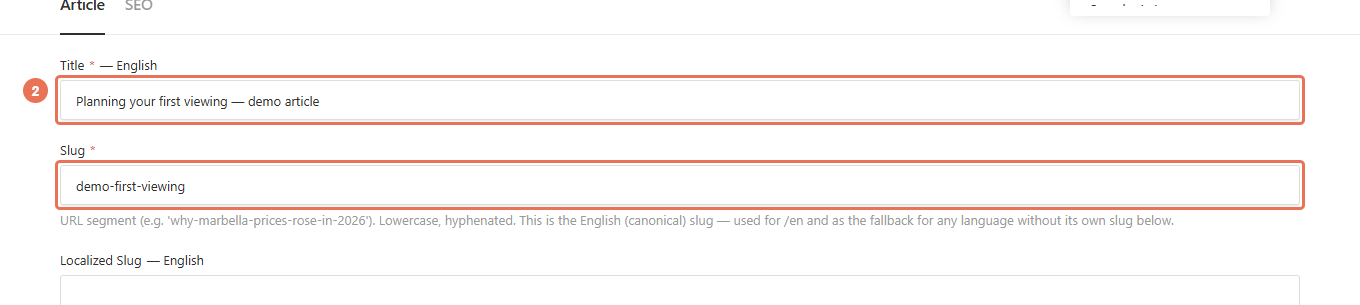
Open the Locale menu in the top right and choose English. Enter the article’s Title and a short Slug using lowercase words separated by hyphens.
 Select the image to view it full size.
3. Set the category and author
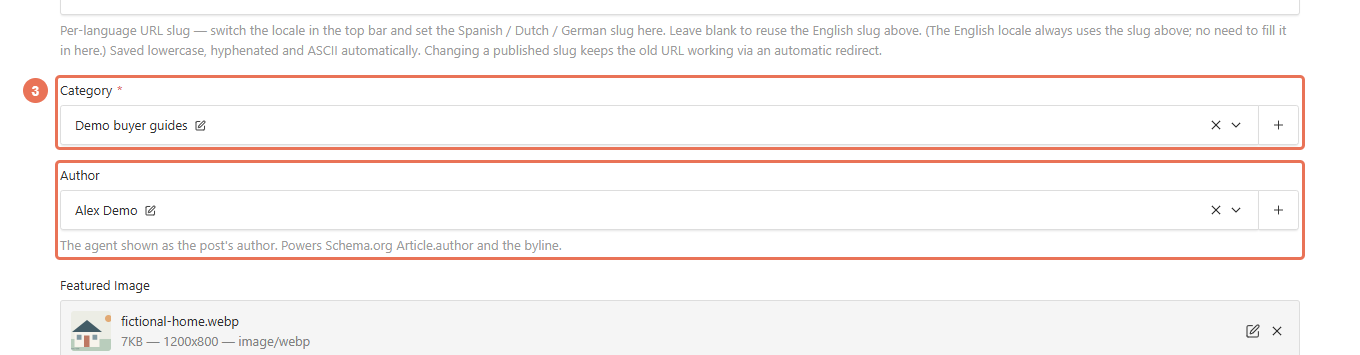
Choose a Category. Select an Author if the article should name a member of your team.
 Select the image to view it full size.
4. Add the image and summary
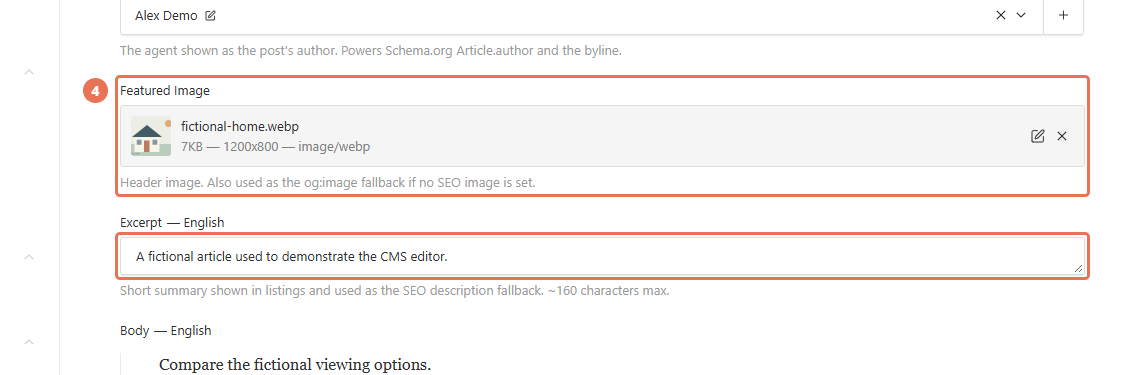
Choose a Featured Image for the article. Write a short Excerpt to introduce it in the website’s article list.
 Select the image to view it full size.
5. Write the article
Add the article text in Body. Use headings and short paragraphs to make it easy to read.
 Select the image to view it full size.
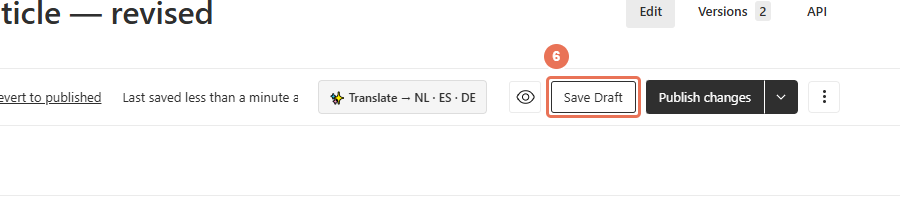
6. Save your draft
Click Save Draft to keep the article for review without publishing it.
 Select the image to view it full size.
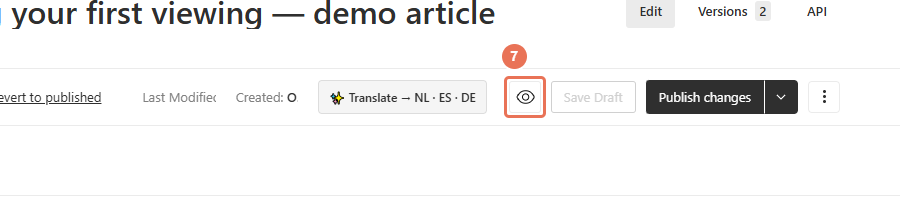
7. Check Live Preview
Click Live Preview (the eye icon) to inspect the saved draft. Check the page at Mobile and Desktop sizes before publishing.
 Select the image to view it full size.
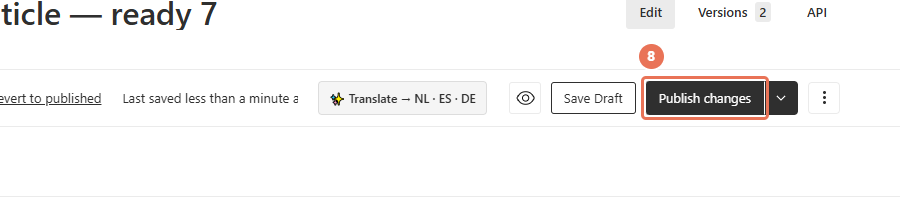
8. Publish your changes
Click Publish changes when you are ready for visitors to see the update. Then open the normal website address in a separate tab and check the result.
 Select the image to view it full size.
Before publishing, you can edit the search listing in the SEO tab. After publication, check the article on your website and review each language you intend visitors to read.
The first publication normally sets Published At; later edits keep that date. A future date does not schedule publication, so click Publish changes only when you are ready to go live.
If your homepage has an Article rail section, it shows up to three newest published articles. Drafts do not appear, and updating an older article does not move it ahead unless its publication date changes. A page section labelled Article rail → Cards supplies fallback cards when no articles are published.