
More in News and articles
PROPELOS CMS GUIDE
Choose article categories and authors
Create useful categories and assign a category and author to your article.
Websites with articles
In this guide
Give each article a useful category so readers can find related posts. Add an author when you want to show a named byline.
1. Open article categories
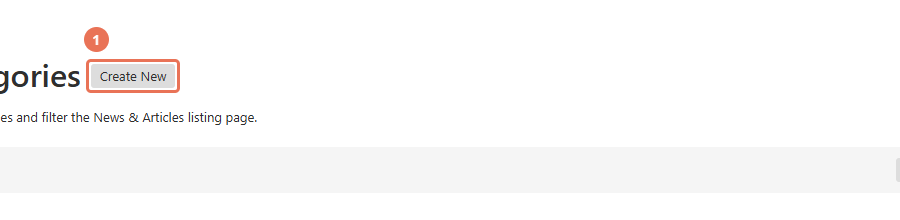
Click Article categories under News. Use an existing category, or click Create New if you need another.
 Select the image to view it full size.
2. Name and save the category
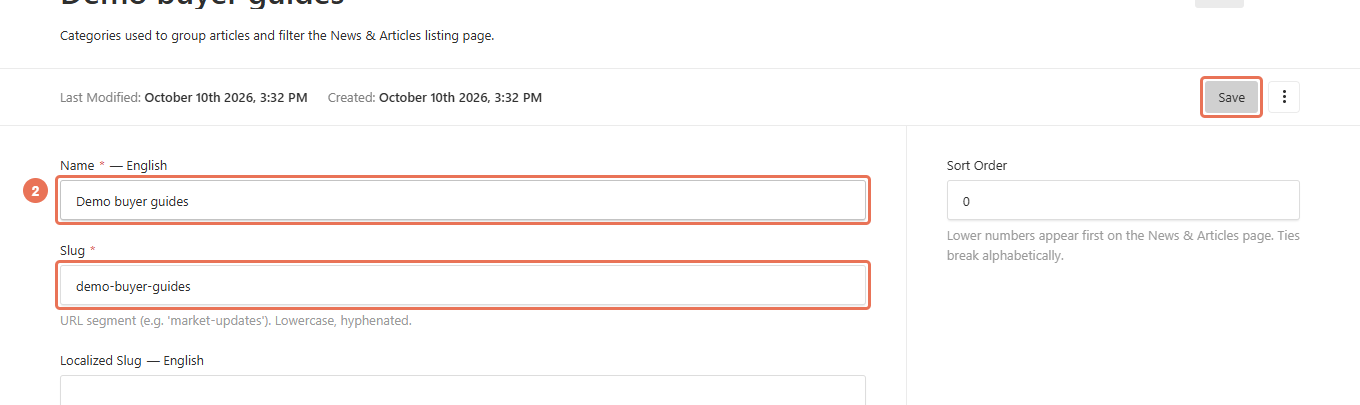
Enter Name and Slug, then click Save. Saving an existing category can change the category shown on published articles that use it.
 Select the image to view it full size.
3. Assign the category
Open your article under Articles and choose the Category you want to use.
 Select the image to view it full size.
4. Choose the author
Select the team member in Author. Public author details come from their Agent profile; update that profile if the name or photo needs changing.
 Select the image to view it full size.
5. Publish your changes
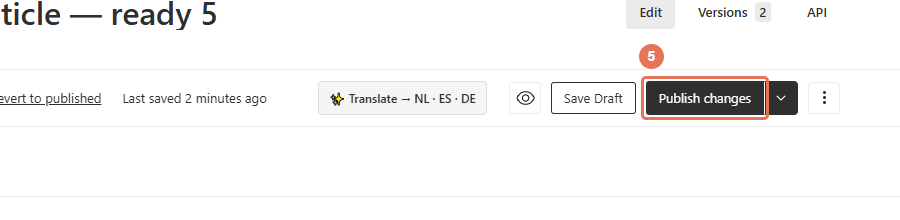
Click Publish changes when you are ready for visitors to see the update. Then open the normal website address in a separate tab and check the result.
 Select the image to view it full size.
Before deleting a category or Agent profile, update articles that still use it. Category names can be translated using the Locale menu in the top right. An Agent profile does not give the person a CMS login.