
More in Languages and translation
PROPELOS CMS GUIDE
Translate one field from English
Generate a translation for one field, review it and save your changes.
Text fields with Translate from English
In this guide
Translate a single heading or description when the rest of the language version already reads well.
1. Save the English wording
Open the Locale menu in the top right and choose English. Complete the field you want to translate and save it.
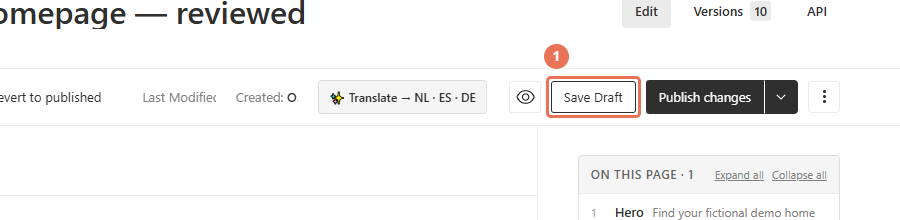 Select the image to view it full size.
2. Choose the target language
Use the Locale menu in the top right to choose the language you want to translate into.
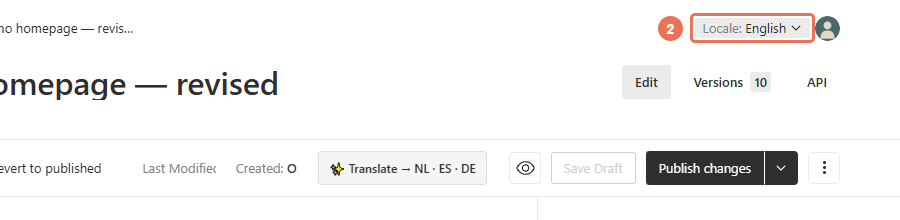 Select the image to view it full size.
3. Translate the field
Click Translate from English beneath the field. This replaces the text in that field, so keep a copy first if you want to preserve its existing wording.
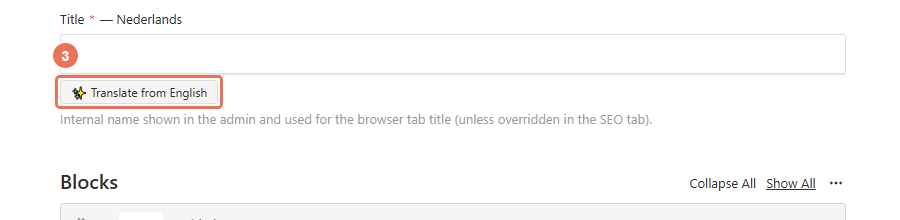 Select the image to view it full size.
4. Review and save
Read the generated text and make any corrections. Click Save Draft to keep a draft, or Publish changes when the wording is ready for visitors.
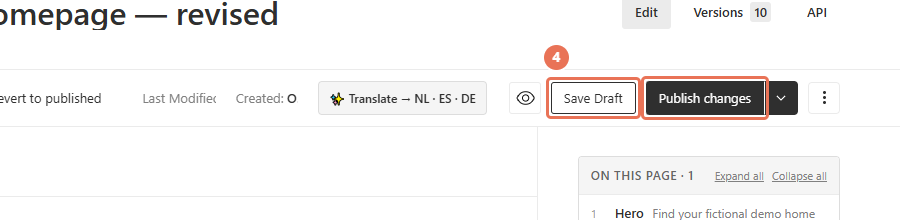 Select the image to view it full size.
Translation needs saved English wording. If no translation button appears beside a field, type the translated text yourself.
For items with ordinary Save controls, saving the translated field can change the live website immediately. If translation fails, note the visible error and language, then contact Propelos if it continues.