
More in Getting started and access
PROPELOS CMS GUIDE
Find your way around the CMS
Use the sidebar to find website pages, articles, properties, enquiries, media and settings.
Anyone editing a website
In this guide
Use the left sidebar to open the part of your website you want to update. On a small screen, open the menu first.
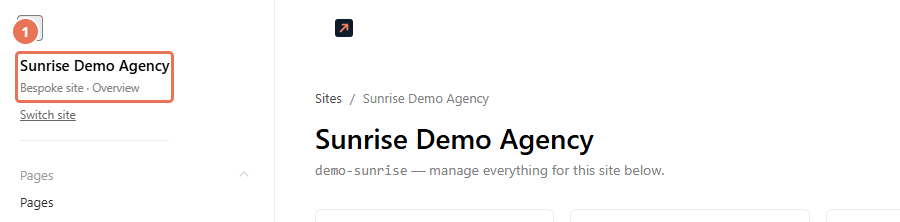
1. Open Overview
Click your website name at the top of the sidebar. Overview gives you shortcuts to content and includes the CRM connection and Cache controls.
 Select the image to view it full size.
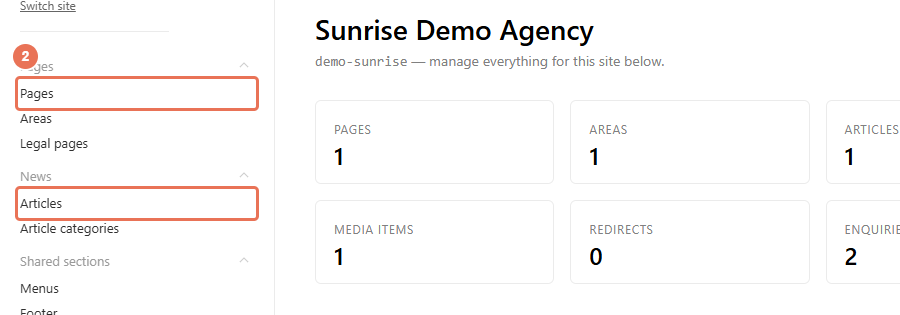
2. Choose what to work on
Click an item in the sidebar. For example, Pages opens website pages and Articles under News opens news posts.
 Select the image to view it full size.
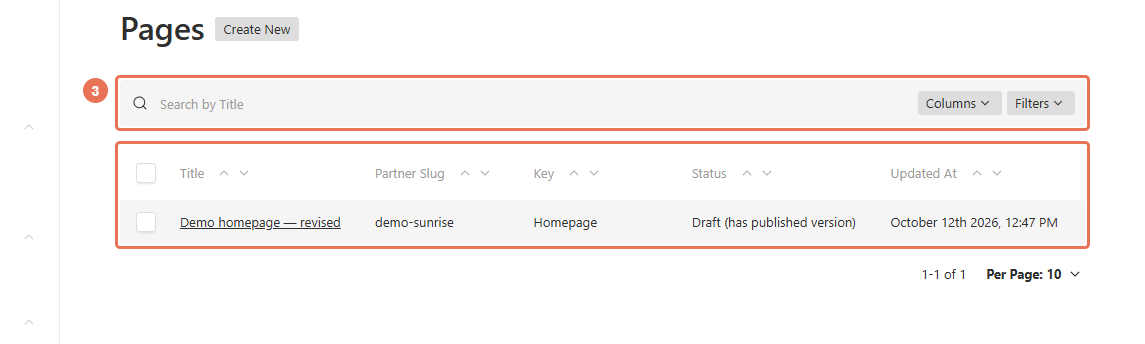
3. Open an item to edit
In a list, use the search box to find an item, then click its title.
 Select the image to view it full size.
The sidebar also gives you Properties for listings supplied by your feed, Manually added for listings created in the CMS, Enquiries for website messages, Media for images, and Site settings for website-wide details. Menus and Footer hold content reused across the website.
Only the sections your website uses are shown. For example, Newsletter subscribers appears for websites with a newsletter signup or existing subscribers, and Design appears when your website offers design controls.