
More in SEO rankings
PROPELOS PARTNER PORTAL GUIDE
Review Google and Maps rankings
Filter tracked keywords, distinguish measurement states and open position history.
Accounts with SEO enabled for a linked client
In this guide
Review your tracked Google and Maps positions for the relevant client, location and device.
1. Open Rankings
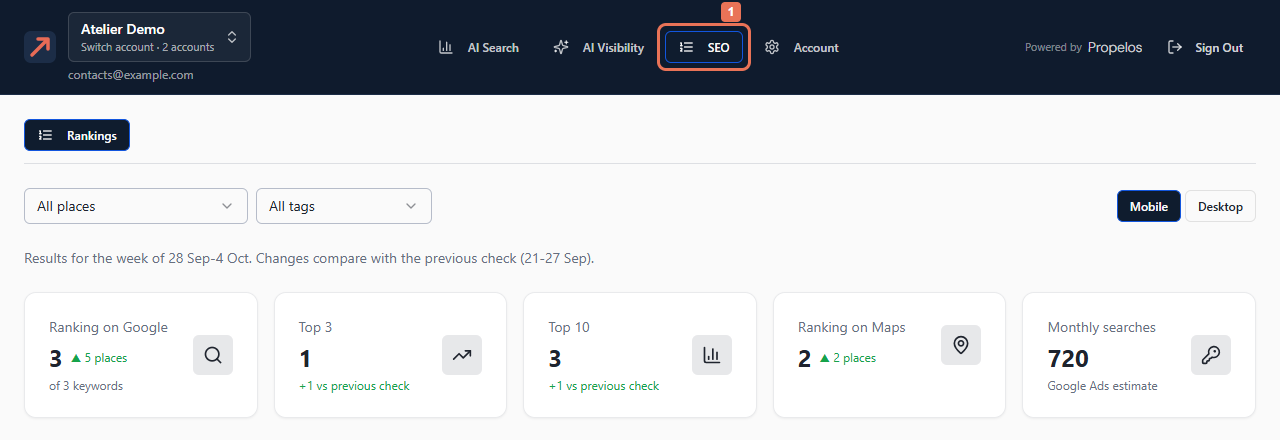
Open SEO → Rankings when enabled for your linked client. Choose the client if a picker appears.
 Select the image to view it full size.
2. Choose filters
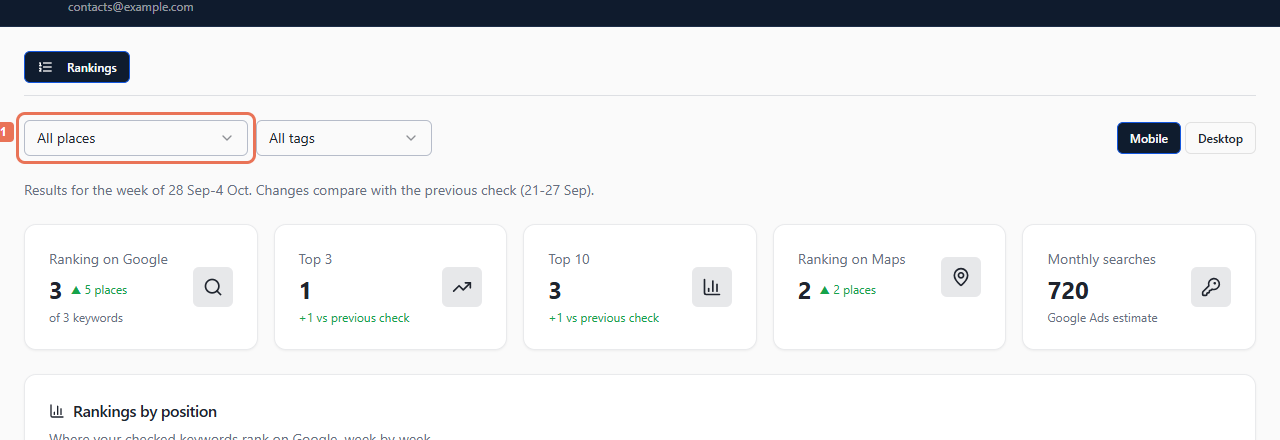
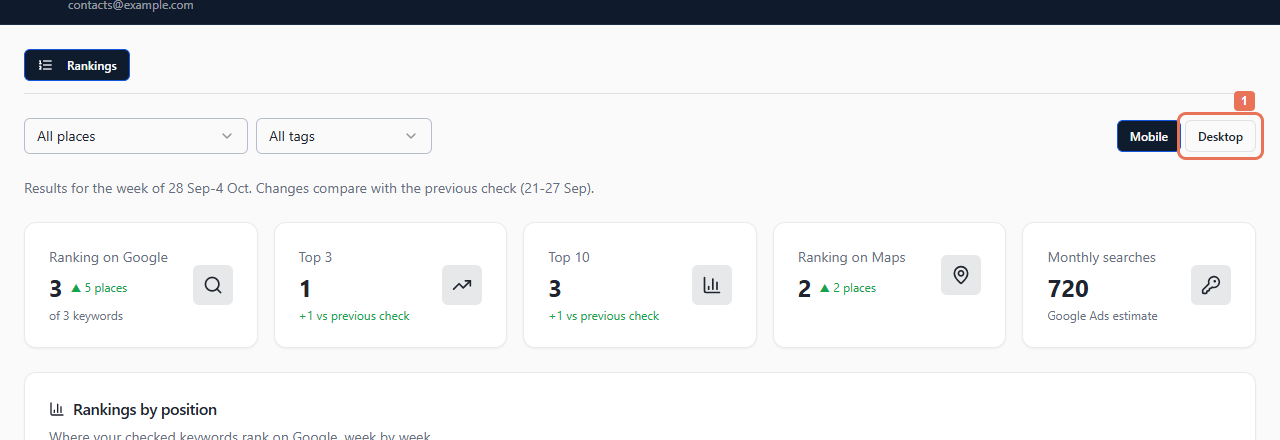
Use All places to choose a location, and All tags when offered to narrow the keyword group. Choose Mobile or Desktop.
 Select the image to view it full size.
 Select the image to view it full size.
Read the week caption and totals for Ranking on Google, Top 3, Top 10, Ranking on Maps and Monthly searches. Monthly searches is a Google Ads estimate.
3. Open keyword history
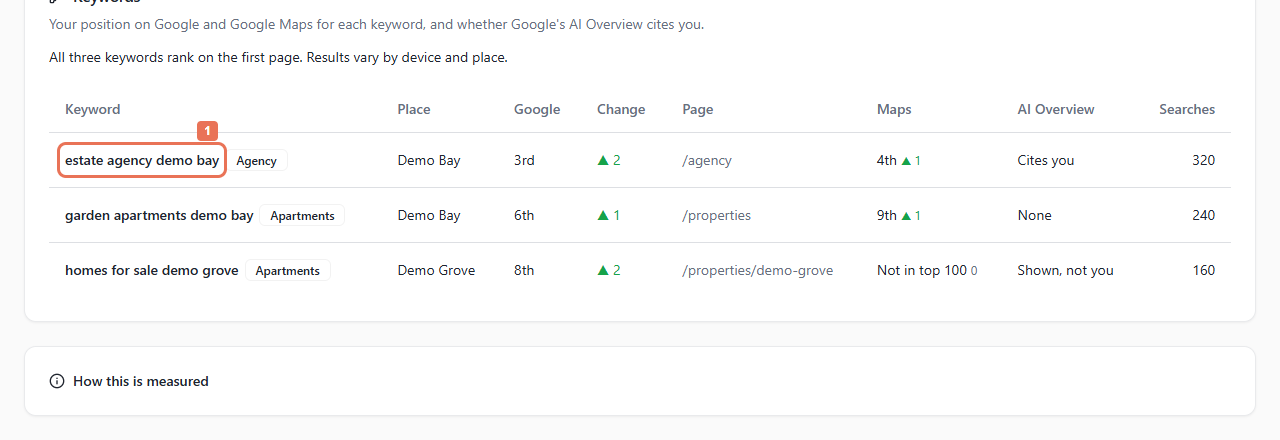
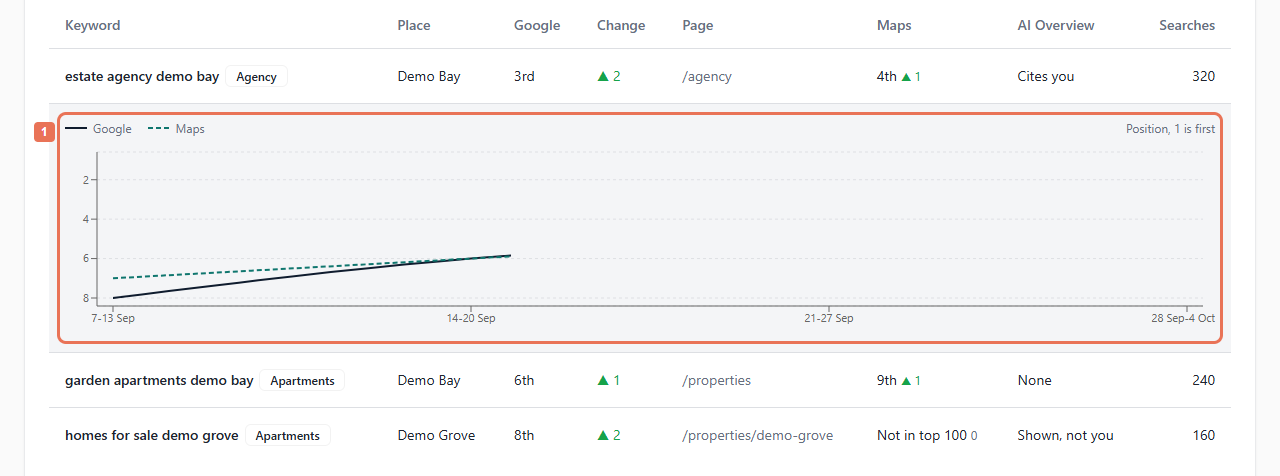
Read Rankings by position, then the Keywords table. Select a keyword row for its history; use Show all if additional rows are offered.
 Select the image to view it full size.
 Select the image to view it full size.
Not checked means no measurement. Not in top 100 is a measured result outside the checked Google range. Changes need comparable checks; missing history produces gaps.
4. Read the measurement rules
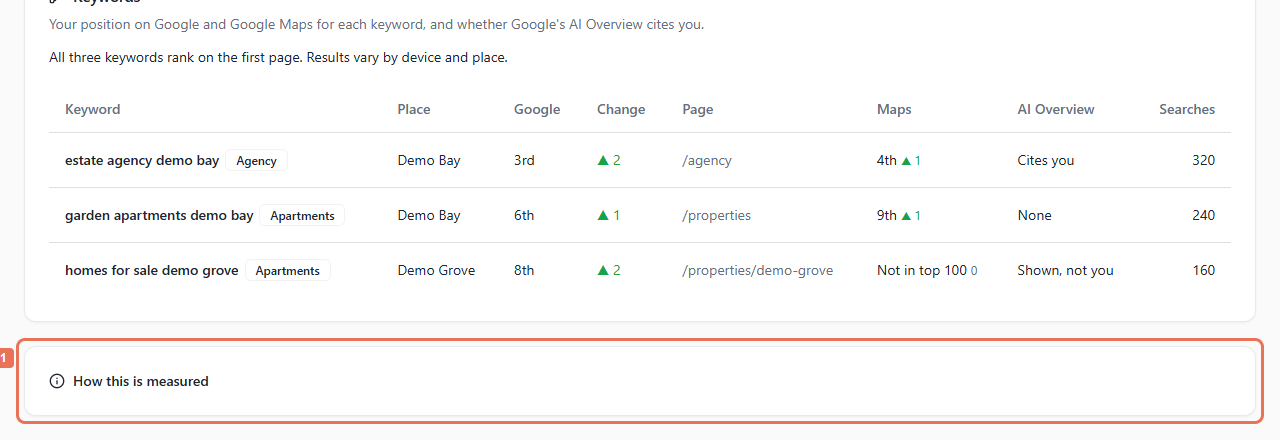
Open How this is measured. Checks run Sundays for the tracked location on mobile/desktop without a personalised session. Maps matches the website on the Business Profile; your own search may differ.
 Select the image to view it full size.
If a filter fails, use Retry before reading dimmed old figures as the new report. Ask Propelos to change tracked keywords or locations; this screen has no editor or rankings CSV export.